

rAlph – Chat history (save, revisit, share)
rAlph is only available when AI is enabled for the tenant. Administrators enable AI under Settings → System & Automation → AI Settings.
Earlier conversations with rAlph are kept – you don’t have to finish a train of thought within a single session. Every conversation is saved automatically once rAlph has replied and can be reopened later from the history.
How do I know rAlph is working?
Section titled “How do I know rAlph is working?”As soon as you send a question, rAlph shows that he’s working – even when the answer takes a moment: a small “rAlph is working …” hint appears right above the input box, its wording playfully cycling (he ponders, tinkers, noodles …), alongside a pulsing rAlph icon in the header or on the floating chat button. The hint stays visible the whole time – even while the answer is already appearing word by word or a tool is running – and only disappears once rAlph has finished writing (or you hit Stop). That way you can tell at a glance that he’s still working and hasn’t stalled. If you have reduced motion enabled, the hint stays calm and still.
Work steps: one line instead of a flood
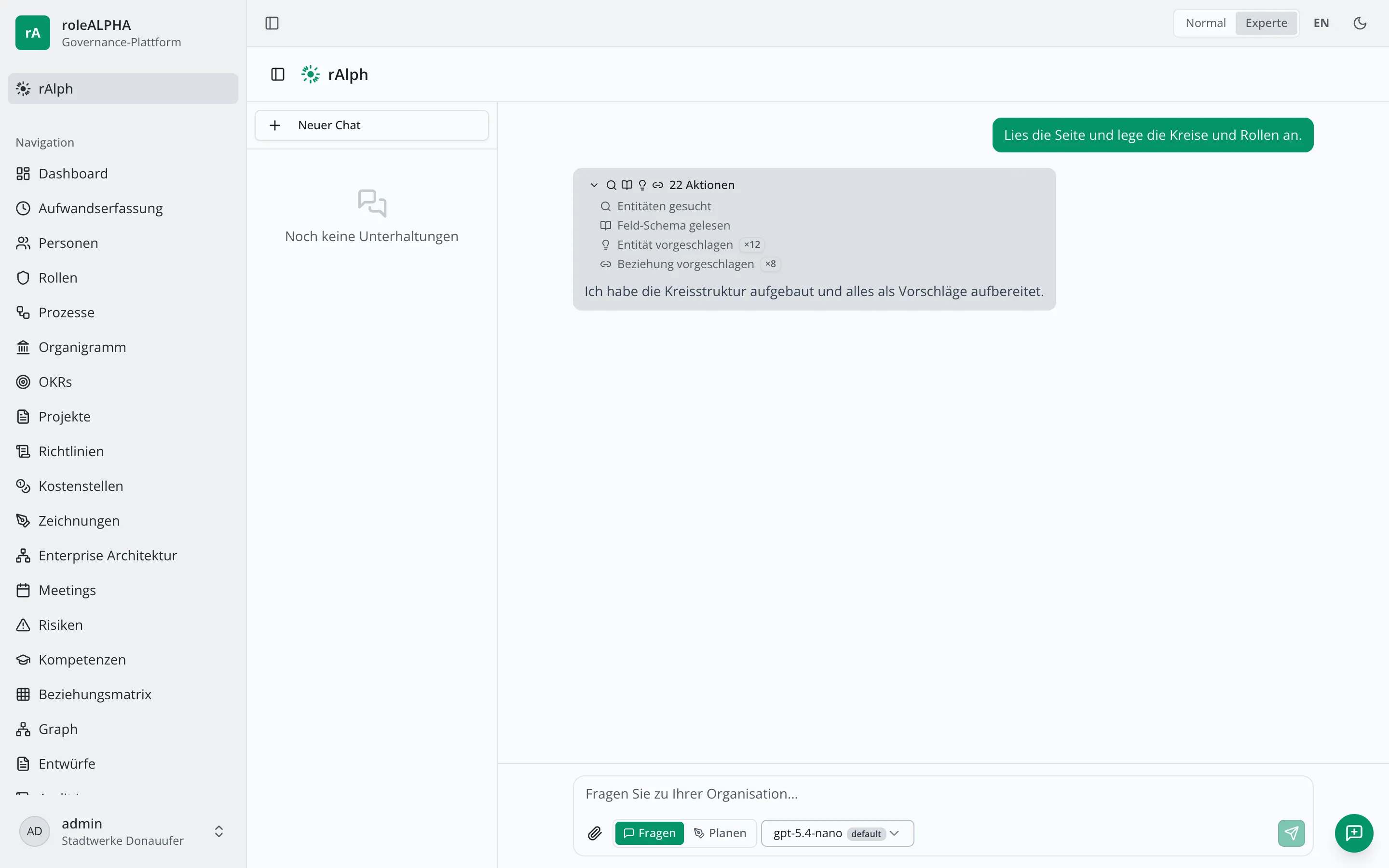
Section titled “Work steps: one line instead of a flood”To answer your question, rAlph often calls many tools — searching entities, reading schemas, proposing drafts. That does not appear as a long list, but as a single line above the answer: a few icons plus the total count, e.g. “63 actions”. While rAlph is still working, that line also carries the progress (e.g. “12/63”).
Clicking the line expands it. You then see one plain-language row per kind of work step — “Entities searched”, “Entity proposed ×34”, “Website read” — instead of dozens of identical entries. Clicking again collapses it. The line is preserved when you reopen the conversation from the history later.
Where do I find the history?
Section titled “Where do I find the history?”- Assistant page: A history panel on the left lists your conversations, grouped by Today / Yesterday / Older – much like familiar chat apps. Use the toggle at the top left to hide the panel when you don’t need it.
- Floating chat (bubble): The clock icon in the header opens the history as an overview right inside the window.
Clicking an entry loads the conversation into the chat window so you can continue it right away. Use New chat (plus icon) to start a fresh conversation at any time; the previous one stays in your history.
Rename, delete, share
Section titled “Rename, delete, share”For your own conversations, open the menu (⋯) next to an entry:
- Rename – give the conversation a meaningful title (the start of your first question is used by default).
- Delete – removes the conversation permanently.
- Share – grant people in your tenant read access. Shared conversations appear for the other person under “Shared with me” and can be read there but not changed.
Who can see my history?
Section titled “Who can see my history?”Your history is private – by default only you can see it. Others see a conversation only if you explicitly share it. You can revoke a share at any time.
Switching tenants
Section titled “Switching tenants”When you switch tenant at the top, the chat window starts a fresh session. Your saved conversations for each tenant are unaffected – history is kept strictly per tenant, so no context leaks between tenants.
A conversation is reachable, resumable, renamable, shareable and deletable only within its own tenant. This holds even if your account has access to multiple tenants (e.g. as an administrator): a chat started in tenant A does not appear in tenant B and cannot be opened there.
Retention (privacy)
Section titled “Retention (privacy)”How long conversations and uploaded file contents are kept is decided by your tenant. Administrators find the settings under Settings → System & Automation → Data retention:
- Chat history: whole conversations are deleted automatically after the configured period of inactivity (default: 365 days).
- Chat file contents: the content of uploaded files (e.g. PDF/image) is removed after a shorter period (default: 30 days) – the conversation stays readable afterwards (text and file chip), only re-analysis of the file by rAlph is no longer possible.
A value of 0 means unlimited (no automatic deletion). Retention applies per tenant; platform administrators can additionally set it per tenant.