

Persons
Dependencies · Data Nodes
- Links to: —
- Linked from: Competences (via
HAS_COMPETENCE), Demands (viaREQUESTS_MEMBER)
Persons are the central actors in roleALPHA: they execute roles, own accountabilities, and are referenced everywhere.
Purpose
Section titled “Purpose”Persons model the humans in your organization — whether permanent employees, externals or stakeholders. Through relationships you link persons to roles, value streams, OKRs and any other entity.
Default view
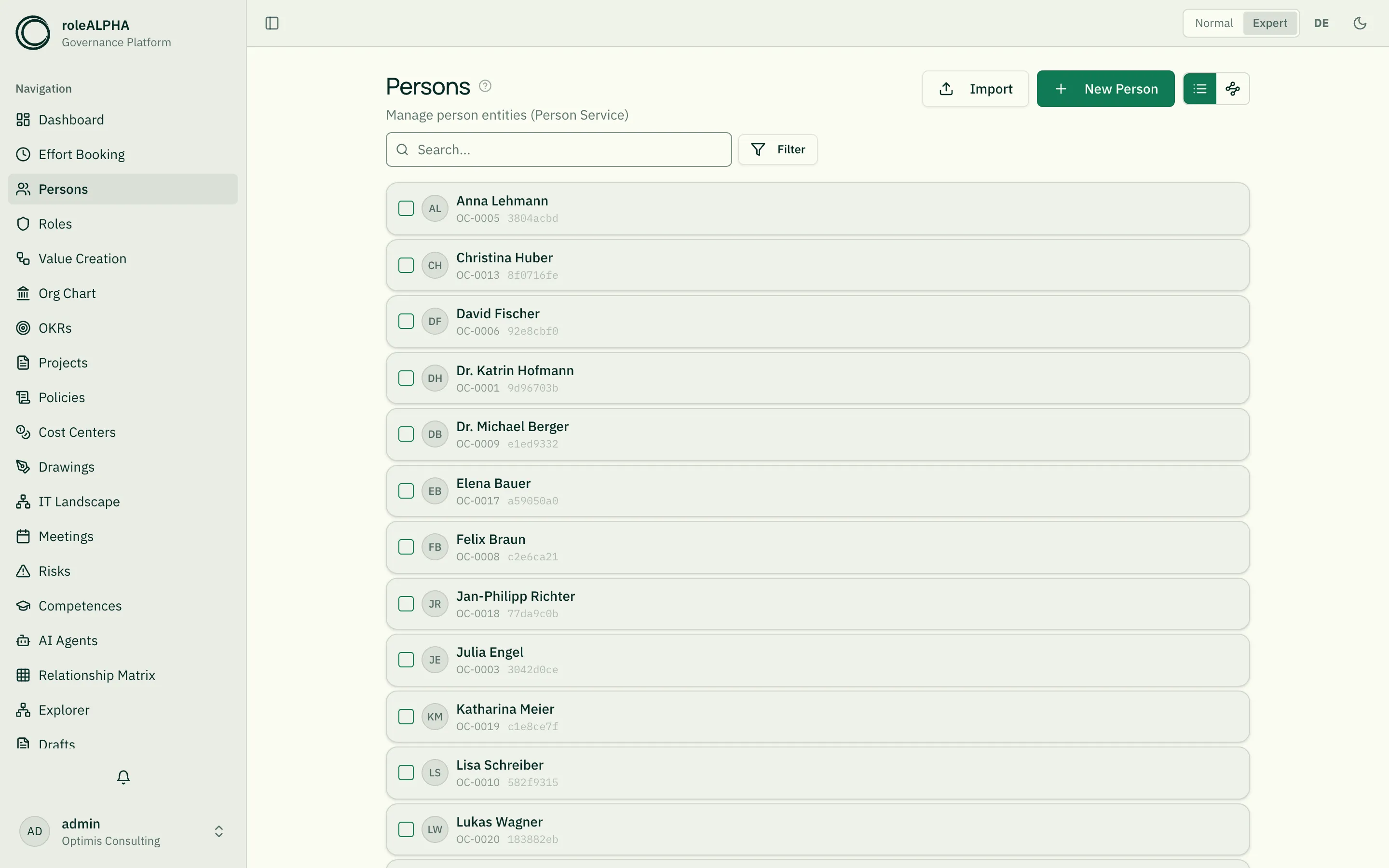
Section titled “Default view”Cards with name, position, email and profile photo. Filter by department, status, role and free-text search. Click a card to open the detail view. In normal mode the “Select” button is available for bulk operations.
Important relationships
Section titled “Important relationships”Persons are typically linked to the rest of the platform via these relationship types:
- EXECUTES (Person → Role) — the person performs a role
- MANAGES (Person → Person/Role) — management line
- REPORTS_TO (Person → Person) — reporting line
- OWNS (Person → anything) — ownership
- HAS_COMPETENCE (Person → Competence) — skill profile
Details and translations of all relationship types: Relationship Types.
A person is usually not linked directly to a project, but as a participant of the “role → project” assignment. The person detail page lists such assignments in the “Involved in” block, see Assigning the person behind a role.
Schema to copy
Section titled “Schema to copy”You can paste this schema into the entity type editor (Admin → Entity Types → Person → Schema). It matches the factory default for persons.
{ "type": "object", "properties": { "firstName": { "type": "string", "title": "First name" }, "lastName": { "type": "string", "title": "Last name" }, "email": { "type": "string", "title": "Email", "format": "email" }, "phone": { "type": "string", "title": "Phone number", "description": "E.164 phone number, e.g. +436601234567", "pattern": "^\\+?[1-9]\\d{1,14}$" }, "profileImage": { "type": "string", "title": "Profile picture", "format": "image", "x-presentation": "image" } }, "required": ["firstName", "lastName"]}Extend the schema with fields like position, department, birthday
or startDate as needed. Details on all schema options:
JSON Schema for Entity Types.
Detail view
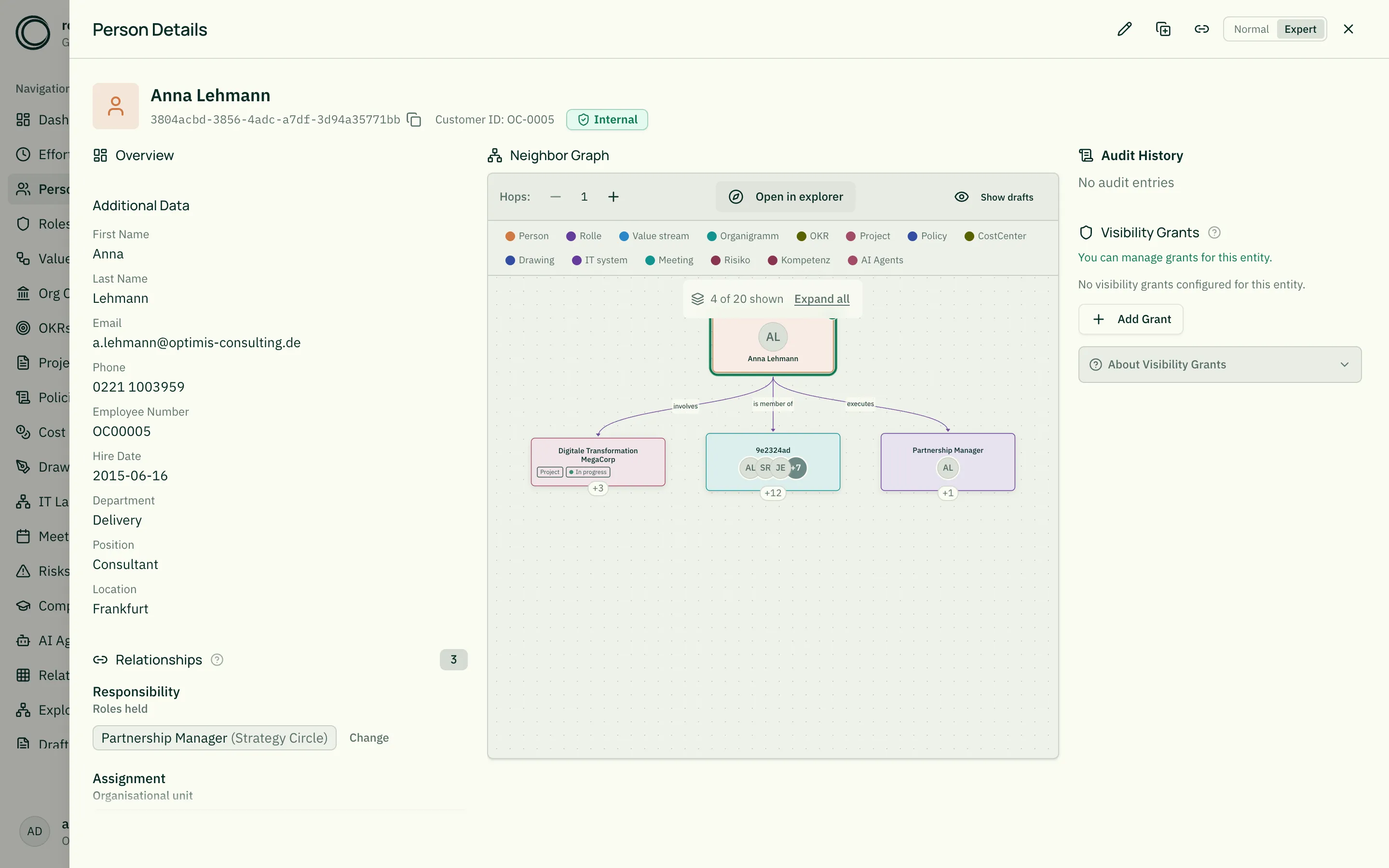
Section titled “Detail view”In the detail view you see:
- A lead sentence with the person’s most important roles (normal mode)
- KPI tiles (e.g. “3 roles, 5 OKRs, 12 mentions”)
- All relationships, filterable by relationship type
- @-mentions: where this person is referenced
- Drafts and audit log (expert mode)
Working time and employment rate
Section titled “Working time and employment rate”When demand planning is active for the tenant, the person type automatically carries three more fields: weekly hours, employment rate (FTE) and employment (full/part time). Nobody has to extend the schema by hand — the fields arrive with the module, in new and in existing tenants.
They are maintained here, in the person’s normal edit form. That means
person:write / person:draft, the approval mode of the person type, drafts,
history, audit and visibility all apply without any extra work. There is
deliberately no second capacity form alongside: a second write path to the
same statement would be the weaker one — it would bypass approval.
Three things worth knowing:
- Empty is allowed. Without a value, planning uses the tenant default and says so. It does not invent a number.
- An HR system can take ownership. The fields are then read-only here, and the interface shows which source system owns them — see Capacity from an HR system.
- This is the master value. A value that applies to certain months only (parental leave, a temporary increase) does not belong here; the HR system keeps that per period.
More on this: Capacity — baseline, deductions, available.
Profile picture
Section titled “Profile picture”Persons can carry a profile picture. As soon as the profileImage
field (with "format": "image") is part of the schema — it is included
in the factory default — the edit form shows an image upload with a
preview. On upload the picture is automatically downscaled to a small
thumbnail (~64 px) so lists and diagrams stay fast.
Two ways to set a picture:
- In the person’s edit form (choose file → save or submit as draft). For connector-managed persons the upload is disabled.
- In your own profile (top right → Profile): every user can set the picture of the person linked to them in the active tenant directly. After you pick a file a crop dialog opens: drag and zoom until the head sits inside the circle, then Apply. The result is stored as a square image, so avatars are never distorted — even if the original photo is rectangular. The profile-picture card only shows when a person is linked in the currently selected tenant. When you switch tenants it follows the new tenant’s link — if no person is linked there, the card is hidden.
Once a picture is set, the “Add profile picture” item in the Get-Started checklist on the dashboard ticks off automatically.
The picture then appears everywhere the person is shown:
- in the person list (avatar instead of icon),
- in the role detail view for the assigned persons,
- in the circle role view once zoomed in far enough,
- in the org chart on the nodes.
The avatars are shown as a compact cluster below the role name; when there are many, a “+n” badge collapses the remaining count. The role name always stays the primary element and is never overlapped.
In the circle role view the avatars are kept deliberately small and subtle: for single roles they only appear once you have zoomed in far enough (the overview shows role names only). For circles (roles with sub-roles) the avatars only appear when the circle is focused (clicked / zoomed into) — otherwise they would cover the contained sub-roles.
Related
Section titled “Related”- Entity Types — What entity types are
- JSON Schema for Entity Types — Schema options in detail
- Roles — Roles persons execute
- Customer ID — Readable employee IDs instead of UUIDs
- Visibility — Who is allowed to see which persons