

Settings at a glance
The settings area holds everything you configure about your tenant — from your own account details to connecting external data sources. It is split into five clusters so you can find an entry even when you do not know its exact name.
You get there via profile menu → Settings (bottom left of the sidebar). That takes you to the landing page, which shows every entry as a card with a sentence explaining it. At the same time the sidebar switches into settings mode and shows the same clusters as navigation. Back at the top left returns you to the normal view.
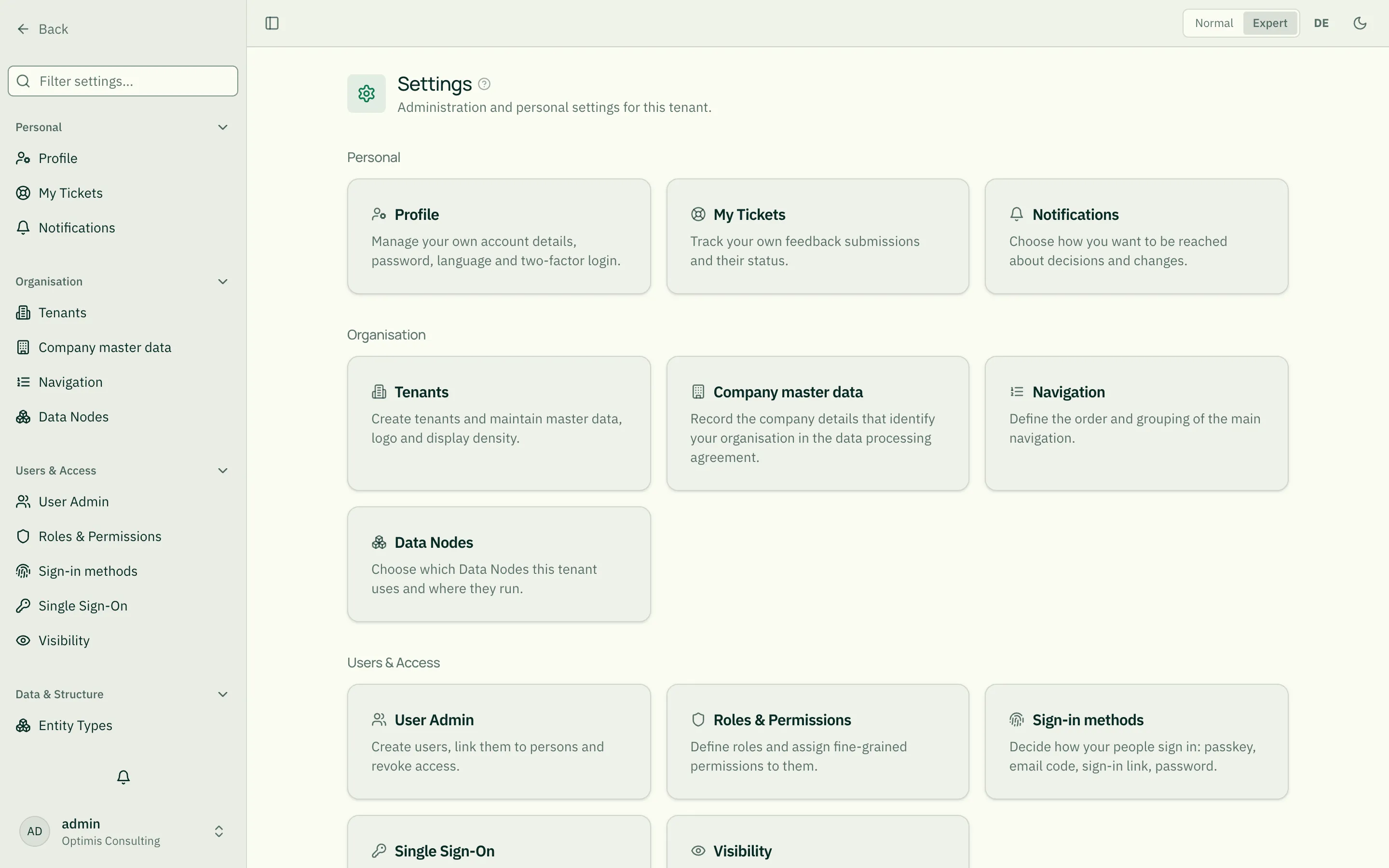
The five clusters
Section titled “The five clusters”Personal
Section titled “Personal”Applies to every signed-in person, regardless of role.
- Profile — your own account details, language, passkeys and two-factor login. Only platform administrators see “Change password” here — tenant accounts have no password.
- My Tickets — the status of your own submissions.
Organisation
Section titled “Organisation”- Tenants — master data, logo and display density of the tenant.
- Company master data — company, address and contract contacts, see Company master data.
- Navigation — order and grouping of the main navigation, see Customize navigation.
- Data Nodes — which Data Nodes the tenant uses and where they run, see Data Nodes.
- Quotas & unlocks — limits for operations with third-party costs (up to the ceiling set by roleALPHA) and unlocks, see Quotas & unlocks.
- Billing — what is billed, and the billing address, see Billing.
Users & Access
Section titled “Users & Access”Everything that decides who may do and see what.
- User Admin — create users, link them to persons, revoke access (User Management).
- Roles & Permissions — define roles and assign permissions to them (Roles & Permissions).
- Single Sign-On — sign-in through an external identity provider (Single Sign-On (SSO)).
- Visibility — trace why someone can or cannot see an entity (Visibility).
Visibility deliberately lives here rather than with the data model: it answers an access question, not a structural one.
Data & Structure
Section titled “Data & Structure”Where you define what data exists and where it comes from.
- Entity Types — entity types and their fields (Entity Types).
- Relationship Types — relationships and their labels in both directions (Relationship Types).
- Data Sources — connect external systems and schedule synchronisation (Data Sources & Connectors).
- CSV Import — read master data from CSV or Excel files.
- Org Intelligence — pseudonymised interaction signals, visible only when the data node is switched on (Org Intelligence).
System & Automation
Section titled “System & Automation”- AI Settings — AI usage with cost forecast (AI usage and cost forecast), enable AI, choose provider and models, store your own keys (Your own AI keys).
- Automator — recurring workflows as rules (Automator).
- Validator — data quality rules and their violations (Validator).
- Aggregator — metrics across domain services (Aggregator).
- Data retention — retention periods for audit data and drafts.
- Usage Analytics — usage, AI consumption and cost (Usage Analytics).
What you see — and what you do not
Section titled “What you see — and what you do not”Only the Personal cluster is visible to everyone. The other four require tenant administration rights; without them the landing page shows just Profile and My Tickets.
Three entries additionally depend on being switched on:
| Entry | Appears when … |
|---|---|
| Org Intelligence | the Org Intelligence data node (ra-signals) is switched on under Data Nodes |
| Automator, Validator, Aggregator | that Data Node is switched on under Data Nodes |
Clusters without visible entries are hidden entirely — you never face an empty heading.
Getting there faster
Section titled “Getting there faster”Filter instead of scrolling. A search box sits above the navigation. It filters across all clusters and searches the descriptions as well as the names, so “language” finds Profile even though the word is not in its title. While a filter is active, every cluster with a match expands automatically.
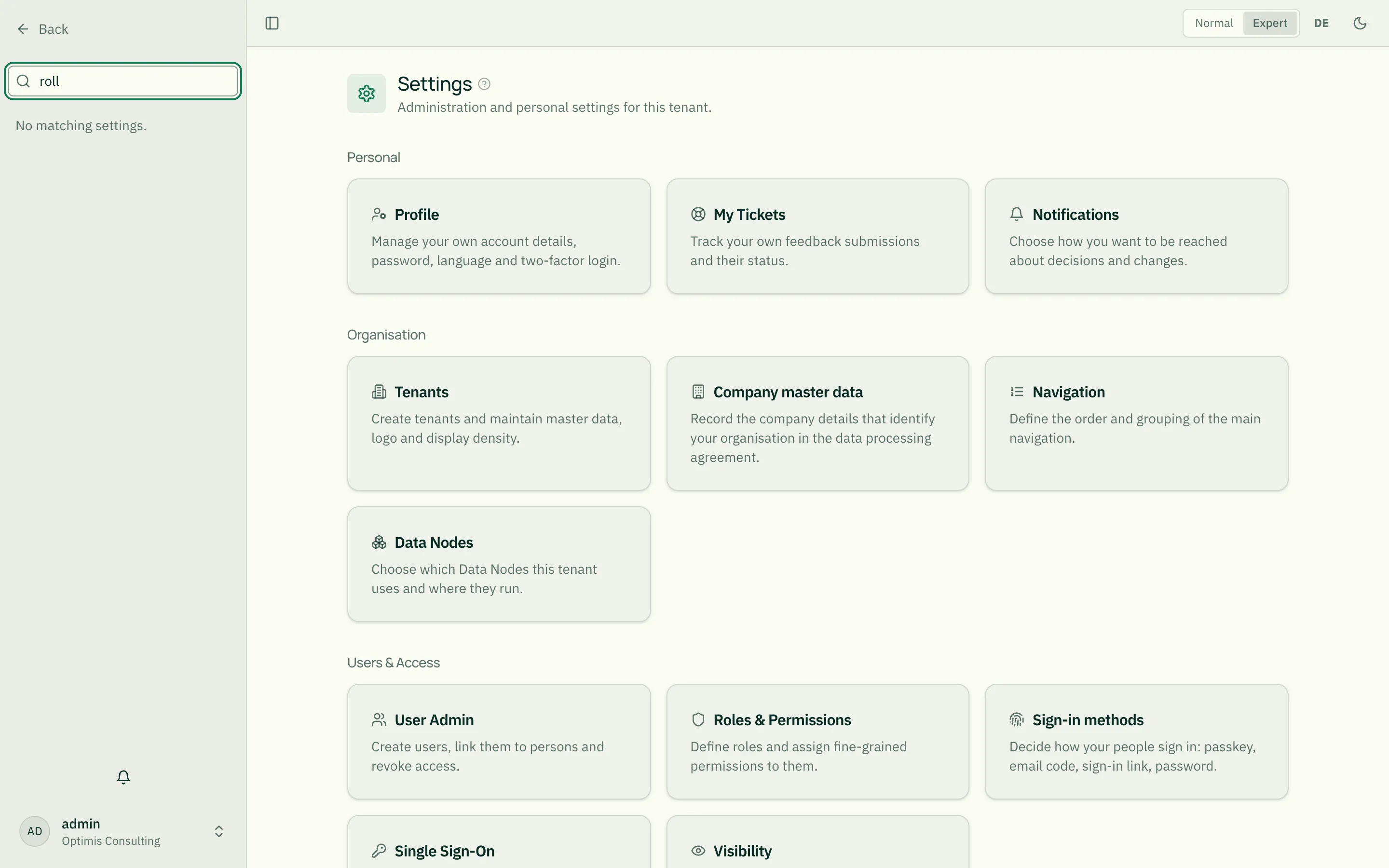
Collapse and expand clusters. Clicking a heading collapses or expands that cluster. The state survives page changes and reloads, so you can permanently reduce the area to what you actually work with.
Jump straight in. If you open a settings page directly — via a link or a bookmark — the sidebar switches into settings mode automatically and expands exactly the cluster that page belongs to. The others stay collapsed.
Related
Section titled “Related”- User Management · Roles & Permissions · Single Sign-On (SSO) · Visibility
- Entity Types · Relationship Types · Data Sources & Connectors · Org Intelligence
- Customize navigation · Usage Analytics
- Automator · Validator · Aggregator
Notifications
Section titled “Notifications”How you are reached about pending decisions and changes is configured under Notifications — per kind, separately for inbox and email. Details: Notifications and Watching objects.