

Organigramm
Organigramm units map the formal organisational structure — from company-wide units down to individual positions.
Purpose
Section titled “Purpose”An organigramm unit can be a company, a company unit, a
division, a department, a team, or a position. Via
PARENT_OF you build a hierarchy from them. Persons and roles are
assigned to a unit via BELONGS_TO. The organisation type
Company is a special case — see
Corporate group structure
below.
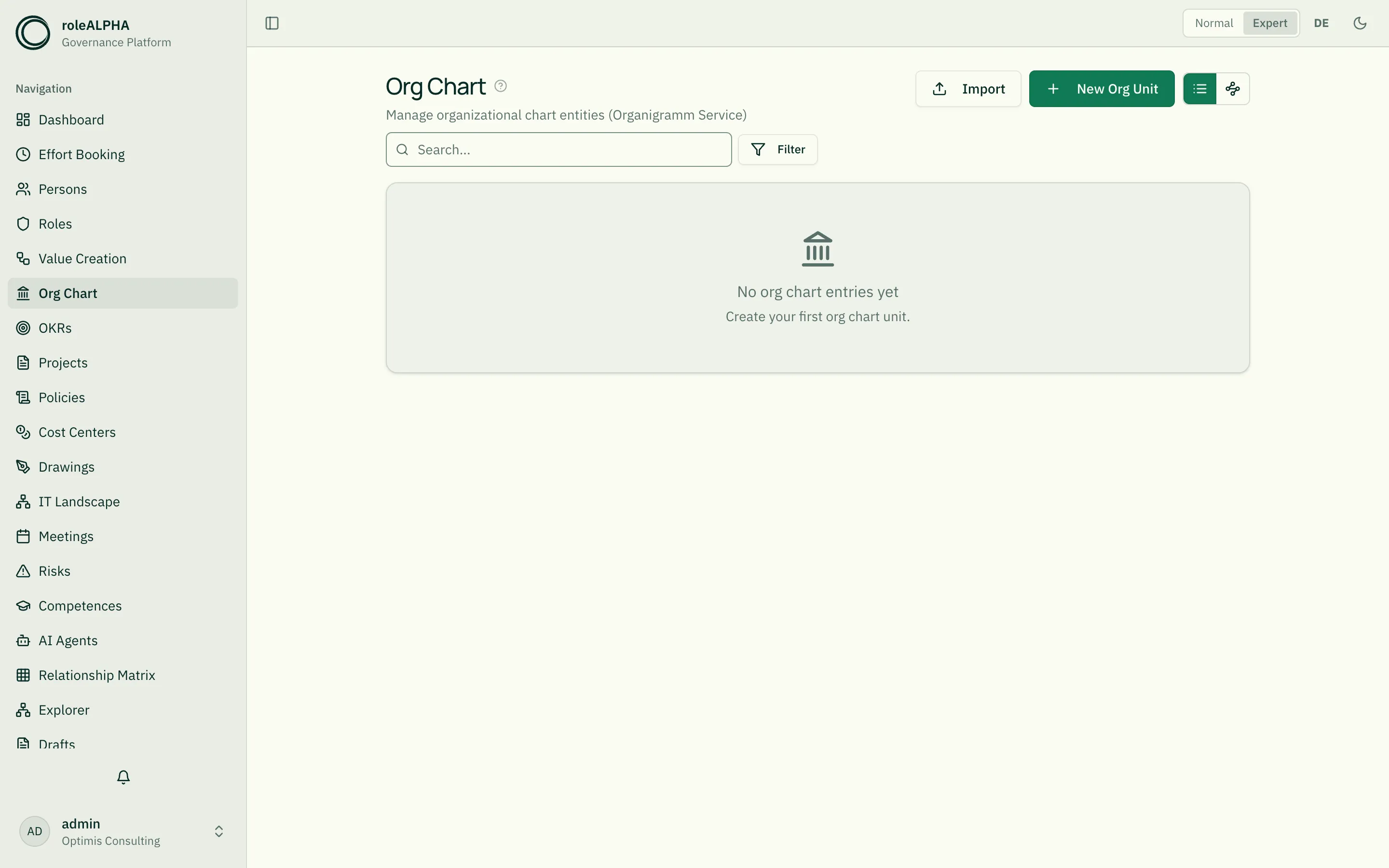
Default view
Section titled “Default view”Opening the page shows the picture — the explorer, see below. Via the view toggle you can switch to list view at any time.
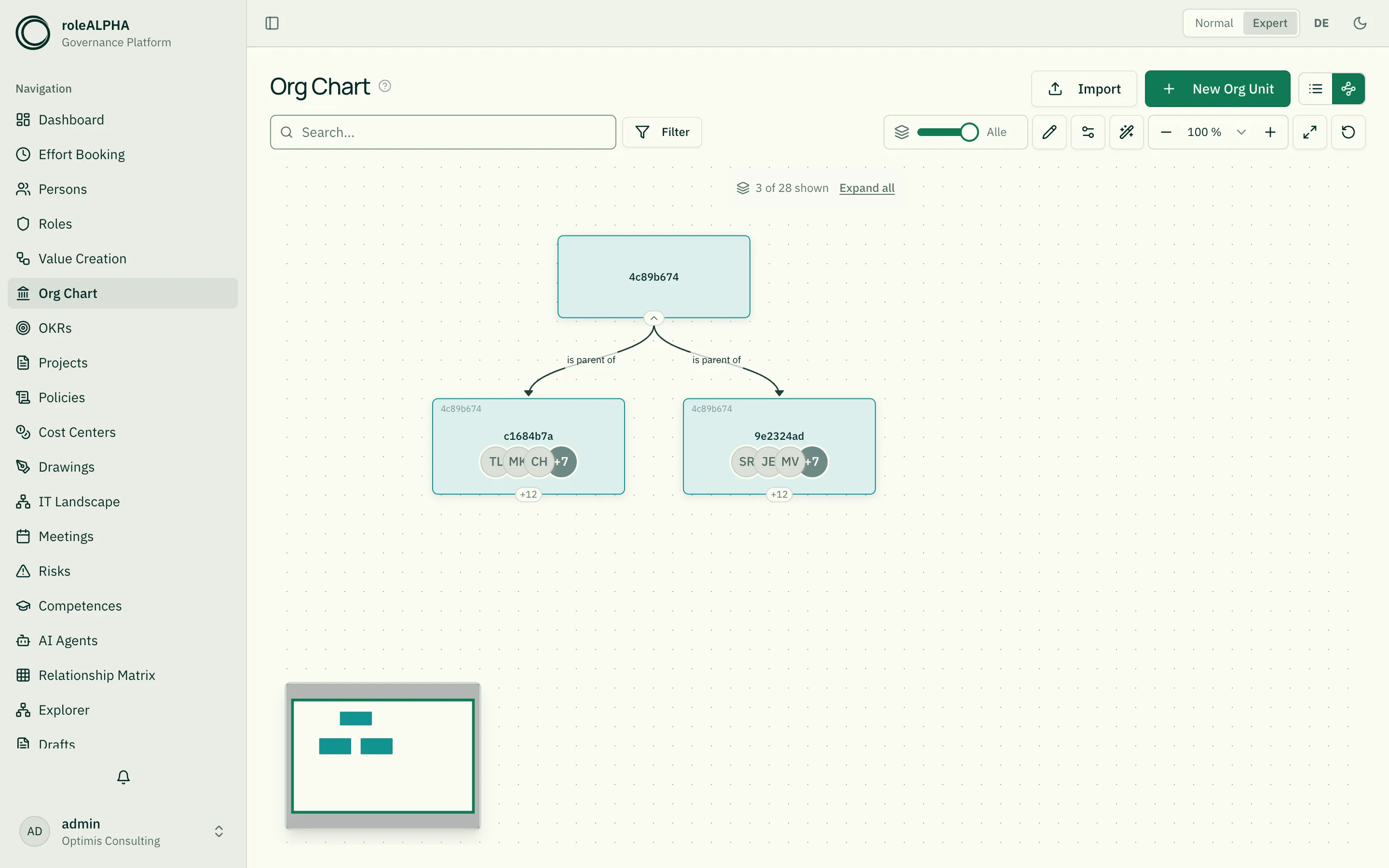
The diagram view: the explorer
Section titled “The diagram view: the explorer”Since 09/2026 the explorer draws the org chart — the same canvas as in every other area. The former dedicated org chart is gone; it showed the same thing (measured on two tenants, three runs each: same nodes, same connections, same boxes) but could only ever look one way. What a card shows is now stated by the entity type through its declaration — a tenant can configure that, and can run several org-unit entity types with different appearances.
The hierarchy still comes from PARENT_OF (Unit → Unit, “is parent of” / “is child of”). Without that relationship type the units sit side by side instead of underneath one another.
What you gain on top: search and filters act on the picture, a unit’s people and roles appear in the same picture instead of in a different view, cards can be selected and worked on together, the right-click menu is considerably richer, and connections carry their names and values.
Separate parts stand side by side
Section titled “Separate parts stand side by side”Units that are not (yet) connected via PARENT_OF form their own subtrees. Each one is drawn as its own block, clearly separated from the others — and if they do not all fit into one row, they are stacked across several rows. This matters most right after an import: the CSV entity import and the connectors do not create the parent-child relationships automatically, so immediately after an import the org chart consists of many individual roots. You add the relationships afterwards — via the CSV import in relationship mode, or by hand in edit mode.
Dragging takes the subtree along
Section titled “Dragging takes the subtree along”A dragged unit takes everything below it along — a department takes its teams and positions, a company box takes its entire content. To detach a single card from its subtree, hold Alt while dragging. You do not need edit mode for this: tidying the picture changes nothing in the data.
A unit cannot end up outside its company box: drag it past the edge and the box grows with it, still enclosing it. Drag the unit back and the box shrinks again.
Auto-arrange
Section titled “Auto-arrange”Positions you moved yourself are remembered for this visit and applied on top of the computed layout: you can jump to a detail page and come back without setting up your picture again. While they are in effect, the Auto-arrange button (wand) in the control bar is highlighted; clicking it discards them and restores the computed layout — folding and starting points stay as they are. If the structure has changed since you moved things, for example because of an import, the same button gets a warning ring: the arrangement was meant for a different picture. Nothing is ever discarded automatically.
Corporate group structure (companies as containers)
Section titled “Corporate group structure (companies as containers)”Set a unit’s organisation type to Company and the explorer draws it as its own box that
encloses its entire internal org chart — each company has its own, independent internal structure
(divisions, departments, teams …). The box has a solid border in the company’s colour, a
translucent surface and a header carrying the name. Translucent on purpose: the connecting lines of
the enclosed units run underneath it, and an opaque tone would erase them from the picture. The box
used to look dashed; in this application that means “not definitively there”, which was not true of
a container (see Connections and outlines). That a company is a box is stated by the
entity type’s declaration (x-nesting) since 09/2026 — no longer by a view of its own. Multiple companies can be connected via HOLDS_SHARES_IN
(“holds shares in” / “is held by”), carrying an ownership percentage on the edge — nestable to any
depth, for multi-level holding structures. An org unit may only be directly subordinate to one
company (enforced by a validator rule, see Validator); multiple managers within a single
company (matrix reporting) are unaffected and keep working as before.
Organigramms with no company units at all still render exactly like the classic flat tree. The depth slider applies to each company independently in a corporate group structure — see Level Slider – Collapse Large Hierarchies.
Large org charts open collapsed
Section titled “Large org charts open collapsed”From roughly 40 boxes on, the view starts folded and states how many of how many units are currently shown — with an Expand all button next to it. How search deals with collapsed branches (it reveals matches and restores the folding afterwards) is described in Searching in graphical views.
Important relationships
Section titled “Important relationships”- PARENT_OF (Unit → Unit) — hierarchy (also: org unit → its company)
- HOLDS_SHARES_IN (Company → Company) — corporate group structure / ownership, with a percentage
- BELONGS_TO (Person/Role/Value stream → Unit) — anchoring
- OWNS (Person → Unit) — unit ownership
Details: Relationship Types.
Schema to copy
Section titled “Schema to copy”{ "type": "object", "properties": { "orgType": { "type": "string", "title": "Organisation type", "enum": ["Company", "Company unit", "Division", "Department", "Group", "Team", "Function", "Position"] }, "description": { "type": "string", "title": "Description" } }, "required": ["orgType"]}Extension ideas: headcount, location, costCenterRef. Details:
JSON Schema for Entity Types.
Detail view
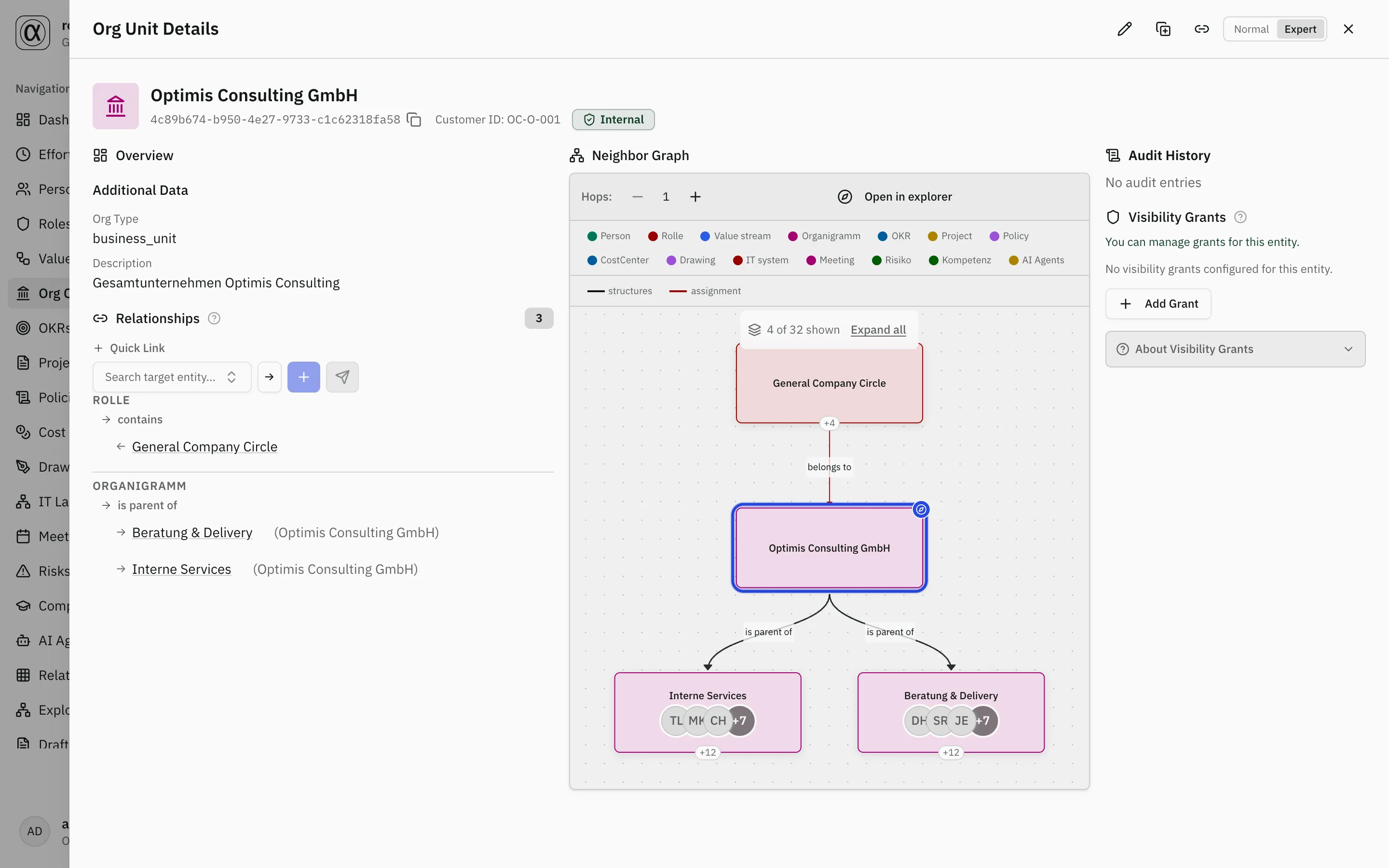
Section titled “Detail view”- Type badge (Division/Department/Team …)
- Description
- Parent unit (PARENT_OF reverse)
- Child units (PARENT_OF forward)
- Assigned persons, roles and value streams (BELONGS_TO)
Related
Section titled “Related”- Entity Types — General info on entity types
- JSON Schema for Entity Types — JSON schema options
- Persons — Members of the unit
- Roles — Roles per unit
- Relationship Types — PARENT_OF, BELONGS_TO in detail
- Level Slider – Collapse Large Hierarchies — Collapse levels in the chart
- Validator — the “at most one company as parent” rule in detail