

Entity Types
Every tenant has a set of entity types — e.g. “Person”, “Role”, “Value stream”. They are derived from your subscription on first start and can be adjusted by admins.
Creating: name required for some types
Section titled “Creating: name required for some types”For some entity types (e.g. Value stream, Role, Org chart, IT Landscape) a name is required. In the create dialog the name field is then marked with an *, and the Save as Draft and Save & Publish buttons stay disabled (greyed out) until you enter a name. A short hint below the buttons reminds you. As soon as a name is in the field, the buttons become active.
What belongs to an entity type
Section titled “What belongs to an entity type”- Schema (JSON Schema): which fields entities have
- Module: which fachservice the type belongs to
- Visibility: default visibility rules
Set or changed the module? The platform then provisions the matching relationship types automatically — both when creating the entity type and when switching its module later, each time with the proper constraints. Conversely, a relationship type is only created once both sides it requires have an entity type.
Several types in one module
Section titled “Several types in one module”A module may hold several entity types — for example “Process” and “Gate” in the value stream. Each type has its own schema, its own required fields and its own presentation.
- Creating: If a module has more than one type, the button on the module page becomes New ▾ and asks which type to create. The form and its required fields then come from the chosen type, and the record is created as exactly that type. With a single type nothing changes.
- Labels: Titles and the detail header name the type (“Create Gate”, “Edit Gate”), as do the drafts list, the approval view and the AI assistant’s suggestions.
- Editing: A record is always checked against the schema of its own type.
- Relationships: An additional type automatically gets the same relationship options as
the module’s main type. A gate can therefore carry
DEPENDS_ONjust like a process. - Connector lock: If a connector manages a type, the lock applies to exactly that type. When no type is known on save, the module counts as locked as soon as one of its types is.
- Fields and card of the main type are not copied into an additional type on startup.
- The other paths keep the type too: creating in the explorer, the CSV import, a type’s templates, the AI assistant and connected AI applications. Anything that names no type (e.g. a connector) gets the module’s first type.
- Existing records keep their type; converting a record into another type afterwards is not supported.
Filtering and sorting long lists
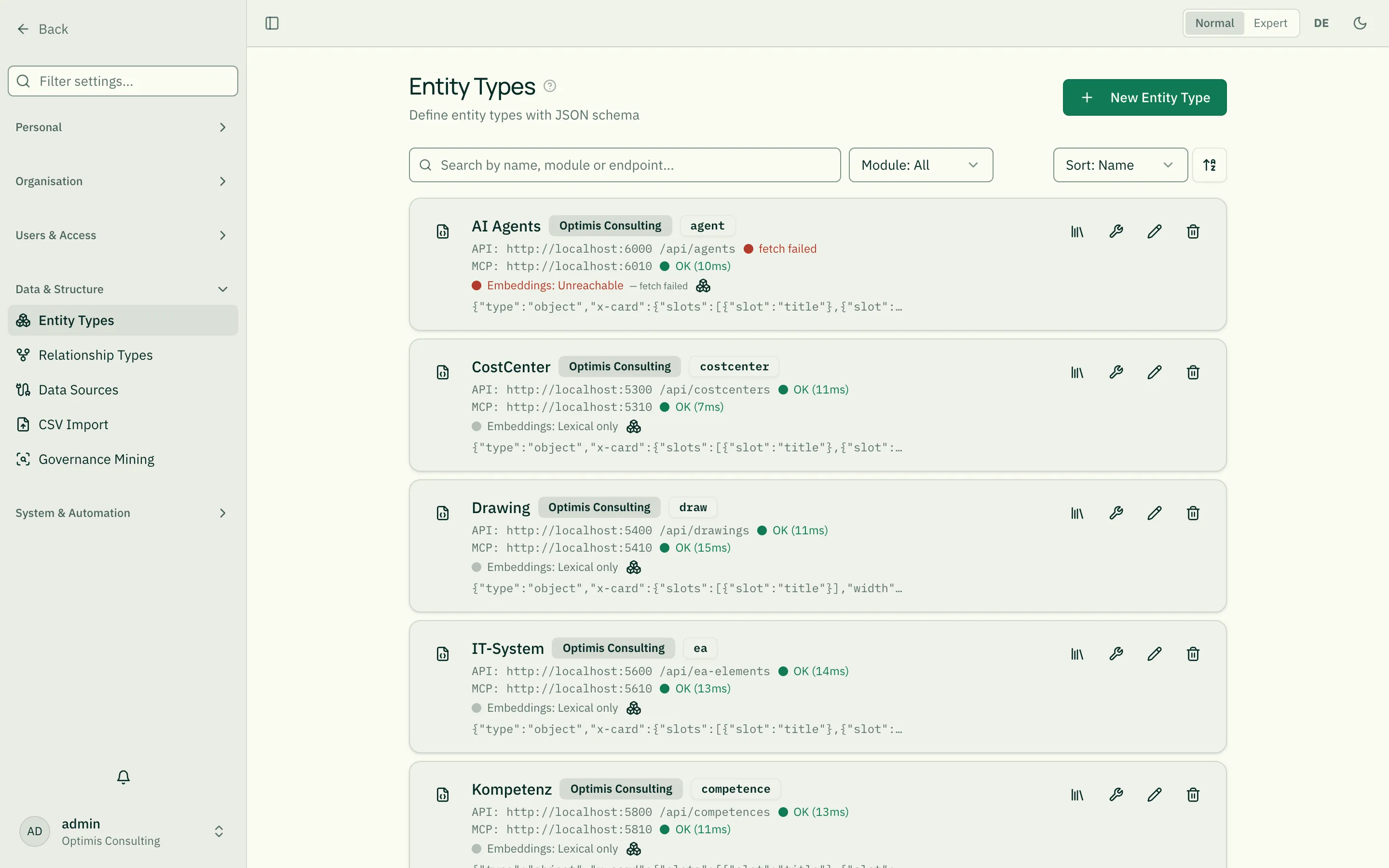
Section titled “Filtering and sorting long lists”The list carries the same bar as relationship types: search covers name, module and API endpoint, the module facet narrows the list to one fachservice (including “without module”), and sort orders by name or module — the arrow reverses the order. Active filters show up as chips and can be removed one by one or all at once; the selection is kept for the session.
Adding custom fields
Section titled “Adding custom fields”In the entity type editor you can extend the schema. Which options the schema understands — required fields, dropdowns, textareas, conditional fields — is covered in [[entity-type-schema|JSON Schema for Entity Types]]. Fields marked as relevant for normal mode show up prominently in the detail view.
Per-field display & visibility
Section titled “Per-field display & visibility”The dialog is laid out in three columns: master data on the left, the JSON schema editor in the middle, and on the right a field table with one row per schema field. Two things are configured in that table together:
-
Presentation — how a value is rendered in normal mode (text, badge, currency, date, progress bar, …). Picked from a dropdown per field.
-
Visibility — whether a field is shown in normal mode. A three-way toggle per field:
State Meaning Default Heuristic decides (technical fields like _-prefixed or UUID fields are auto-hidden)Show Field is always visible in normal mode Hide Field is always hidden in normal mode
Both settings are stored on the entity type’s schema (x-presentation and
x-visibility) and saved together with the entity type — there is no
separate page anymore. Platform admins configure the same table per tenant
under Platform Admin → Services.
Tip: setting at least one field to Show switches normal mode into a “show only these” mode for that entity type — every other field is then hidden unless also set to Show.
Some presentations also shape the input form: a string field with the
Image presentation gets an upload, one with Icon gets a searchable
icon picker instead of a text field, and the date presentations enable a
date picker. Details in JSON Schema for Entity Types.
Embedding / semantic index status
Section titled “Embedding / semantic index status”Next to the API and MCP status, each service row shows the embedding status of the semantic search. Its main purpose is fault detection, and it is only visible to admins. A traffic light summarises the state:
| Light | Meaning |
|---|---|
| OK | Semantic index up to date and complete |
| Warning | Index incomplete, stale, or capped (limit reached) |
| Error | Embedding provider configured but the last run failed |
| Lexical only | No embedding provider configured → word search fallback |
| Unreachable | The service does not respond (possible outage) |
The button next to the light opens a popup with details (provider, model, coverage, indexed items, last update, last verification). Platform admins see the same status across all tenants under Platform Admin → Services.
Vectors are persisted per service in its own database — so a restart does not trigger expensive re-embedding.
When the index is built
Section titled “When the index is built”The index does not build itself in the background, and it is not updated when you create or change an entity. There are exactly two triggers:
- The first semantic search. When someone searches semantically — including through the assistant rAlph — the service builds the missing index within that same request and then searches it. So no hits are lost, but that first search takes noticeably longer and incurs a one-off cost at the AI provider, because every item of that type is embedded at once.
- The reindex button next to the light. Use it to build the index deliberately — after an import or a restore, say — instead of making the first search pay for it.
This explains what Warning usually means in practice: the index simply has never been built for that type (the detail popup then shows 0 of N indexed). That is neither an error nor a misconfiguration — it clears as soon as someone searches semantically or the reindex runs.
Once the data settles, an index run has nothing new to write. That is why the detail popup distinguishes two timestamps: Last updated is the most recently computed vector, Last verified the most recent run that confirmed the index is complete. Staleness is measured against the verification — so a well-kept index that simply does not change stays green.
A reindex with the full rebuild option discards all existing vectors and computes them again. That costs the full amount at the AI provider and is only needed when the index is demonstrably wrong — a plain reindex is enough to fill gaps.
Without an enabled AI provider the type shows Lexical only. The most common cause is not a missing key but that the module has not been enabled for AI in the AI settings (see rAlph – Slash commands (/help, /report, /drafts)). Search then continues to work on keywords.
Who may change entity types?
Section titled “Who may change entity types?”An entity type is the blueprint of a kind of data — creating, editing,
migrating its schema or deleting it requires admin:tenant (the Tenant Admin
role or a custom role carrying that permission, see Roles & Permissions). The same
applies to the schema preview, because it reveals the full field structure.
Migration writes into the service’s data; deletion cascades.
Reading is open to every signed-in person — every list and detail view needs the type just to label its fields.
Templates of the type
Section titled “Templates of the type”Besides the schema you can keep a small library of templates per entity type: model entities that exist in substance but deliberately sit outside the organisation structure. The library icon in the type card’s action bar opens it. See Templates (unassociated entities).
Related
Section titled “Related”- JSON Schema for Entity Types — All schema options in detail
- Customer ID — Readable identifier per entity
- Understanding Relationships — How entities are linked