

Relationship Types
Every relationship has a type — e.g. EXECUTES, OWNS, or PARENT_OF
(hierarchy). The type defines:
- Which entity types may sit on source and target (constraints)
- What it’s called in forward and backward direction (translations)
Filtering and sorting long lists
Section titled “Filtering and sorting long lists”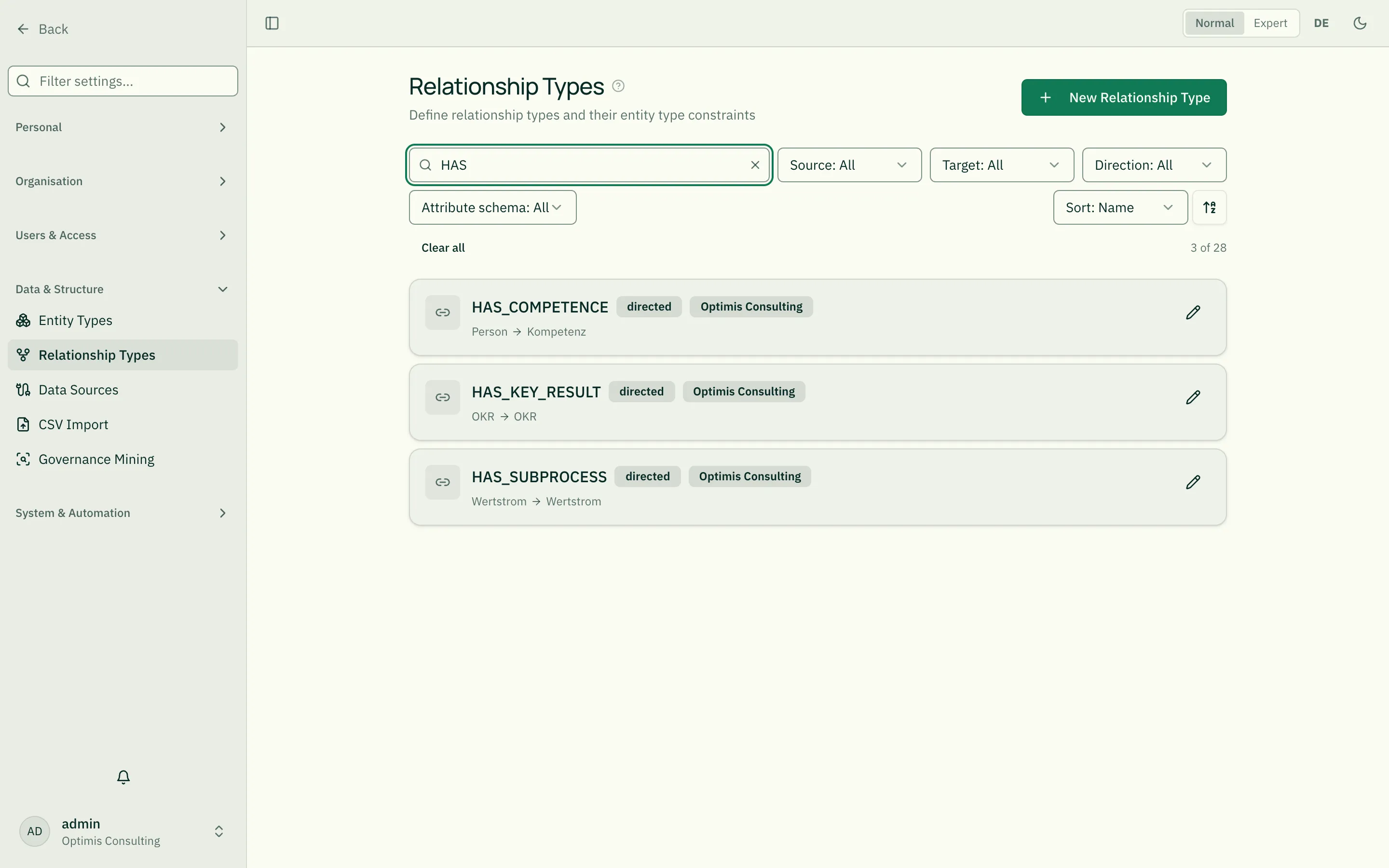
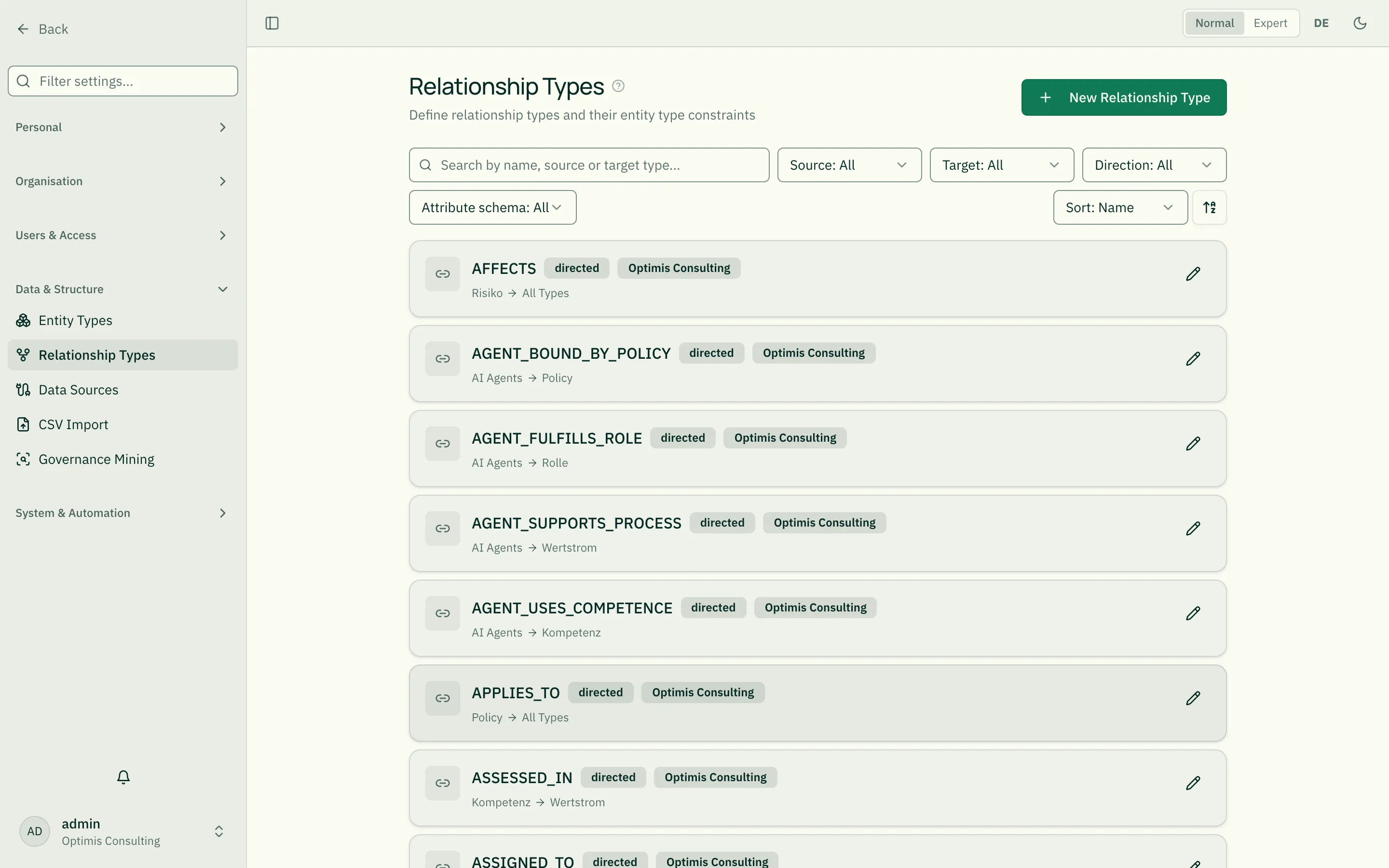
As the list grows, use the bar above the cards instead of scrolling:
- Search — searches name, source type and target type at once. Typing “roles” therefore also finds types pointing at roles even when “role” is not part of the name.
- Source type / target type — narrows the list to types allowed from or to a given entity type. Types without a constraint (“All Types”) are included on purpose, because they are usable from every type.
- Direction — directed or undirected.
- Attribute schema — only types with or without their own attributes (see below).
- Tenant — only shown when the list mixes several tenants.
- Sort — by name, source type or target type; the arrow next to it reverses the order.
Active filters appear as chips below the bar and can be removed individually via × or all at once via Clear all. The right-hand side shows how many of the existing types are currently displayed. Your selection is kept for the session, even after navigating away.
Forward / Backward Labels
Section titled “Forward / Backward Labels”Instead of cryptic codes like EXECUTES, the UI displays readable
labels:
- Forward: “executes” (Person → Role)
- Backward: “is executed by” (Role → Person)
Both labels are maintained per language and can be AI-translated.
One view instead of four dialogs
Section titled “One view instead of four dialogs”Maintaining a relationship type was spread across four dialogs: create, edit, “entity type restrictions” — and in the platform admin a fourth one that made only the verb labels editable. Anyone wanting to set the scope had to close one dialog, open another and keep the connection in their head.
Today everything sits in one three-column view — the same one in the tenant admin and the platform admin, because it is the same component:
| Column | Content |
|---|---|
| Basics | Technical name, direction, who may write, notification |
| What it is called | Verbs per language and direction, the shipped field labels for reference, the attribute schema, the meaning in the graph |
| Where it is allowed | All entity types with checkboxes for “from” and “to”, a counter (“2 of 14 allowed”), search |
The complete type list is deliberate: a selection behind a ”+” button would be the second dialog through the back door.
No checkbox set means generic — the type then fits every pair and is offered everywhere. That is a way out, not a choice, which is why it is shown as a marker next to the name.
Who may write a relationship type
Section titled “Who may write a relationship type”The left column carries “Who may write”. The setting decides who may create and change relationships of this type — it has always applied, but until 09/2026 no surface could change it: it sat on whatever the initial provisioning had set.
| Value | Meaning |
|---|---|
| Owner or admin | Administrators, and whoever owns one of the two ends. The default. |
| Admins only | Only administrators. The form field stays visible but is locked for everyone else — with a reason. |
| Participants | Anyone with write permission on both modules — without an ownership check. |
| System accounts only | No human may write. |
Two of the values do more than their name says — which is why it is stated at the picker:
- System accounts only takes the type’s form field away. It disappears from every mask without notice; whoever looks for it will not find it again.
- Participants is the most permissive value, not a small addition to “owner or admin”: the ownership check is skipped entirely and the self-assignment block does not apply. All that remains is write permission on the two modules — whoever has that can create this relationship on any objects, including on themselves.
Both take effect silently. That is why the consequence sits in amber below the picker, before saving — and not as a confirmation afterwards.
The clearance level — it opens an access path
Section titled “The clearance level — it opens an access path”Right below the write policy sits “Clearance level”. The name sounds like labelling; in fact it is the most consequential setting on a relationship type.
It decides who may see through this type. roleALPHA walks from the signed-in person across every edge whose type carries a level — up to three hops, not just to the direct neighbour. Whoever is connected that way sees confidential objects at the other end.
| Level | Effect |
|---|---|
| None | The type grants nobody any access. The default. |
| Confidential | Connected people see objects classified VERTRAULICH at the other end. |
| Strictly confidential | Additionally STRENG_VERTRAULICH — the widest level. |
Objects classified INTERN are visible to everyone in the tenant anyway; no level is needed for those.
Along a path of several edges the lowest level applies, across several paths the highest. A single generously configured type can therefore open up more than anyone can survey.
The combination that matters
Section titled “The combination that matters”A level also brings a safeguard: whoever stands at one end themselves may not create the edge — otherwise they would grant themselves the access.
That safeguard is gone when the write policy is “participants”. A level plus “participants” therefore means: anyone with write permission on both modules can give themselves an edge that grants them access to confidential data. Either setting is defensible on its own — the warning is about their combination, and the form shows it exactly then.
Deleting: the friction follows the damage
Section titled “Deleting: the friction follows the damage”Deleting a relationship type is the only write in the object area that takes effect immediately: no draft, no approval. It removes in one go the scope rules, all relationships of that type, their participants and the type itself.
Hence two levels:
- If no relationship uses the type, a simple confirmation is enough. Friction that protects nothing trains people to click it away.
- Otherwise the question names the numbers (relationships, affected objects, participants, scope rules), three warnings — and the technical name must be typed.
The most important of the three: a standard type comes back, the relationships do
not. roleALPHA re-creates missing standard types automatically at the next service
reconciliation — empty. Delete ASSIGNED_TO and you will see it again soon and might
believe the deletion failed; the relationships are gone all the same.
The third warning counts the views pointing at the type: every card row, every kanban lane and every container naming it stays empty afterwards — without an error message.
Meaning of the standard relationship types
Section titled “Meaning of the standard relationship types”Every type has a fixed business meaning — including its direction (which side is the source and which is the target). The direction determines how hierarchies and orderings are drawn in the explorer.
- PARENT_OF — reporting hierarchy between org units. Source = parent unit, target = child unit. In the explorer it opens the company box and carries the path.
- CASCADING — cascading objectives. Source = parent objective, target = child objective.
- HAS_KEY_RESULT — source = objective, target = key result.
- IS_SUBPROJECT — parent/subproject. Source = parent project, target = subproject (despite the name).
- DEPENDS_ON — ordering/dependency. The source depends on the target, so
the target is the predecessor and the source is the successor. For “B follows
A”, B is the source and A is the target.
One type, two modules: the same
DEPENDS_ONis used by value streams and IT landscape. Source and target therefore each have to be a value stream or an IT system — despite its general-sounding name it is not a free-for-all dependency type. For dependencies between other types, create your own relationship type (see below). If your tenant uses neither value streams nor EA, the type stays unrestricted. - HAS_SUBPROCESS — source = parent value stream, target = sub-stream.
- EXECUTES (person → role), OWNS (person → value stream), RESPONSIBLE_FOR (person/role → the entity they are responsible for), MEMBER_OF (person → org unit) and other cross-module types, each with a fixed source→target meaning.
Where the standard relationship types come from
Section titled “Where the standard relationship types come from”You do not create the standard types yourself — the platform reconciles them against your tenant on a regular basis. The rules are:
- A standard type only appears once every side it requires is populated in
your tenant.
AGENT_FULFILLS_ROLE(AI agent → role) therefore shows up only if you use both modules — without an active agent module the type simply does not exist. - If a side lists several alternatives, one of them is enough.
CONTRIBUTES_TOtargets OKRs or projects; if you only have OKRs, the type is created with OKR as its only allowed target. - Activate a module later and its types are added at the next reconciliation — including their constraints. Nothing to catch up on manually.
- If two modules share a name, there is still only one relationship type,
and its constraints add up.
DEPENDS_ONbelongs to value streams and to IT landscape: use both modules and value streams as well as IT systems are allowed on either side; use only one and only its type is.
So if a standard type shows “All types → All types” in the list, that is as a rule not a normal state but a leftover from older tenants (until August 2026 types could be created without their constraints). You can safely delete such a type as long as no relationship uses it — the platform will not recreate it while the corresponding module is missing.
Two exceptions are genuine and stay that way: BELONGS_TO is unrestricted on
purpose (the fallback, see below), and so is DEPENDS_ON in a tenant that uses
neither value streams nor IT landscape.
Generic types are the fallback, not the choice
Section titled “Generic types are the fallback, not the choice”A relationship type can be restricted to certain source and target entity types
via allowed entity types (the “Constraints” field) — IS_IMPLEMENTED_BY, for
instance, to role → role. Types without such a restriction (BELONGS_TO) fit
every pair by construction; for others only one side is open
(CONTRIBUTES_TO fixes the target, not the source). They exist as placeholders
for the case where no business type really fits.
So the rule is: always take the type that names both participating entity types explicitly. The generic type is only the fallback. Two reasons: a generic type carries no business meaning, and it leaves empty the places that depend on it — see the next section.
What happens when an edge is missing
Section titled “What happens when an edge is missing”A relationship is not only a statement about reality — it is also what the interface draws. Four effects are possible, and which one a relationship has depends on its type:
| Effect | What it does | What happens without it |
|---|---|---|
| Axis | Orders the layout in the explorer: nodes are ranked along this edge. | The nodes involved sit side by side, unsorted. |
| Container | Opens a box around an entity; the linked nodes are drawn inside its bounds (e.g. the company box via PARENT_OF). | The entity has no box, and the related nodes sit beside it instead of inside. |
| Card slot | Fills a row or an avatar strip on the card (e.g. the key results of an objective via HAS_KR). | The row stays empty, or the card shows no faces. |
| Path | Carries path display, breadcrumb and hover hierarchy. | The list and detail page show no path to the parent entity. |
This is why a model can be correct in substance and still invisible: the relationship says the right thing, but it is not the one the card draws its row from. There is no error message when this happens.
A relationship type without a graph role orders nothing at all: its edge is drawn in the explorer in warning colour as an undetermined edge. When you create your own types, give them a role (see “Meaning in the graph”).
Important: a missing edge is not automatically a defect. A role with nobody performing it is a vacancy; a value stream without sub-steps is a leaf. The only question is whether that is what you meant.
The assistant understands relationship types
Section titled “The assistant understands relationship types”rAlph knows the meaning and direction of every relationship type and looks them up on demand (it does not guess). This lets it pick the right type and the right direction when creating relationships. If, as an admin, you explain the meaning of a type in chat, rAlph remembers it for the tenant. Platform-wide relationship knowledge can additionally be maintained in Platform Admin under “AI Knowledge” (category “Relationship Semantics”).
It also knows the rendering effect of every type — what the edge does for the picture and what would stay empty without it. When it creates a relationship it tells you right away what is still missing for the view to be complete. If you ask “why can’t I see X?”, it can scan your data for exactly that.
The same knowledge goes to any AI application of your own that you connect to roleALPHA via OAuth — it receives the catalogue when it connects and can re-read it at any time. See [[mcp-modellwissen|Your own AI application: what it learns about your model]].
The same precedence rule is binding for rAlph: if it proposes a generic type although a specific one exists for the entity-type pair, the proposal is rejected and it is handed the matching candidates — it then corrects itself. Only when no type really fits may it explicitly fall back to the generic one. The constraints you maintain here therefore directly govern what rAlph may propose.
If your tenant frequently needs a link for which no suitable type exists, create
your own relationship type with constraints rather than using BELONGS_TO
permanently.
Relationship attributes (the “Schema” field)
Section titled “Relationship attributes (the “Schema” field)”A relationship type can optionally carry its own attributes — a percentage or a note on every relationship of that type, say. You define them in the Schema field as a JSON Schema:
{ "type": "object", "properties": { "note": { "type": "string", "title": "Note" }, "share": { "type": "number", "title": "Share in %" } }}Only then does an attribute form appear when creating or editing a relationship — in the quick link, in the relationship list, in the graph, and as additional target columns during CSV import. Without attributes the field stays empty and no form is shown at all.
Careful: the same field also holds the type’s meaning (keys
de/en, see above) and the participants configuration (keyparticipants, see Assigning the person behind a role). Overwriting the whole content loses both. Add attributes to the existing content rather than replacing it.
Showing an attribute value on the line (x-edge-attrs)
Section titled “Showing an attribute value on the line (x-edge-attrs)”Some attributes say more in the picture than in a form: for a shareholding it is the percentage, for a supply relation the quantity. You name them in the same Schema field:
{ "properties": { "percentage": { "type": "number", "title": "Share (%)" } }, "x-edge-attrs": [{ "field": "percentage", "einheit": "%" }]}The line in the explorer then reads “holds shares in · 51 %”.
field— the name of an attribute of this schema. A name that does not exist there is rejected on save: the line would otherwise stay mute forever, and nobody would find the reason.einheit— optional, placed after the value. Without it a bare figure would stand there, and “51” on a shareholding is ambiguous.- It is a list — several values are joined with
·.
Three things that apply:
- Without a declaration nothing appears. Writing every attribute onto the lines unasked would make any dense picture unreadable.
- A missing value yields no entry — not “undefined %”.
0andfalse, by contrast, are values and are shown. - The user can switch it off: in the explorer under Settings, as its own switch next to the relationship names.
Competence levels — and why reordering is dangerous
Section titled “Competence levels — and why reordering is dangerous”Three relationship types carry a level as an attribute: has competence
(human → competence), uses competence (AI agent → competence) and requires
(demand → competence). The picklist for that level is the tenant’s competence
scale — it lives in the Schema field of each type, is of arbitrary length and
freely named:
{ "type": "object", "properties": { "level": { "type": "string", "title": "Level", "enum": ["Basics", "Advanced", "Experienced", "Expert"] } }}Three, five, seven or ten levels — the comparison runs purely on the position in that list. No code and no migration are needed to change the scale.
The order is the meaning. Reordering the
enumchanges every coverage statement retroactively in the tenant: “met” becomes “below level” and vice versa without a single record having changed. No history preserves the previous state. Renaming a level, by contrast, is safeguarded (existing values are carried along).
Two rules without which the comparison goes silently wrong:
- All three types need the same
enum. Otherwise positions from different scales would be compared — the result would be plausible and wrong. Where they differ, the comparison says “not comparable” explicitly and invents nothing. - A value not in the list (legacy data, import, a renamed level) counts as not comparable — never as the lowest level.
Custom relationship types
Section titled “Custom relationship types”As a tenant admin you can create new types. Note:
- Set sensible constraints — otherwise any entity can be linked with any other.
- Maintain labels for DE and EN.
- Describe the meaning including direction (source → target) so the assistant uses the type correctly.
Which Relationship Types Form the Hierarchy
Section titled “Which Relationship Types Form the Hierarchy”The path label, breadcrumb and the parenthesised parent in relationship lists derive the parent/child structure from these types:
| Type | Module | Orientation |
|---|---|---|
PARENT_OF | Org chart | source = parent unit |
IS_IMPLEMENTED_BY | Roles | source = circle / parent role |
CASCADING | OKR | source = parent objective |
IS_SUBPROJECT | Projects | source = parent project |
HAS_SUBPROCESS | Value streams | source = parent value stream |
PART_OF | Competences | inverted: source = part (child) competence |
Dependencies (DEPENDS_ON) and key-result links (HAS_KR) are deliberately not
treated as hierarchy — they connect entities of the same type but express no
parent/child relation.
If you model a hierarchy with a custom relationship type, the roles circle view still draws the circles, but the path and the parenthesised parent stay empty. Use the types above for hierarchies.
Meaning in the graph
Section titled “Meaning in the graph”Every relationship type states the role it plays in the graph. The setting sits in the edit dialog under “Meaning in the graph” and determines how the edge is drawn:
Axes arrange the nodes:
| Class | Meaning | Example |
|---|---|---|
| Decomposition (source is parent) | The target is part of the source | PARENT_OF, HAS_SUBPROCESS |
| Decomposition (source is child) | The source is part of the target | PART_OF |
| Sequence | The source follows the target | DEPENDS_ON |
Cross links connect the axes without determining the arrangement:
| Class | Meaning | Example |
|---|---|---|
| Assignment | Someone takes something on | EXECUTES, ASSIGNED_TO |
| Accountability | Someone is accountable or decides | RESPONSIBLE_FOR, DECIDES_ON |
| Membership | Something belongs to a group | MEMBER_OF, INVOLVES |
| Scope and effect | Something applies to, binds, mitigates or affects | APPLIES_TO, AFFECTS, MITIGATED_BY |
| Means and contribution | Something supplies money, roles or contribution | FUNDS, REQUIRES_ROLE, CONTRIBUTES_TO |
| Capability and support | Something is required, held or supported | REQUIRES, HAS_COMPETENCE, SUPPORTED_BY |
For the shipped types the class is already recorded — the selector reads “Determine automatically” and needs no attention.
It matters for custom relationship types. Without the setting the system tries to guess the meaning from the name, and that fails in both directions: a type called “Preparation” is not recognised as a sequence and does not order the steps; a type called “Subvention” ends up in the hierarchy because of the letters “sub”. So set the class when you create your own type.
Who may change relationship types?
Section titled “Who may change relationship types?”Relationship types are the tenant’s vocabulary — creating, editing, translating
or deleting them requires admin:tenant (the Tenant Admin role or a custom role
carrying that permission, see Roles & Permissions). Deleting cascades: the
relationships of that type go with it.
Reading is open to every signed-in person — without the types no view could name a relationship.
Notify on changes
Section titled “Notify on changes”For each relationship type you can configure whether a change at one end notifies the other end. This lets administration state once what each person would otherwise have to subscribe to via Watch: “When a value stream changes, the role responsible for it finds out.”
Four options:
| Setting | Meaning |
|---|---|
| Notify nobody | Default. Changes stay quiet. |
| When the source changes, the target finds out | e.g. the person changes, the role they execute finds out |
| When the target changes, the source finds out | e.g. the value stream changes, the responsible role finds out |
| In both directions | both |
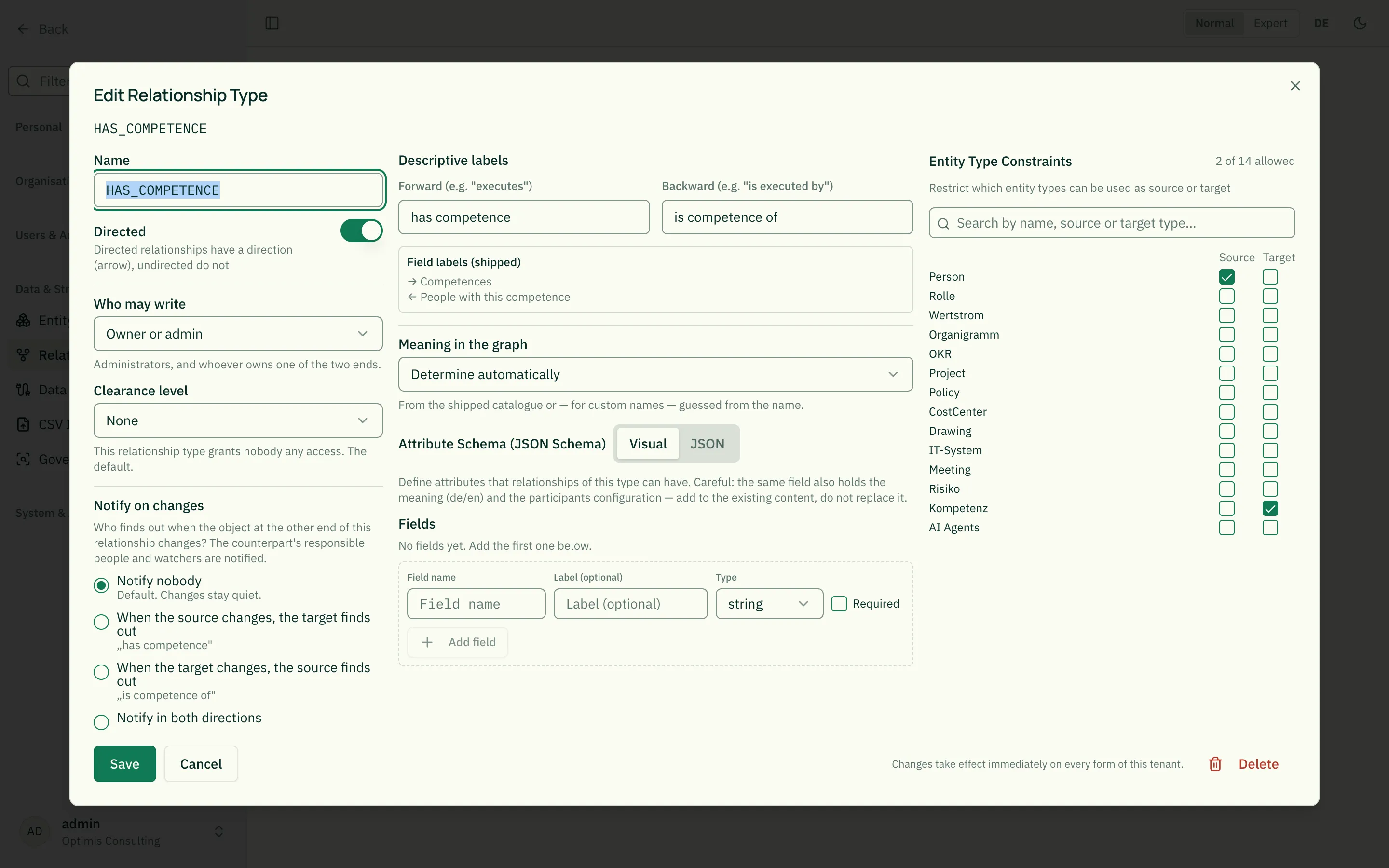
The direction is read from the perspective of the changed object — “source” and “target” are the two ends of the relationship as it was created.
What gets notified is not the object at the other end (it is not a person), but whoever is accountable for it: the responsible person — including where accountability runs through a role — and everyone watching that object. If nobody is found, no notification is created.
Three limits keep this from becoming noise:
- The default is off. Existing relationship types do not change behaviour.
- Several changes within an hour produce one notice, not twenty.
- If an object has very many relationships, the recipient circle is capped.
Anyone who is not allowed to see the changed entity is not notified. And like any kind, this one can be muted in your own notification settings.
Related
Section titled “Related”- Understanding Relationships — How relationships are created
- Entity Types — What constraints refer to