

Understanding Relationships
A relationship links two entities. It is always directional — there’s
a source (from) and a target (to). Which types are allowed is
controlled by the relationship types.
The shortest route: right in the form
Section titled “The shortest route: right in the form”The most important relationships of an object appear as ordinary fields in the create and edit form — for a project, say, Responsible role, Persons and Parent project. You need to know neither a relationship type nor a direction: the field is named after what you are looking for and offers only the objects that belong there.
Which fields an object type gets follows from how it is drawn and where it sits — so every type brings its own, and a new module brings its own automatically. They are grouped by meaning:
| Section | What it holds |
|---|---|
| Position | What the object sits under, and what comes before it |
| Responsibility | Who is accountable, what applies, what is affected |
| Assignment | What it belongs to, contributes to, is capable of |
No relationship field is mandatory. The first role of an organisation has no parent role and no role holder — both are correct. An empty field therefore says what it means (“Top level”, “Nobody responsible yet”) and never blocks publishing. Forcing something that does not exist in reality would lead to wrong conclusions about the organisation.
Defaults your tenant has defined on the object type are already filled in when the form opens — you do not have to type them again.
Changing without a form
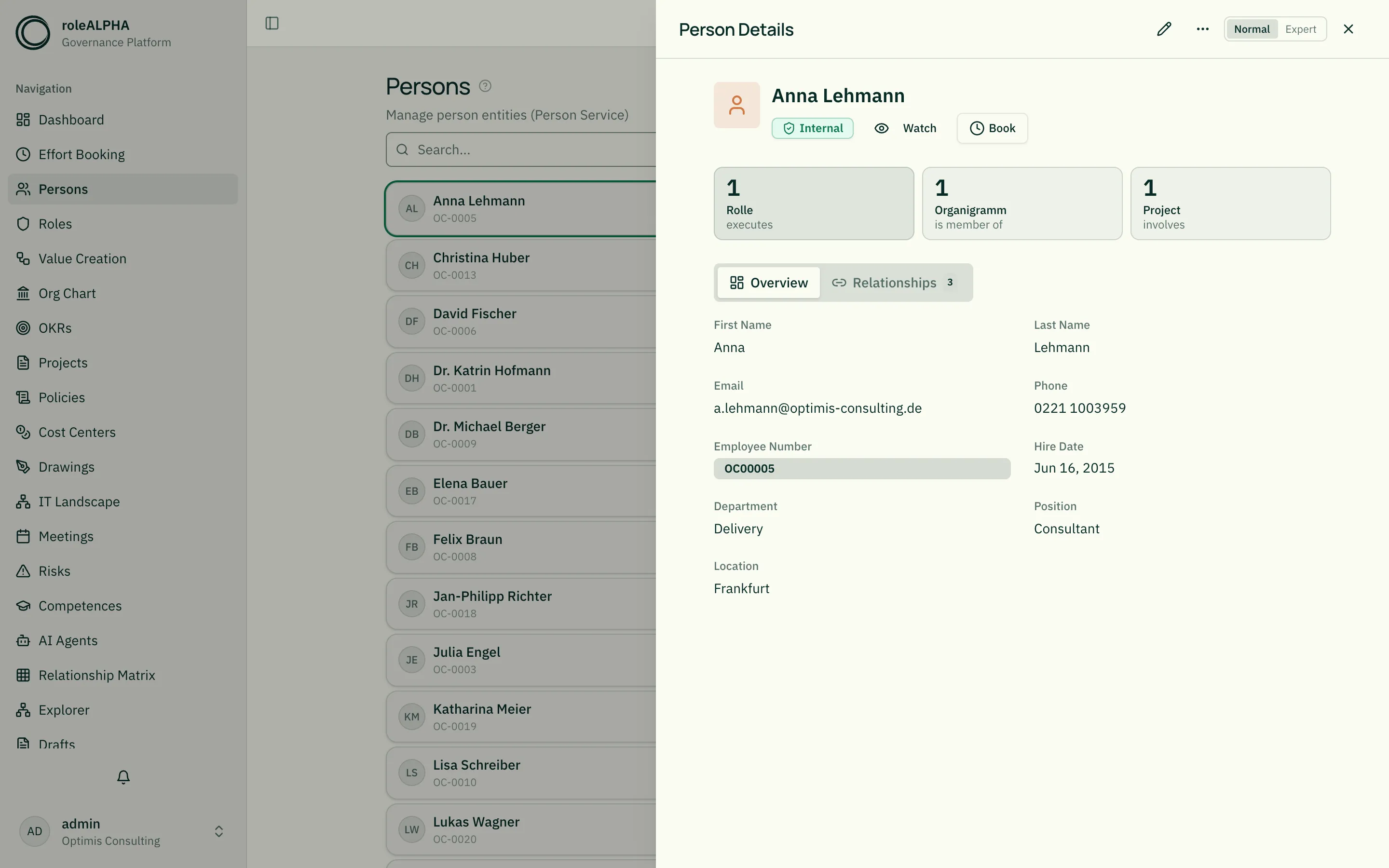
Section titled “Changing without a form”The same fields also appear in the detail view — in normal mode under the “Relationships” tab, in expert mode in the relationships block. There they are directly editable:
- At rest the field shows only the value as text. Next to it sits “Change” — always visible, not only on mouse-over (a tablet has no mouse-over).
- One click turns it into the control. Pick, remove, add.
- At the bottom a change bar collects what is open (“2 changes — not saved yet”). Only its button writes — and then everything together as one change, not one per field.
- Escape discards. An accidental click stays without consequence.
That makes “replace a person” three steps instead of nine: touch the field, pick the value, publish.
Relationships that have no field remain listed below (“Other relationships”) and are edited there as before — that is also where a relationship’s attributes live.
When a list is empty, it says why
Section titled “When a list is empty, it says why”An empty list can mean five different things, and the next step differs every time. roleALPHA therefore says which one applies:
| What it says | What it means |
|---|---|
| “The X module is not set up in this tenant.” | This kind of object does not exist here at all. |
| “The relationship type Y does not exist here” | The list is built from that type; without it, it cannot be filled. |
| “X could not be loaded.” | A technical failure — not “there are none”. Reloading helps. |
| “Choose the counterpart of this relationship first.” | The list depends on another choice that is still missing. |
| “No selectable entries. The list is built from Y …” | Everything is set up and loaded — there really is nobody, and the sentence says where to record the link. |
If the list is long, roleALPHA shows only the beginning and says so: “Showing 50 of 128 — type to search.” A silently truncated list would be indistinguishable from “there are no more”.
What it does not say: how many entries you are not allowed to see. The explanation describes setup and mechanics, never the records behind your permissions.
The other routes
Section titled “The other routes”- In the detail view: “Relationships” section → ”+ Add”
- In the graph: Drag an edge from one node to another
- In the relationship matrix: many relationships of the same type in a grid, one click per cell
- Via CSV: As separate rows during import
Other relationships — in normal mode too
Section titled “Other relationships — in normal mode too”Not every relationship has its own field. Whatever has none appears under “Other relationships” — and since 09/2026 it is usable in both view modes: change and remove sit on every row, and “Add another relationship” opens the linking bar. Previously this was possible only in expert mode, with nothing saying that you had to switch.
The buttons are visible, not revealed on hover — a tablet has no hover.
The same relationship more than once
Section titled “The same relationship more than once”The same relationship type can exist several times between the same two objects. That is deliberate: the edges may differ in their attributes or participants, and then they are two statements (“responsible from January” and “responsible from July”). roleALPHA therefore does not prevent them.
If the same name appears twice in a field, the view says so explicitly: every relationship is its own chip, and below them a line reads “Anna Example is linked 2×”.
What is not possible: the same statement twice
Section titled “What is not possible: the same statement twice”A word-for-word repetition is rejected as of 09/2026. Word-for-word means: the same relationship type, the same two objects, the same attributes and the same participants — everything identical except the internal id. Such an edge says nothing the first one does not already say.
You then get a message naming the existing relationship:
This relationship already exists (#4711) — with the same details and the same participants.
What you can do: edit the relationship named there instead of creating a second one. Or give the new one something of its own — a different period, a different staffing. As soon as any detail differs, it goes through: the check rejects repetitions only, never second statements.
The check applies on every write path — form, quick-link bar, graph, CSV import, rALPH and connected third-party applications — and it applies early: you find out when creating, not after a proposal has been through an approval round. If two identical proposals are created at the same time (two open tabs, a retry after a network error), both are approved — yet only one relationship is created, and the second proposal points to it.
What does not happen: an existing relationship is never overwritten or merged with another. Duplicates that already exist stay until someone looks at them — deleting something automatically would be a decision about your organisation that the application does not make.
Clearing up: two gestures, two meanings
Section titled “Clearing up: two gestures, two meanings”A field offers two ways to take something away, and they say different things:
| Gesture | Effect |
|---|---|
| The × on a chip | removes exactly that one relationship. Any other relationships to the same counterpart stay. |
| Unticking the name in the picker | removes all relationships to that counterpart — the statement “no longer responsible”. |
So you clean up a duplicate relationship where you see it — in normal mode, without switching modes and without the graph. If a counterpart is linked more than once, the count also appears behind its name in the picker (2×), so you can tell beforehand how many relationships unticking would take away.
Until 09/2026 both gestures did the same thing: clicking one of two identical chips deleted both. If you have seen that — it is fixed.
Either way a proposal is created, and it takes effect on approval, like any other change.
Live preview while linking
Section titled “Live preview while linking”As soon as you’ve picked target, direction and relationship type, a plain-language resolution appears — e.g. “Project is responsible for Role X” or “Role X is executed by Person Y”. This shows you right away what the relationship actually says before you save it. The sentence updates live and flips around when you toggle the direction (→ / ←). The relationship-type picker shows the readable labels too (the technical code is available as a tooltip). The same applies in the linking dialogs in the graph.
Jumping between entities — and back
Section titled “Jumping between entities — and back”Linked entities are clickable: in the “Relationships” section, clicking the target takes you straight to its detail page. The same applies to nodes in the embedded neighborhood graph and in the full graph (there via “Open detail page” in the selection banner, or Alt+click on a node).
Every such jump adds an entry to the browser history. So the browser’s Back button walks you step by step back to the previous entity — all the way to the list. Forward works the same way.
In the neighborhood graph the currently opened entity always stays anchored in the center and highlighted — even across multiple hops. That keeps it clear which intermediate entity (e.g. a role) connects a more distant node to the selected entity, instead of a highly connected neighbor pulling the center towards itself.
How relationships are ordered
Section titled “How relationships are ordered”The list is ordered on three levels so that it stays readable even with many links:
- The blocks per entity kind follow your main navigation. If roles sit above IT landscape in the sidebar, the “Roles” block sits above the “IT Landscape” block. Reorder the navigation (Customizing the navigation) and the relationships list follows automatically. Entity kinds without a navigation entry appear alphabetically at the end.
- Inside a block, relationship types are sorted alphabetically (“administers” before “executes”). If the same type is used in both directions, you get two separate groups, each with the matching verb.
- The entries themselves are sorted hierarchically first, then alphabetically. The full path decides: a parent circle comes before its sub-circles, all roles of the same circle stay together, and within a circle the list runs alphabetically.
Parent circle on the relationship target
Section titled “Parent circle on the relationship target”Hierarchical targets (e.g. roles) show their direct parent circle in parentheses
after the name — Lead Link (Sales Operations). If a person holds several
identically named roles, the entries stay distinguishable. Hovering the link also
reveals the full path.
This holds in the relationship fields too — on the chips and in the picker when you choose a counterpart. That is where it matters most: while picking you cannot see the target yet, and four entries called “Lead Link” without their circle would be four guesses. Which relationship types form the hierarchy is documented in Relationship Types.
Shareable deep links
Section titled “Shareable deep links”The address bar always reflects the current view: an open entity has its own
URL (…/persons/<id>), and the selected tab of the detail view is appended
as ?tab=…. These links can be copied and shared — the recipient lands
directly on the same entity and the same tab.
Self-references not allowed
Section titled “Self-references not allowed”An entity cannot reference itself — the attempt is rejected with a clear error message.
More than two participants
Section titled “More than two participants”Some assignments carry additional participants beyond the source and target — for example the person(s) who hold a role assigned to a project. See Assigning the person behind a role.
Relationships are drafts too
Section titled “Relationships are drafts too”Just like other changes, new relationships start as a draft and are published after approval.
The picture follows. Create, change or delete a relationship and the neighbourhood graph on the detail page updates right away — no reload needed. Until 09/2026 it stayed on the old state: the list on the left had already dropped the relationship, the picture next to it had not.
And an open draft is visible. Turn on Show drafts in the neighbourhood graph and you also see what is not decided yet: a planned relationship as a green dashed line, one that is to be removed as a red dashed one. It is the same switch as in the Explorer, and it is remembered.
Visible in the dashboard audit
Section titled “Visible in the dashboard audit”Newly created and deleted relationships appear — just like entity changes —
in the dashboard’s audit module (“Recent changes”). An entry shows the action
(created/deleted), the relationship type, and the source and target entity
(source → target). It covers relationships in the neighborhood of your own
person (configurable hop count and timespan).
Related
Section titled “Related”- Relationship Types — Which types exist and what constraints apply
- Entity Types — Which entities may carry which relationships
- Assigning the person behind a role — Assigning the person behind a role
- Relationship matrix — Maintain many relationships of the same type in a grid