

E-mail delivery
Under Settings → E-mail delivery, tenant admins decide how mail from this tenant leaves roleALPHA. The setting applies to your tenant only — other tenants on the same installation are not affected.
The top of the page always shows what actually applies right now (“Applies: …”) and, below it, how sign-in mails are sent. This line is the application’s own answer, not a repetition of your input: if a route is set but incomplete, it says so.
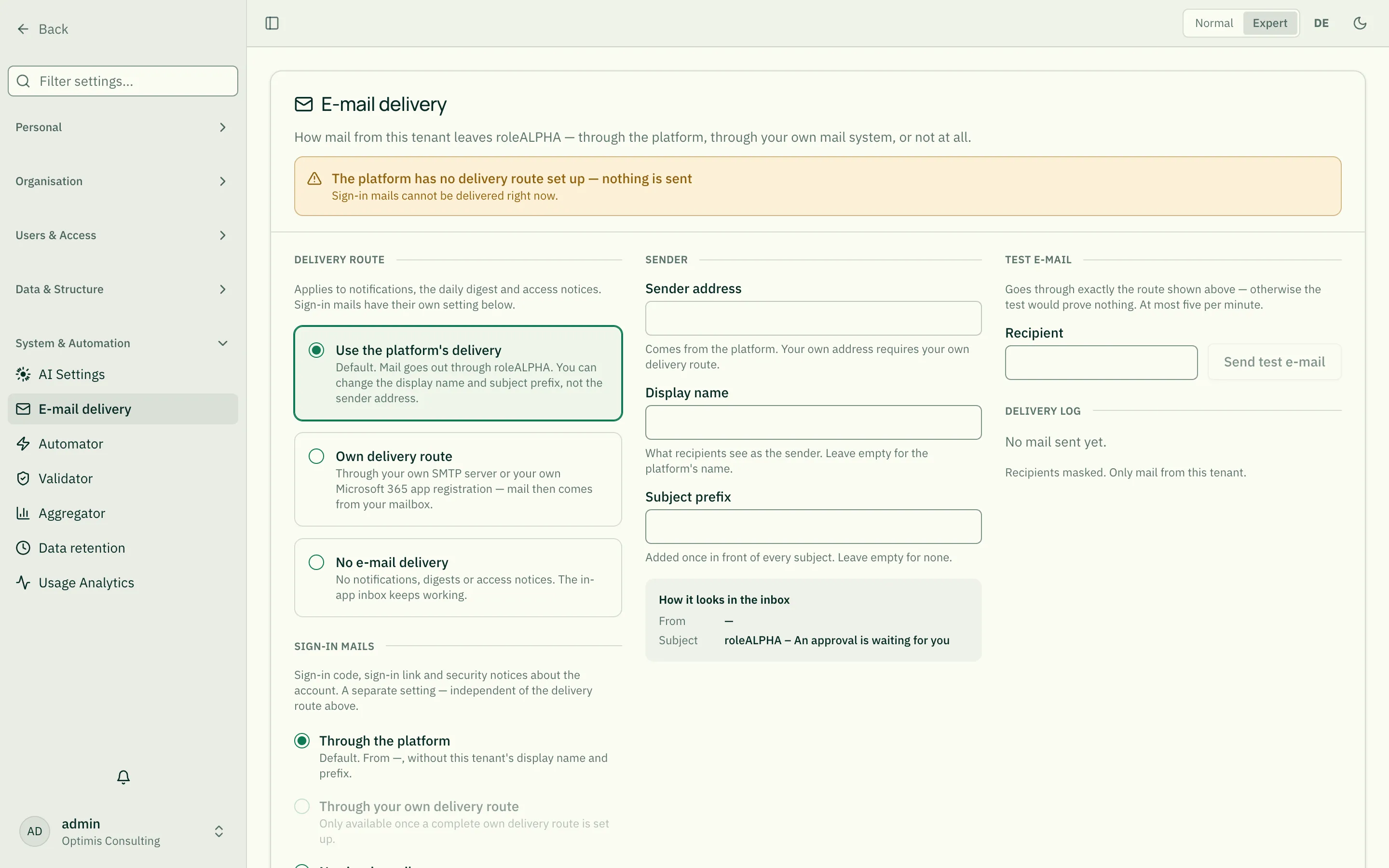
The three delivery routes
Section titled “The three delivery routes”The delivery route applies to notifications, the daily digest and the “You have access” notice.
| Delivery route | What happens |
|---|---|
| Use the platform’s delivery | Default. Mail goes out through roleALPHA. You can change the display name and a subject prefix; the sender address stays the platform’s. |
| Own delivery route | Mail goes through your SMTP server or your Microsoft 365 app registration and comes from your mailbox, e.g. no-reply@your-company.com. |
| No e-mail delivery | No notifications, digests or access notices by e-mail. The in-app inbox keeps working. |
Why you cannot change the platform’s sender address: the platform sends with a Microsoft 365 permission that covers every roleALPHA mailbox. A freely chosen sender would allow writing in the name of any roleALPHA mailbox. Your own address therefore requires your own route.
If you switch delivery off, display name, prefix and credentials stay saved. Switching it back on restores everything as it was.
Sign-in mails — a separate setting
Section titled “Sign-in mails — a separate setting”Sign-in mails are the sign-in code, the sign-in link and the security notices about the account (“Your sign-in address was changed”, “Your sign-in methods were reset”). They have their own choice, independent of the delivery route above — so that “no notifications by e-mail” never locks anybody out.
| Sign-in mails | What happens |
|---|---|
| Through the platform | Default — in all three delivery routes. The sender is the platform’s address, without your display name and prefix. |
| Through your own delivery route | Only available once a complete own route is set up. |
| No sign-in mails | No code and no link is sent. Only sensible with Single Sign-On (SSO) or Passkeys. |
Which tenant does a sign-in code go through? Before sign-in it is not always clear where somebody wants to go. If they come through your tenant’s own domain, your setting applies. If the account belongs only to your tenant, it applies too. If it belongs to several tenants, the code goes through the platform.
The confirmation prompts
Section titled “The confirmation prompts”- “No e-mail delivery” asks once. Sign-in is not affected — sign-in codes keep coming.
- “No sign-in mails” counts how many accounts can no longer sign in afterwards (no single sign-on, no passkey, only a code). You confirm by typing the tenant name. If nobody could sign in any more, the application refuses the change — on the server, not just in the form.
The sign-in screen tells nobody. Anyone requesting a code while sign-in mails are off sees the usual answer — otherwise the screen would reveal whether an account exists. The mail just never arrives.
Setting up your own delivery route
Section titled “Setting up your own delivery route”Microsoft Graph (Microsoft 365)
Section titled “Microsoft Graph (Microsoft 365)”- In Entra ID → App registrations, create an app or use an existing one.
- Note the Directory (tenant) ID and the Application (client) ID.
- Certificates & secrets → New client secret, copy the value immediately and note the expiry date — an expired secret stops delivery.
- API permissions → Microsoft Graph → Application permissions →
Mail.Sendand grant admin consent. - Enter the values here; as sender address, the mailbox to send from (with Microsoft Graph both are the same).
Mail.Send as an application permission allows sending as any mailbox of your Microsoft
365 tenant. To restrict it to one mailbox, set up an ApplicationAccessPolicy in Exchange
Online.
SMTP server
Section titled “SMTP server”Server, port, user name and password of your mail server. Port 465 additionally needs “Direct TLS connection”; port 587 (STARTTLS) does not.
Secrets
Section titled “Secrets”Client secret and SMTP password are stored encrypted and never shown again. An empty field leaves the stored secret unchanged — you can change the display name without entering the secret again.
An incomplete own route does not fall back to the platform: nothing is sent, and the “Applies” line says so. Mail never goes through a server you do not expect.
Test e-mail and delivery log
Section titled “Test e-mail and delivery log”Send test e-mail uses exactly the route shown as “Applies” and shows the mail server’s message on failure. The test checks the saved state; while changes are pending it is disabled. At most five test e-mails per minute.
The delivery log lists the latest mail of your tenant: occasion, recipient (masked), which route it took and whether it was delivered, failed or skipped — for example “delivery switched off for this tenant”.
Who may do this?
Section titled “Who may do this?”Tenant admins and security officers may read; only tenant admins may change it (permission
admin:tenant). Every member sees a notice on their Notifications page when
the tenant is not sending e-mail — but not the configuration itself.