

Passkeys
A passkey replaces the code by email. Instead of typing something, you confirm the sign-in the same way you unlock your device: fingerprint, face recognition, device PIN, or a security key you plug in.
Why this is safer than a password
Section titled “Why this is safer than a password”A passkey has two halves. One stays inside your device forever and never leaves it; the other one sits with us. Three things follow from that:
- There is nothing to steal. Anyone reading our database would find the half you cannot sign in with.
- Phishing goes nowhere. A passkey is tied to the exact address it was created for. On a lookalike site your device will not even offer it — you cannot hand it over by mistake.
- Your biometrics stay with you. Your fingerprint and face are checked by your device, not by us. roleALPHA never sees them and does not store them.
Setting up a passkey
Section titled “Setting up a passkey”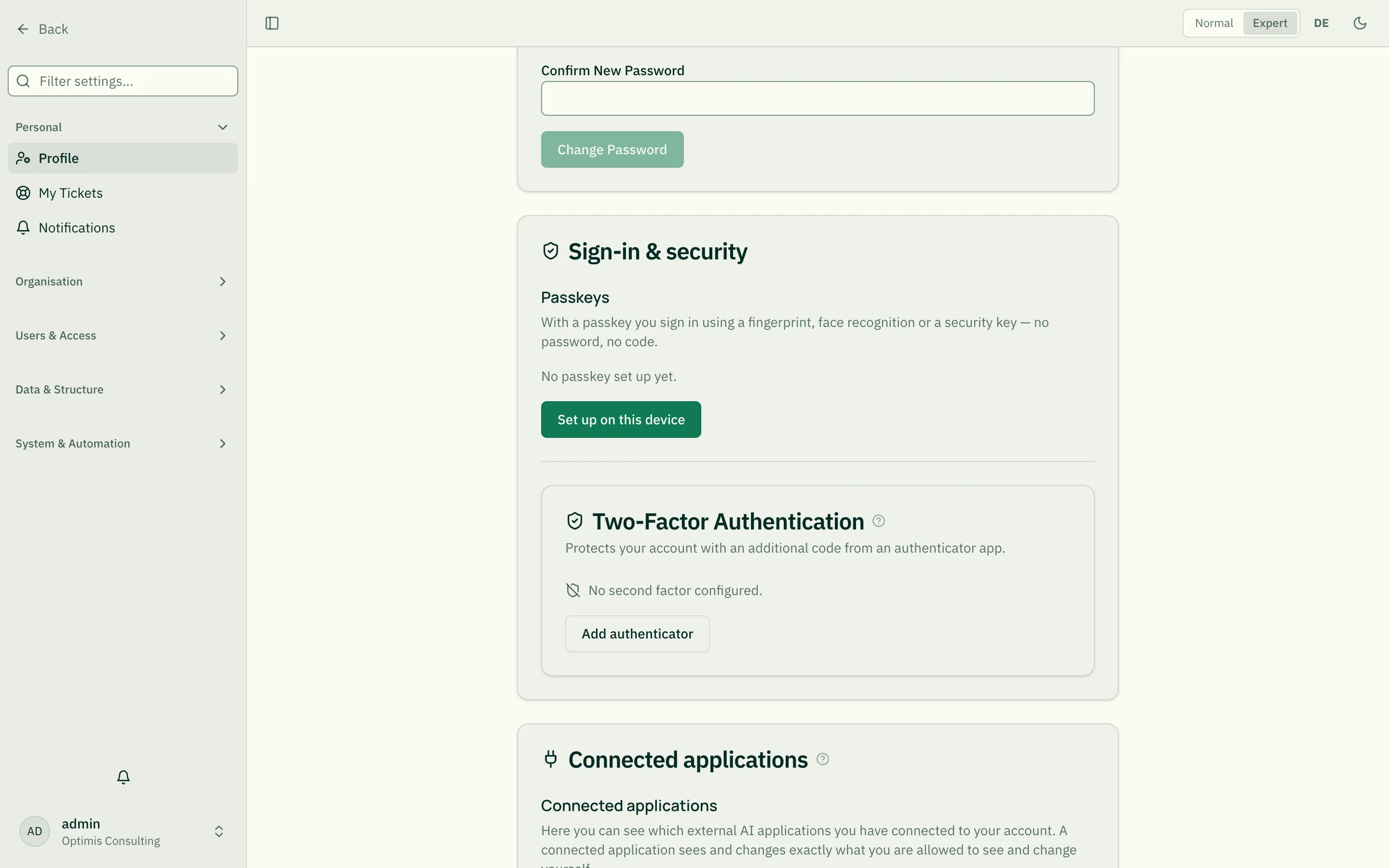
- Open Profile → Sign-in & security.
- Choose Set up on this device.
- Your device asks for your fingerprint, face or PIN. Confirm.
The passkey then appears in the list with a name, a creation date and — once you have used it — the time it was last used.
If the button is unavailable, your browser or device cannot do passkeys. That is not a problem with your account; keep using the email code instead.
The name is for you, not for us
Section titled “The name is for you, not for us”We suggest a name (“iPhone”, “Security key”), but it is only a memory aid. Name it so that you recognise it when you want to remove it one day — “Work phone” is more useful than “iPhone” if you have two of them.
On several devices
Section titled “On several devices”A passkey belongs to one device, not to your account. So set one up on every device you work with: once on your computer, once on your phone.
Some devices synchronise passkeys on their own through the Apple or Google keychain or a password manager. Those are marked synced in the list — they are then available on your other devices using the same account.
Recovery codes
Section titled “Recovery codes”With your first passkey you are shown a set of recovery codes, once. Print them or keep them where you keep other important documents — not on the same device that holds the passkey.
They are your way back in if you can reach neither your device nor your mailbox. Each code works exactly once. You see them only this one time; afterwards we store them encrypted only and cannot show them to you again.
Removing a passkey
Section titled “Removing a passkey”Choose Remove in the list. Do that when you give a device away or lose it.
If it is your last passkey and your organisation allows no other way to sign in, we refuse to remove it. The message then tells you what to do first — otherwise you would be locked out.
Linked sign-ins (Google, Microsoft)
Section titled “Linked sign-ins (Google, Microsoft)”Below the passkeys you find the linked Google and Microsoft accounts — with address, date of linking and last use. A link is created the first time you sign in with “Sign in with Google” or “Sign in with Microsoft”, if the provider confirms your sign-in address (Signing in).
Unlink removes the link. If you later sign in with the same account again, it is linked again as long as the address matches. If your sign-in address changes, all links are removed automatically.
Lost your device — now what?
Section titled “Lost your device — now what?”- Sign in on another device using the email code and remove the lost device’s passkey from the list.
- If you cannot reach your mailbox either, use a recovery code.
- If neither works, contact your organisation’s administration. They can reset your sign-in methods. You will be notified about this — even when you asked for it yourself.
A reset account is not an open one: it simply has no passkey any more, and you sign in by code as you did the first time.