

Single Sign-On (SSO)
With Single Sign-On your users authenticate through your company’s central identity provider (IdP) without a code by email and without a roleALPHA passkey of their own. roleALPHA speaks OpenID Connect (OIDC), supported by Microsoft Entra ID (Azure AD), Google Workspace, Okta and virtually every modern IdP. Classic enterprise protocols such as SAML/Shibboleth are integrated via an upstream IAM broker (e.g. Keycloak) that speaks OIDC toward roleALPHA.
SSO is configured per tenant and is opt-in — nothing changes for your users until you enable it. You can enable several providers at once: Microsoft, Google and a generic OIDC provider (SSO). Each enabled provider appears as its own button on the login page (“Sign in with Google”, “Sign in with Microsoft”, “SSO”). Microsoft and Google have presets — you only enter client ID and secret (plus the Directory ID for Microsoft).
Prerequisites
Section titled “Prerequisites”- You are a tenant admin (or platform admin).
- You can administer your IdP to create an “app”/“client” registration.
Step 1 — Register the callback URL at the IdP
Section titled “Step 1 — Register the callback URL at the IdP”The IdP needs to know where to send the user back after sign-in. Register exactly this redirect URI (callback) at your IdP — one per provider (<provider> = microsoft, google or generic):
https://<your-roleALPHA-base-url>/api/auth/sso/<tenant-uuid>/<provider>/callbackExample for Google: …/api/auth/sso/<tenant-uuid>/google/callback. You’ll find the tenant UUID in the address bar or the tenant settings. Use a stable base URL (your production domain) so sign-in survives a later move of the tenant.
Step 2 — Create the app at the IdP
Section titled “Step 2 — Create the app at the IdP”Microsoft Entra ID (Azure AD):
- Azure portal → App registrations → New registration.
- Redirect URI (type Web) = the callback URL from step 1.
- Note the Application (client) ID and Directory (tenant) ID.
- Under Certificates & secrets create a client secret and copy it.
- Issuer URL:
https://login.microsoftonline.com/<directory-id>/v2.0 - For groups: add the optional
groupsclaim under Token configuration.
Google Workspace:
- Google Cloud Console → APIs & Services → Credentials → OAuth client ID (type Web application).
- Authorized redirect URI = the callback URL from step 1.
- Copy the client ID + client secret.
- Issuer URL:
https://accounts.google.com
Keycloak / IAM broker (also for SAML/Shibboleth):
- Create an OIDC client (confidential) in the broker, redirect URI = callback from step 1.
- Copy client ID + secret; issuer URL =
https://<broker>/realms/<realm>. - Configure the upstream connection in the broker (SAML to Shibboleth/ADFS or another OIDC) — toward roleALPHA it stays OIDC.
Step 3 — Enter it in roleALPHA
Section titled “Step 3 — Enter it in roleALPHA”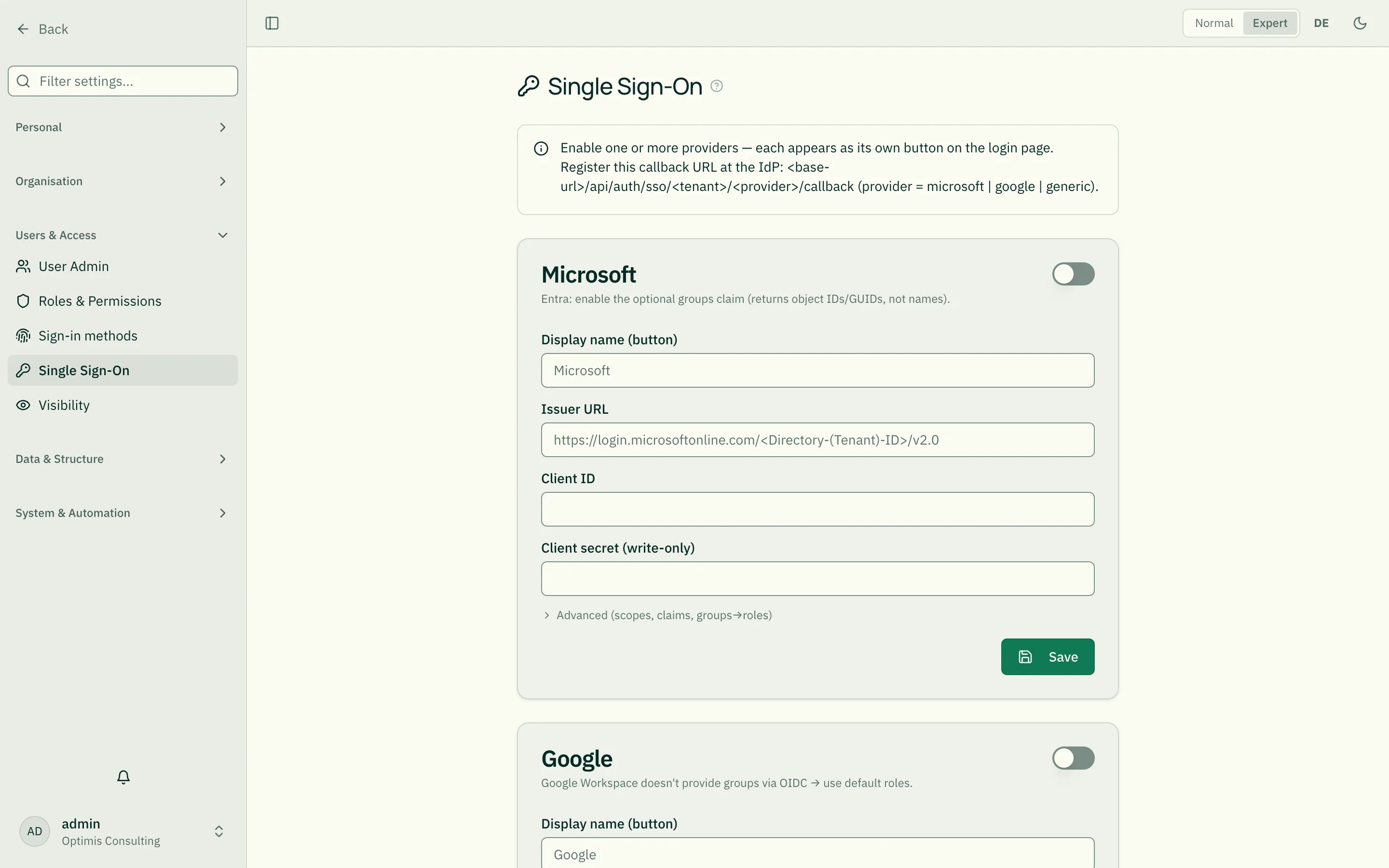
Open Settings → Users & Access → Single Sign-On. You’ll find three cards — Microsoft, Google and Single Sign-On (generic). Fill in the card(s) of the provider(s) you want:
- Microsoft — Issuer URL from the template (insert the Directory ID:
https://login.microsoftonline.com/<directory-id>/v2.0), Client ID, Client secret. - Google — no issuer field (fixed to
https://accounts.google.com); just Client ID and Client secret. - Single Sign-On (generic) — everything manual (issuer, client ID, secret) for Okta/Keycloak/any OIDC IdP.
The display name appears on the login button. The client secret is stored encrypted and never shown again (re-enter only when changing it). Advanced holds scopes, claims and the group→role mapping. Finally toggle the card’s Enable switch and Save — enabling is only possible once issuer, client ID and secret are set (for Google, client ID + secret suffice).
Step 4 — Map groups to roles
Section titled “Step 4 — Map groups to roles”roleALPHA roles stay defined in roleALPHA (the IdP has no notion of the fine-grained permissions). You only define which IdP group maps to which roleALPHA role — as JSON:
{ "my-idp-admin-group": ["tenant_admin"], "all-employees": ["user"]}- The right-hand value is the key of a role that exists in your tenant (see Roles & Permissions). Unknown keys are ignored — create the role first.
- Default roles apply when no group matches.
- IdP roles are authoritative (default): on every sign-in the roles from the IdP are applied and overwrite local changes. Turn this off if you also assign roles manually in roleALPHA.
Behavior & options
Section titled “Behavior & options”- Just-in-time provisioning (on by default): when a user signs in for the first time, their account is created automatically and linked to their email. Which other routes stay open alongside (code, sign-in link, passkey) is set under Sign-in methods. Tenant accounts have no password.
An account is recognised by the IdP’s identifier, not by the email address. That matters as soon as an address changes in the directory: the person still lands in their own account — with all roles, assignments and drafts — and the stored sign-in address follows on the next sign-in. Accounts created before this change get the identifier attached the next time they sign in; until then they are still recognised by address.
Two limits worth knowing: if the new address already belongs to a different account in the tenant, the old one stays (otherwise the rightful owner of that address would receive sign-in codes for someone else’s account). And if the same person signs in to one tenant via two providers, the mapping remembers only the one used last — the other falls back to recognition by address.
Two-factor authentication and SSO
Section titled “Two-factor authentication and SSO”Federated users usually get their second factor from their IdP — by default roleALPHA does not ask again on SSO logins. If you want it anyway, switch on second factor after single sign-on under Sign-in methods: roleALPHA then asks, after SSO, for the code from roleALPHA’s own authenticator app — from everyone who has set one up.
Troubleshooting
Section titled “Troubleshooting”- “sso_disabled” — SSO is not enabled for the tenant.
- “sso_state_invalid” / “sso_state_mismatch” — the attempt expired (10 min) or the return doesn’t match the start. Try again.
- “sso_no_email” — the IdP returns no email. Check the
emailscope and the email claim. - “sso_user_unknown” — the user doesn’t exist and JIT provisioning is off.
- “sso_callback_failed” — client ID/secret or redirect URI don’t match the IdP registration.