

Two-Factor Authentication (MFA)
Two-factor authentication (MFA) additionally asks for a short-lived code from an authenticator app at sign-in. Even someone who has taken over your account at the identity provider can’t get in without your device.
Your account no longer has a password for the app to add to (see Signing in). The code is therefore asked for where a second factor actually adds something: after single sign-on, when your organisation requires it under Sign-in methods. A passkey brings its own second factor, and after a code by email sign-in does not ask for the app. Platform administrators also use the app alongside their password — in the separate Platform Admin.
roleALPHA uses TOTP (time-based one-time codes per RFC 6238) — compatible with common apps like Microsoft Authenticator, Google Authenticator, Authy or 1Password.
If you sign in via Single Sign-On, your identity provider usually handles the second factor. roleALPHA only asks in addition if your tenant has switched that on — and only if you have set up an app.
Setting it up
Section titled “Setting it up”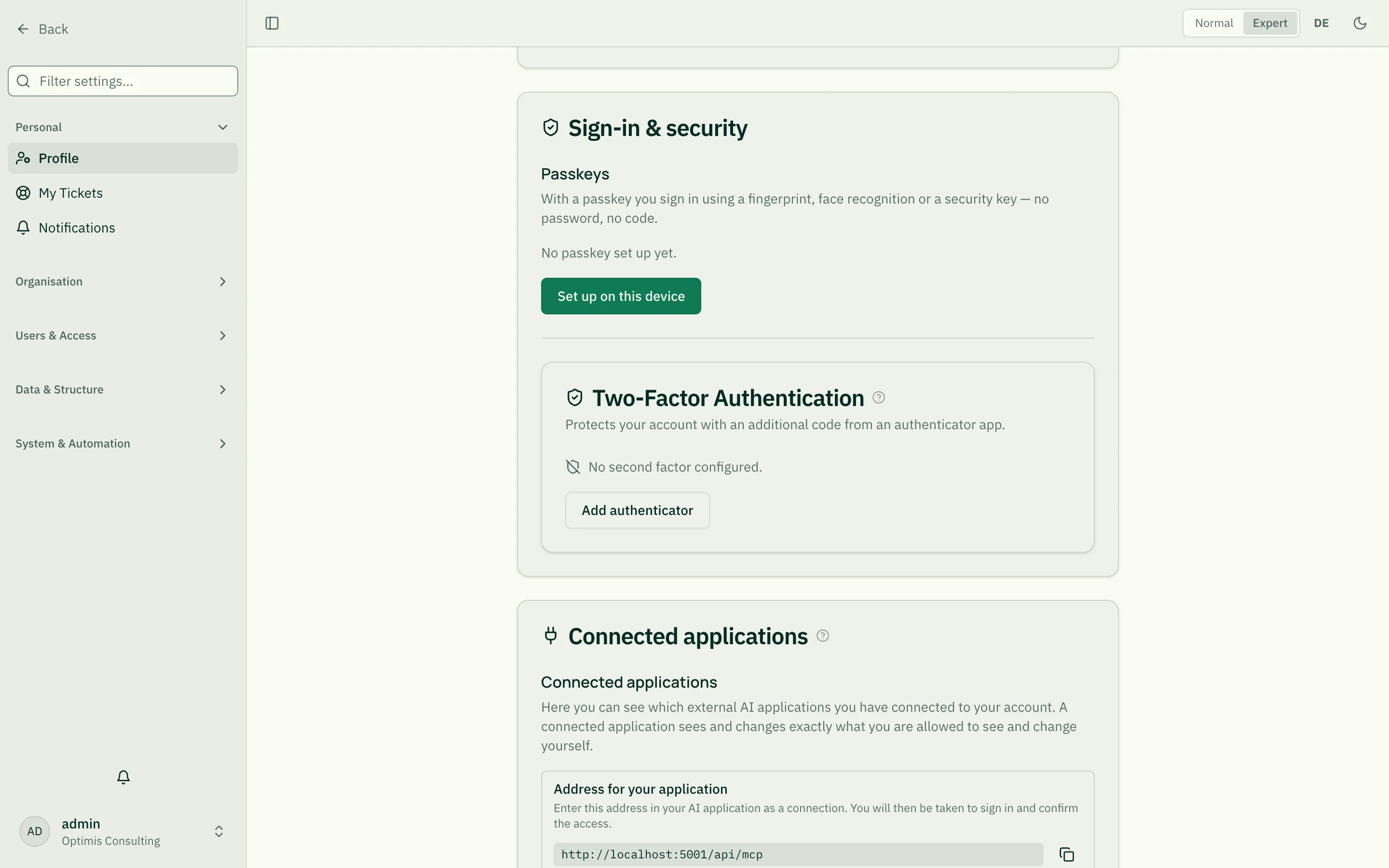
- Open your profile and scroll to Two-Factor Authentication.
- Click Add authenticator.
- Scan the QR code with your authenticator app — or enter the shown secret manually.
- Enter the 6-digit code from the app and confirm with Activate.
- roleALPHA now shows your recovery codes once. Store them safely (see below).
From your next login that requires a second factor, you’ll be asked for the code.
Recovery codes
Section titled “Recovery codes”When you activate MFA you receive 10 one-time recovery codes. They are your backup key if you lose your phone:
- Each code works exactly once.
- Store them somewhere safe (password manager, printed in a safe) — not on the same device as the authenticator app.
- At sign-in you can enter a recovery code instead of the app code.
- roleALPHA shows the codes only once; afterwards they’re stored encrypted only.
Signing in with MFA
Section titled “Signing in with MFA”After you return from your identity provider, the Two-Factor Authentication step appears, provided your tenant requires a second factor after single sign-on. Enter the current code from your app (or a recovery code).
Removing a factor
Section titled “Removing a factor”In your profile you can remove a configured factor via the trash icon. Sign-in then no longer asks for an app code — set up a new factor if needed.
Lost your device?
Section titled “Lost your device?”- With a recovery code: sign in using one of your recovery codes and set up a new factor in your profile.
- Without a recovery code: contact your administrator. They can reset your MFA via User Management — then you set it up again.
For administrators
Section titled “For administrators”In User Management you can reset a user’s MFA (lost device, departed employee). This removes all factors and recovery codes of the account — an escape hatch against lockout.