

Send feedback
Use the floating feedback button to report a bug, suggest an improvement or ask a question at any time. Every report becomes a ticket for our support team — including a screenshot and technical context so the request is easy to follow. You receive a ticket number and a confirmation by e-mail.
Reporting is possible at any time — even while a dialog or the detail pane is open:
- Floating button in the bottom-right, above the AI chat button — sits above all dialogs and panels and stays visible even when the chat is open.
- Keyboard shortcut
Ctrl/Cmd + Shift + B— works inside open dialogs too.
The automatic screenshot now includes the open dialog or detail pane — if the bug is in there, it shows up in the image.
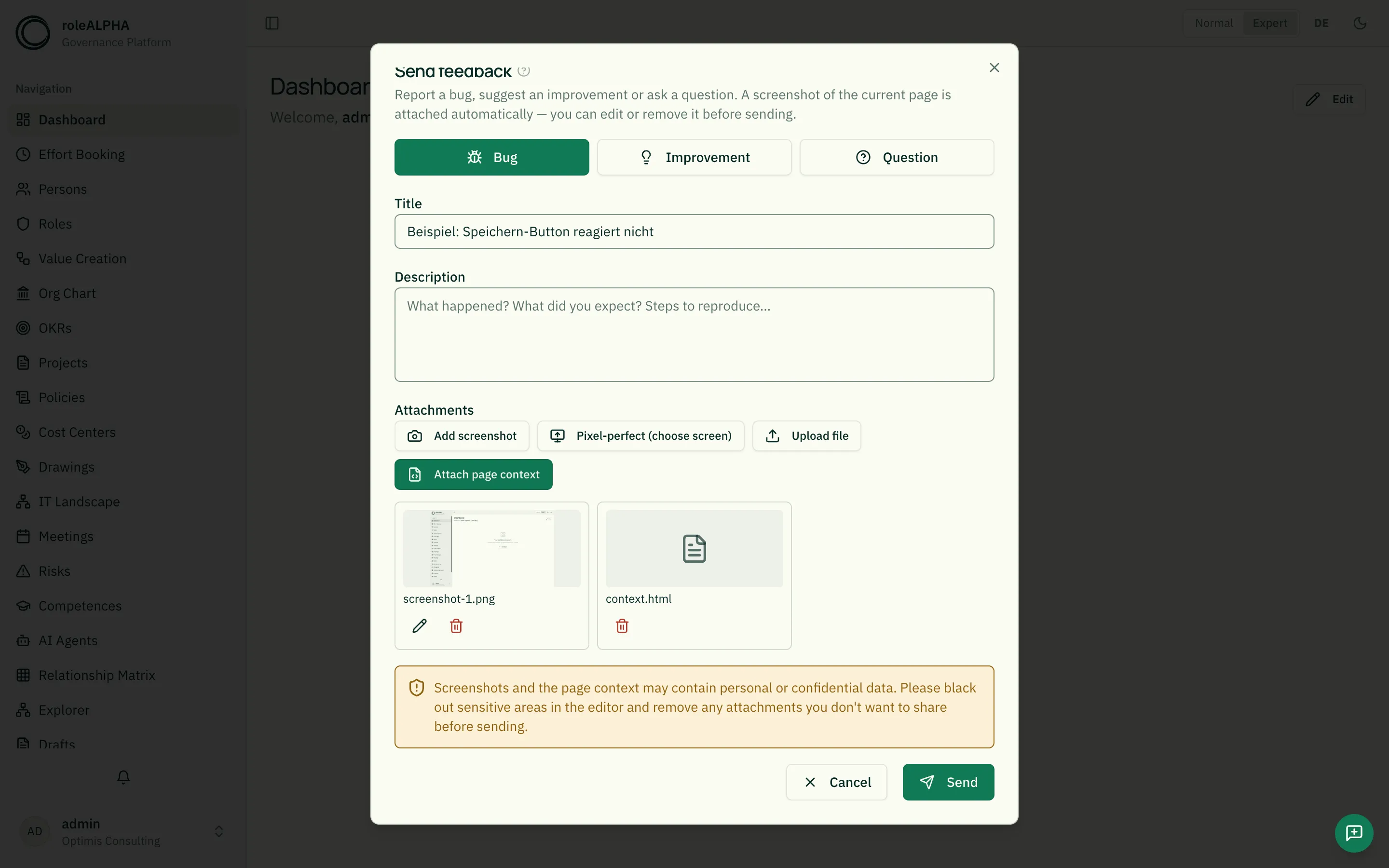
How it works
Section titled “How it works”- Open the feedback dialog via the floating button in the bottom-right
(above the AI chat button) or the shortcut
Ctrl/Cmd + Shift + B. Opening it automatically captures a screenshot of the current view. - Choose the type: bug, improvement or question. The choice helps us, it does not bind us — every ticket is also classified automatically. If you ask something the help already answers, you often get a reply by e-mail within minutes; it is marked as automatically generated.
- Enter a short title and a description (what happened, what you expected, steps to reproduce).
- Review the attachments, black out sensitive areas and confirm the privacy notice (platform admins can skip this click, see Privacy).
- Click Send. The confirmation shows your ticket number.
Writing a good report
Section titled “Writing a good report”The clearer your report, the faster we can help. A good description ideally answers:
- What happened? Describe the observed behavior concretely (e.g. “Clicking Save shows a blank white page”).
- What did you expect? The intended behavior (e.g. “The entry should be saved and the list refreshed”).
- Steps to reproduce — numbered, from start to the error (1. Open a person → 2. Change field X → 3. Click Save).
- Where? The affected page/area and, if relevant, the entity type.
- How often? Always, or only sometimes?
- Since when / what changed? Did it start after a specific action?
Tips:
- A meaningful title sums up the problem in one sentence (“Save button doesn’t respond on the Persons page”) — not just “Bug”.
- One topic per report. Please report multiple issues separately.
- Mark the relevant spot in the screenshot (arrow/frame) and black out anything sensitive.
- For improvements: describe the benefit (”… so that I can … faster”), not just the requested feature.
Managing attachments
Section titled “Managing attachments”You stay in full control of what is sent:
- Add screenshot — captures another screenshot of the page.
- Pixel-perfect (choose screen) — uses the browser’s screen capture for a 1:1 image (with a picker dialog).
- Upload file — attach your own images or documents (max 5 MB).
- Attach page context — adds technical metadata and a sanitized copy of the page (input values are stripped).
Remove any attachment again via the trash icon.
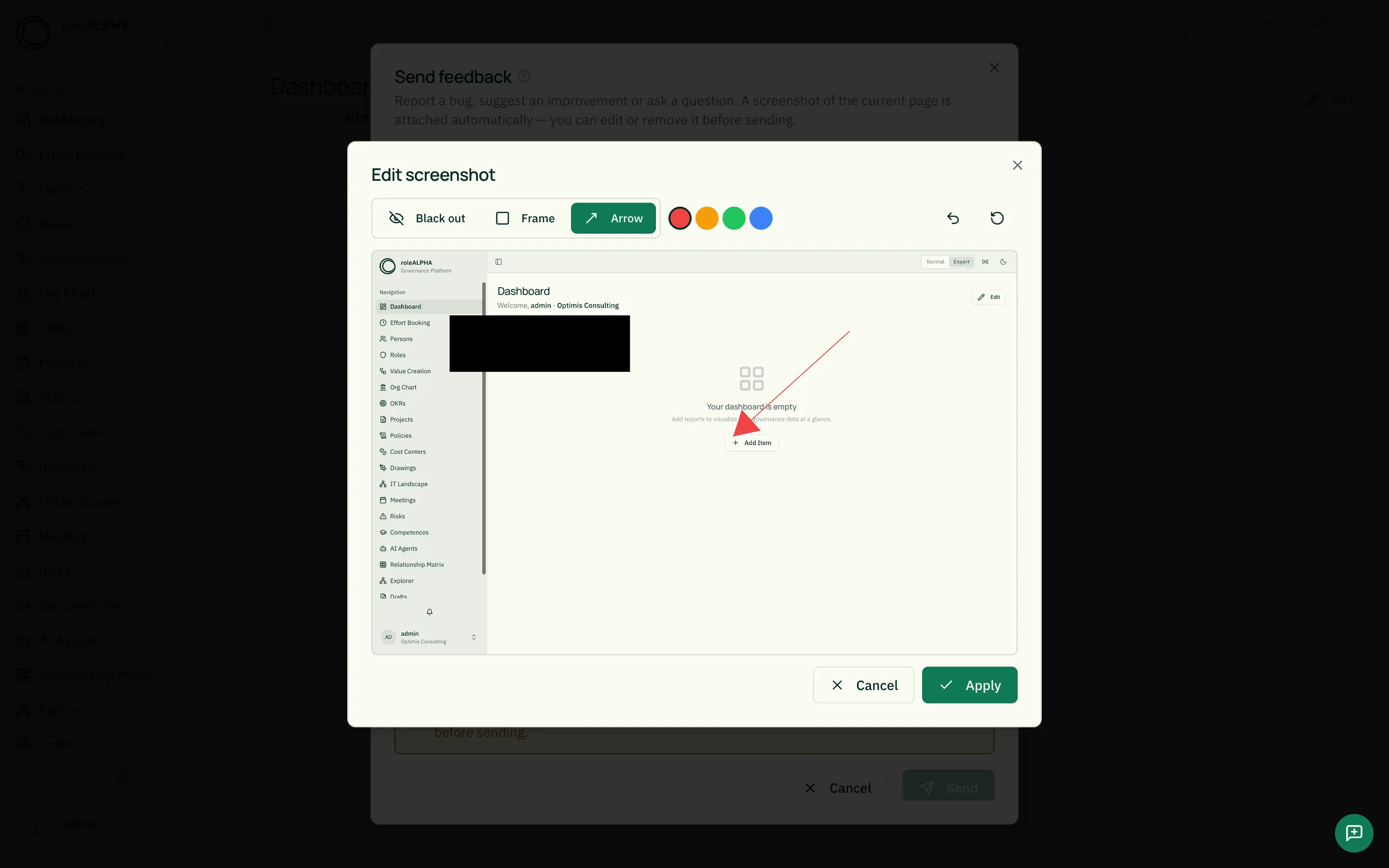
Editing screenshots
Section titled “Editing screenshots”Image attachments can be edited in the built-in editor (large window) before sending:
- Black out — fully covers sensitive areas.
- Frame — highlights an area with a colored outline.
- Arrow — points at a specific spot.
Use Undo and Reset to correct your annotations, and Apply to save them into the attachment.
Privacy
Section titled “Privacy”Screenshots and the page context may contain personal or confidential data. Black out sensitive content and remove attachments you don’t want to share. The report can only be sent after you confirm the notice.
Your report stays in our self-operated helpdesk. If a bug has to be handed over to development, the support team writes a technical task for it — your name, e-mail address, the screenshot and your text do not go along. The automatic classification and reply also run on our own infrastructure, not at an AI provider.
Platform admins still see the notice but don’t need to confirm it — as power users, the report is ready to send as soon as a title is entered.
Tracking your tickets
Section titled “Tracking your tickets”After submitting, you can follow the progress of your reports any time under My Tickets — reachable from the profile menu (bottom left) or the life-buoy button.
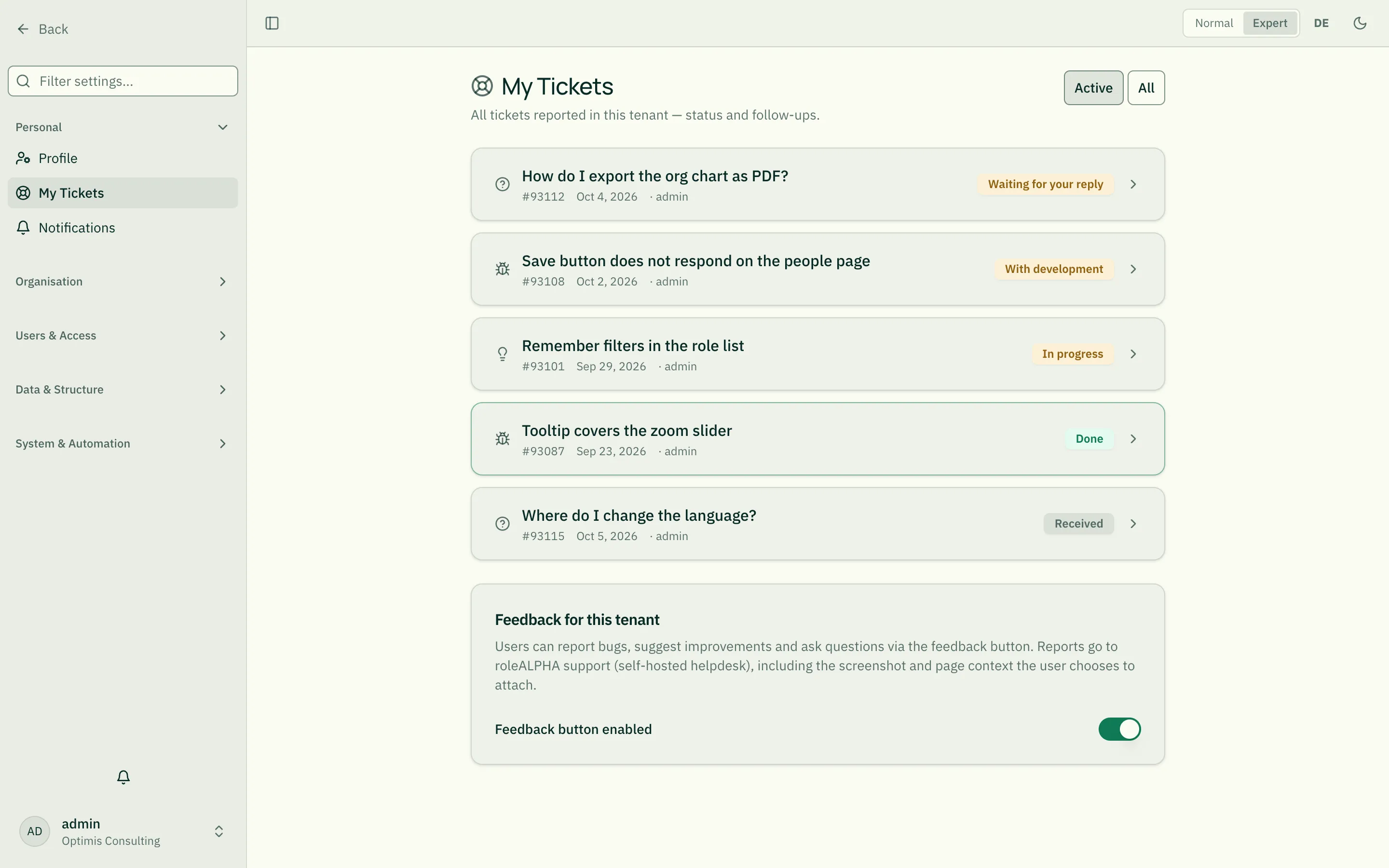
The page shows each of your reports with a status:
- Received — your report arrived and is awaiting triage.
- In progress — the team is working on it.
- Waiting for your reply — the team replied and needs a response from you. Without a reply, the ticket closes by itself after a while.
- With development — the bug or improvement has been handed over to our development team. Once it is fixed, the support team gets back to you.
- Done — the report was implemented or resolved.
- Declined — the report won’t be pursued (for now).
The “Active / All” filter
Section titled “The “Active / All” filter”To keep the list tidy, there’s a toggle in the top right:
- Active (default) — shows all open tickets (Received, In progress, Waiting for your reply, With development) plus recently closed ones (up to 30 days after being done or declined). Tickets closed longer ago are hidden; a small note below the list states how many.
- All — shows every ticket, including old done and declined ones.
That way, long-resolved reports don’t clutter the current view but stay findable at any time via All.
Clicking a ticket opens the detail view. There you see the whole history — your report, replies from the support team and your follow-ups — and can ask a follow-up or add information via the reply box. Replies from the team also arrive by e-mail; you can simply answer there, too — both end up in the same ticket. The team’s internal notes stay hidden.
Older tickets from before the new support system (until October 2026) remain visible but carry a notice: their status is no longer updated and they can no longer be replied to. Please use the feedback button for new requests.
Tenant admins additionally see all reports of their tenant under My Tickets — handy for a support overview.
Switching feedback off for the tenant (tenant admins)
Section titled “Switching feedback off for the tenant (tenant admins)”At the bottom of My Tickets, tenant admins find the switch Feedback button enabled. When it is off, there is no feedback button and no shortcut in your tenant, and reports are no longer accepted. Tickets already reported stay visible, and replies to them still arrive by e-mail. Requests then reach support by e-mail.
When the application does not load at all
Section titled “When the application does not load at all”If something fails so early that the interface never appears, you no longer see a blank page (since 09/2026) but a plain card saying “The application could not be loaded” with a reload button. Reloading usually fixes it — it is often just a stale browser tab after an update.
The report is sent to our development team automatically. Additional feedback is therefore not required, but it helps a lot if you briefly describe what you were doing — use the feedback button after reloading.
What is transmitted is described in the privacy policy: the error message, the technical call stack, the page you were on without search parameters, and the type of your last interaction steps — no form input and no text from clicked elements.