

Change history
Every change to an entity is logged: who, when, which action — and for updates, the affected field values. You can find the history in two places:
- Entity detail view — the “History” section shows the changes to that one entity.
- “Audit Logs” page in the sidebar — all changes in your tenant across every module.
The latest five — and the rest
Section titled “The latest five — and the rest”The detail view shows at most five entries, newest first. That is deliberate: a heavily edited entity carries hundreds of entries, and uncapped they would push everything below them — grants, absences, reports — out of sight.

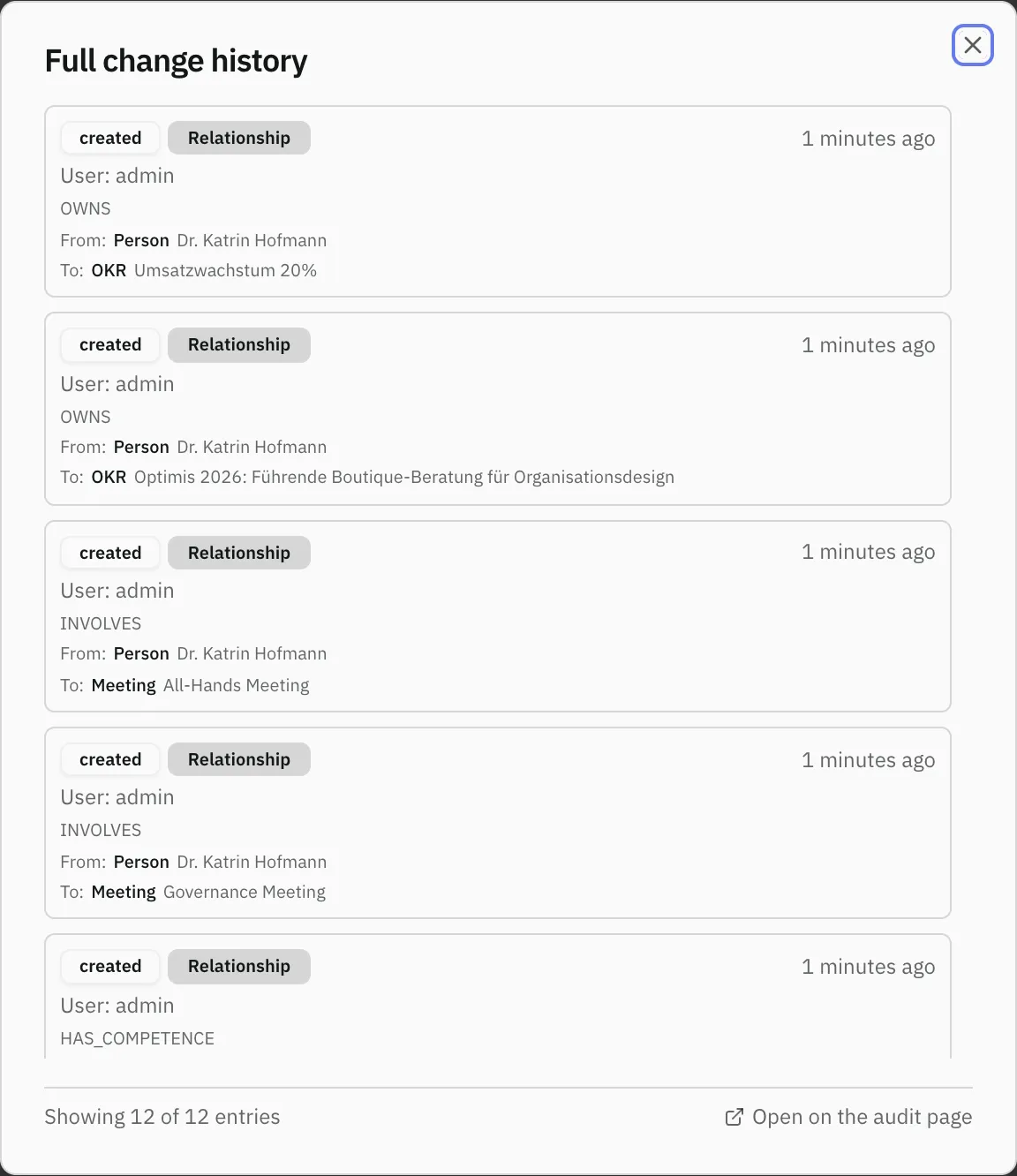
If there are more, “Show all” appears underneath with the total count. It opens a window with the complete history that loads further entries as you scroll. From there, “Open on the audit page” takes you to the “Audit Logs” page filtered down to this one entity.
The filtered page is marked by the filter chip at the top. The × next to it returns you to the tenant’s full list.
For drawings the history is a tab of its own with more room — it shows fifteen entries, with the rest in the same window.
Who sees what
Section titled “Who sees what”History follows the same visibility as the entity itself. That is the decisive rule: a history entry for an update carries the entity’s field values — if you may not see the entity, you may not read its history either.
In practice:
- If an entity is hidden from you, you see neither its entries in the list nor their details.
- For a relationship you must be allowed to see both connected entities. Otherwise the entry would reveal that the hidden entity exists and what it is attached to.
- Entries without an entity reference — logins, rule changes in the automator or validator, cleanup runs — remain visible to everyone in the tenant.
- Tenant boundary: entries from other tenants are never visible, not even with a known event ID. Only platform admins work across tenants.
What an entry contains
Section titled “What an entry contains”Every entry names the object, the acting person and the time. Since September 2026 it also carries the field values for all three operations: on creation the record produced, on modification the new state, on deletion the state immediately before it.
Previously only the modification carried content. That had a consequence which only surfaced once time travel was built on it: an object created and deleted again without being edited in between left its name nowhere. Afterwards it was a bare identifier — in the history as much as in time travel.
Operations that previously left nothing at all now appear in the history too: a bulk approval (it only reported how many objects were affected), a schema migration (it rewrites fields across every object of a tenant) and restoring a version. So the interface is not flooded, the individual entries of such a bulk operation do appear in the history but do not raise individual notifications.
For a link, the entry names both connected objects, the kind of link, its attributes and any further participants. That is new: until September 2026 the attributes were carried by the entries of a single deletion path only, and the further participants appeared nowhere. A deleted link therefore came back — if at all — as a bare two-way connection.
Also new: links that disappear together with a deleted object are written down in full. Previously the list stopped at five hundred, so for a heavily connected object the rest was missing. Instead of shortening, the application now writes several entries.
Why some entries are missing
Section titled “Why some entries are missing”Two cases tend to surprise people:
- Deleted entities. Once an entity is deleted, there is no way to determine whether you would have been allowed to see it. Its history is therefore no longer visible to you. Tenant admins and security officers still see it — the visibility check does not apply to them anyway.
- Older relationship entries that lack the details about the connected entities. When it cannot be decided whether you may see them, the entry is hidden rather than shown.
If you need an entry you cannot see, talk to your tenant admin — they can either grant you visibility on the entity or look the entry up for you.
Time travel in the graph — what it shows and what it does not
Section titled “Time travel in the graph — what it shows and what it does not”The date slider in the graph view replays the state as of the selected day: entities and relationships that did not yet exist on that day disappear; whatever was created or deleted on that day is highlighted. It is built on the same activity logs as this page — with two consequences:
What no longer exists today is back as well. Since September 2026 time travel does not merely show which of today’s records already existed on the selected day — it brings deleted objects back from the activity log, with their type, colour and name. Previously “this is how it looked on 14 May” showed everything except what had disappeared since, and did not say so.
Three limits remain — and the view names them rather than hiding them:
- Only as far back as logs exist. The slider starts at the oldest known event. Anything created before the retention period has no creation entry left and is therefore always shown — even at an earlier date. That is deliberate: a partially empty view would mislead more than a complete one.
- Not every deleted object still has a name. Anything created before September 2026 and never edited left none. Such objects appear without a name, and the timeline says how many there were.
- Deleted objects are only visible to those who see everything anyway. The object’s access grants were deleted along with it; whether you would have been allowed to see it can no longer be determined. “Unknown” must not mean “free” — so they stay out for users with restricted visibility, and the timeline says that too.
The state of a day is loaded when you click it — it asks the data nodes for the names. While that runs, the previous picture stands dimmed and the timeline says “Loading that day”.
What time travel does not show: how a field of a still-existing object was worded back then. It restores the inventory, not every version of every text.
In the explorer
Section titled “In the explorer”The date slider works in all three views of the graph page — including the explorer, which explores outwards from a starting point. There the selected day governs not only which cards are shown, but also the “+N” marker on a node and the rows on the cards: both speak about the selected day, not about today.
Two things you may notice:
- A starting point that did not yet exist on the selected day drops out. The remaining ones carry the picture, and a line above the canvas says how many were affected. The starting point is not lost — “Back to today” brings it back. If none of them existed on that day, the canvas says so instead of staying blank.
- Editing and time travel exclude each other. Switching on edit mode returns you to today’s state. Drawing into a past state is not what is meant — the change would land in the present anyway.
Bringing something back
Section titled “Bringing something back”On a restored node during time travel, the right-click menu offers “Restore to this state”. That is the only place for it — a deleted object no longer has a detail page.
A proposal is created, not an immediate change. The restore lands as a draft in the draft list — like any other change, with your name and a note saying which state it goes back to. Only approval brings the object back. The toast offers you a jump into the draft.
That is deliberate: in a tenant using consensus or consent approval, a deleted object must not reappear behind the backs of exactly those people whose agreement its deletion required. If the proposal is rejected, everything stays as it is.
What happens:
- The object is created again, with its original identifier, so references to it work again.
- Undoing always moves forward. Nothing is overwritten and nothing is removed from the history; approving the restore appears as its own entry, with your name on it. The way back leads out of a restore as well — the earlier state is in the history and reachable the same way.
- Relationships do not come back unasked — they are a menu entry of their own.
Bringing links back
Section titled “Bringing links back”Next to “Restore to this state”, a restored node offers a second entry: ”… with its links (N)”. The number says up front how many are involved. Both together are submitted as one bundle and approved together — otherwise you would get the object back but not its place in the organisation.
You bring a single link back by right-clicking the line itself: “Restore this link”. That did not exist before either — a link deleted while both its ends stayed put could not be restored anywhere.
A restored link keeps its original identifier, its attributes and its further participants. That way the same link has one continuous history instead of two under two numbers.
What does not come along: a link whose other end no longer exists and is not coming back in the same bundle. It would be a claim about something that does not exist. How many were affected is stated in the response — it is not passed over in silence.
Only tenant administration may bring back a deleted object: its access grants were deleted along with it, and whether anyone else would have been allowed to see it can no longer be determined. If no state is on record for the chosen date, the application says so explicitly — that is different from an error.
Related
Section titled “Related”- Visibility — Who may see which entities
- Drafts — The same rule for open drafts
- Roles & Permissions — Roles and permissions