

Relationship matrix
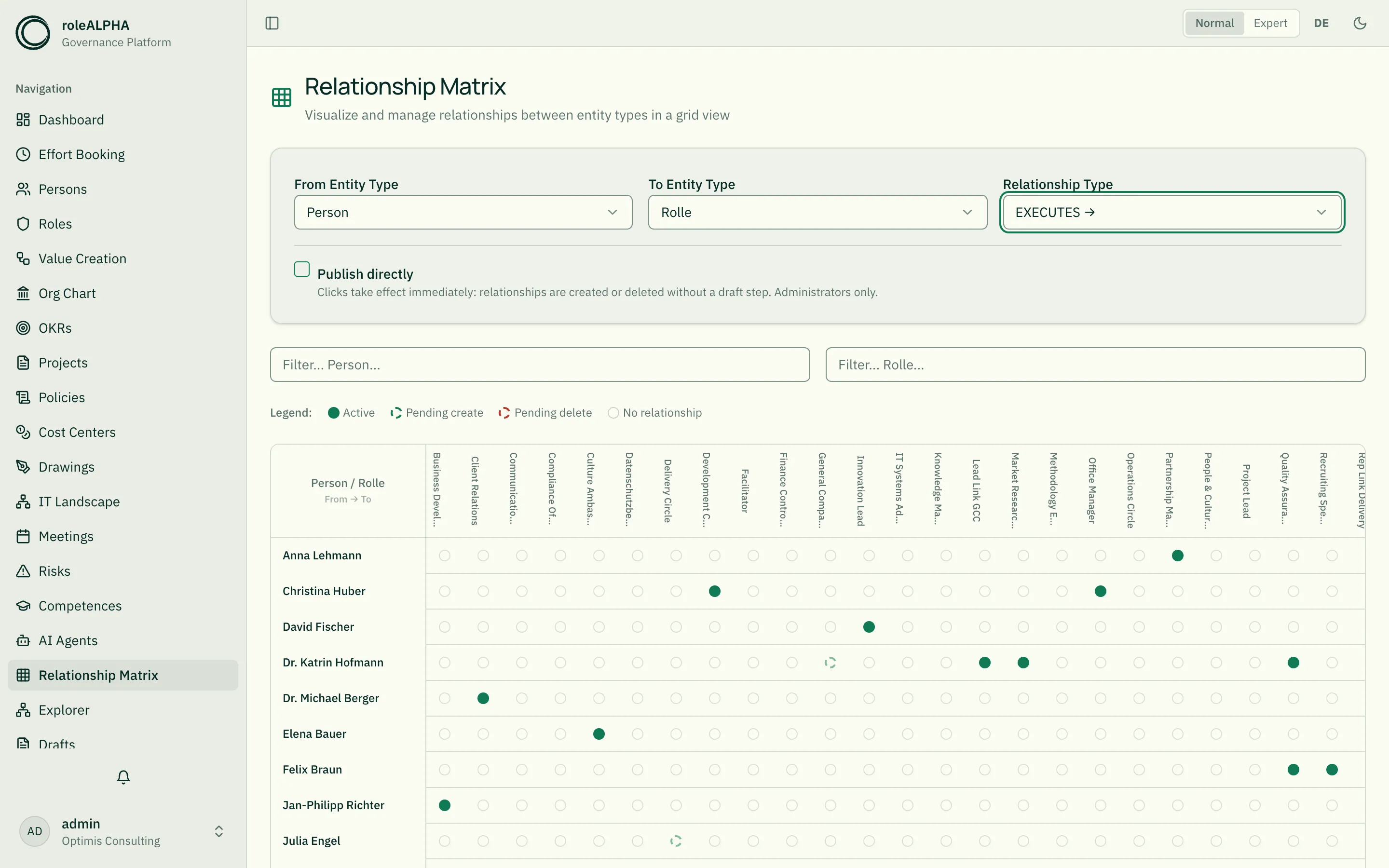
The relationship matrix shows two entity types as a grid: one type as rows, the other as columns. Every cell stands for one possible relationship between those two entities. It is the fastest way to maintain many relationships of the same type — instead of creating each one from the detail view (see Understanding Relationships).
You reach it via the Relationship Matrix navigation entry.
Setting up the matrix
Section titled “Setting up the matrix”Pick three things at the top:
- Row entity type (for directed types: the
fromside) - Column entity type (the
toside) - Relationship type — only types that are actually allowed for this combination are offered (see Relationship Types)
The grid only appears once all three are set. For a directed relationship type, a
From → To hint in the top-left corner makes the reading direction explicit.
Cell states
Section titled “Cell states”| Symbol | Meaning |
|---|---|
| Filled dot | Relationship exists |
| Green dashed | Pending create — a draft exists |
| Red dashed | Pending delete — a draft exists |
| Empty circle | No relationship |
Clicking an empty cell creates a create draft, clicking a filled dot a delete draft. Cells with an open draft are locked — that draft is decided first under Drafts.
Large sets: filters and limits
Section titled “Large sets: filters and limits”At most 100 rows and 50 columns are rendered. If there are more entities, a notice shows the real count — narrow the set down using the two filter fields (free text on the name).
Publish directly (administrators only)
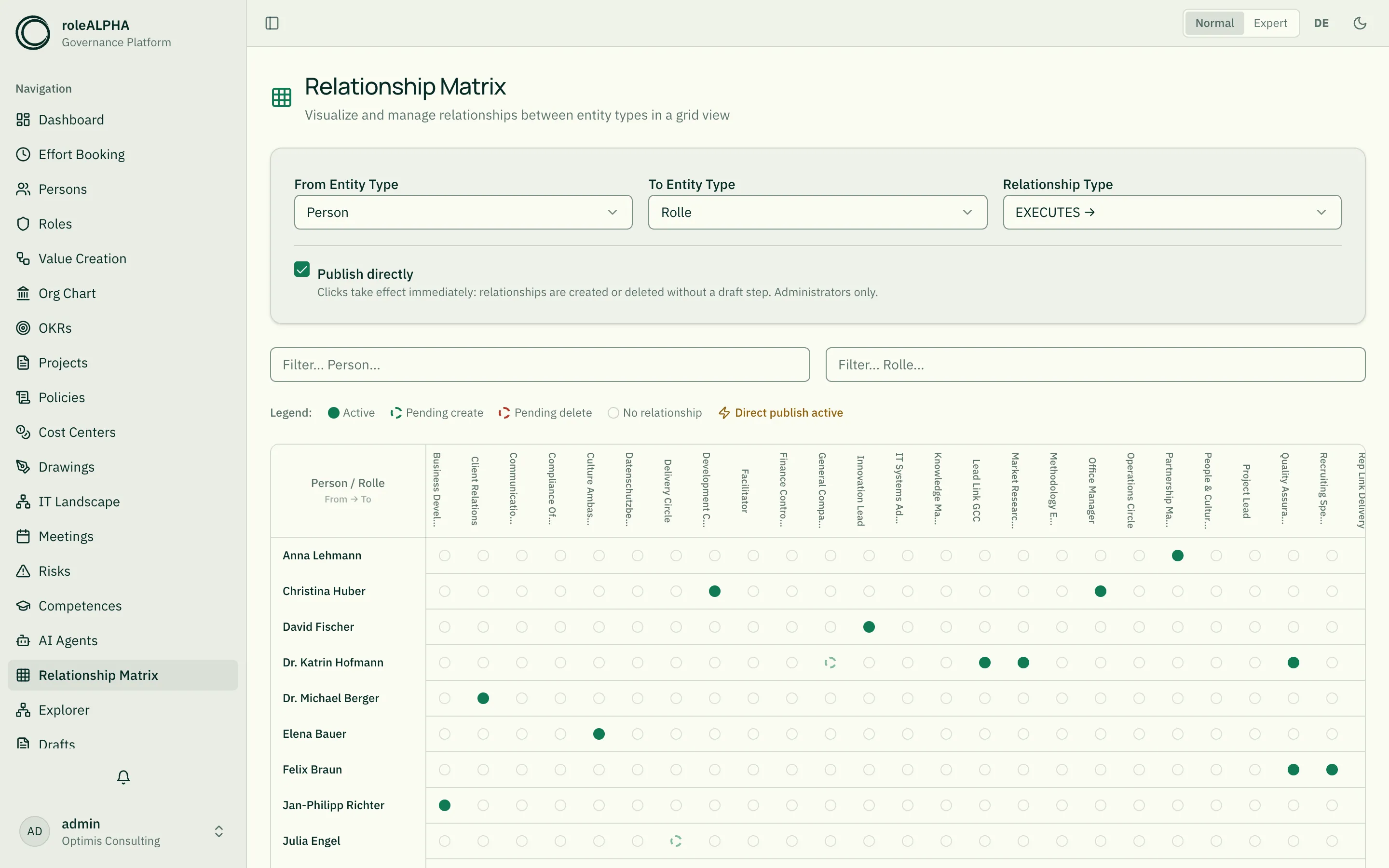
Section titled “Publish directly (administrators only)”Administrators see a Publish directly checkbox below the type selection. With it enabled, a click submits and approves the draft right away: the relationship is created or removed immediately, without a detour via the drafts page.
Three things worth knowing:
- Clicking a filled dot deletes immediately, without a confirmation prompt. While the mode is on, a notice in the legend says so. The checkbox only applies to the current session and is off again after a reload.
- In scenario mode the checkbox is disabled. Drafts belonging to a scenario are published as a bundle, not one by one.
- If your approval mode requires a change comment, the direct route cannot approve. The draft then stays submitted and waits under Drafts; a message tells you so.
The same happens if your permissions are not sufficient in the current approval mode (e.g. consensus with approvals still missing): the draft is submitted, approval is pending. See Approval Modes for the available modes.
Related
Section titled “Related”- Understanding Relationships — what a relationship is and how to create a single one
- Relationship Types — which relationship types are allowed between which entity types
- Drafts — the draft lifecycle
- Approval Modes — who may approve