

Normal & Expert Mode
roleALPHA offers two view modes for entity details. You can switch via the detail header, the topbar, or your profile page. Your choice is stored per browser.
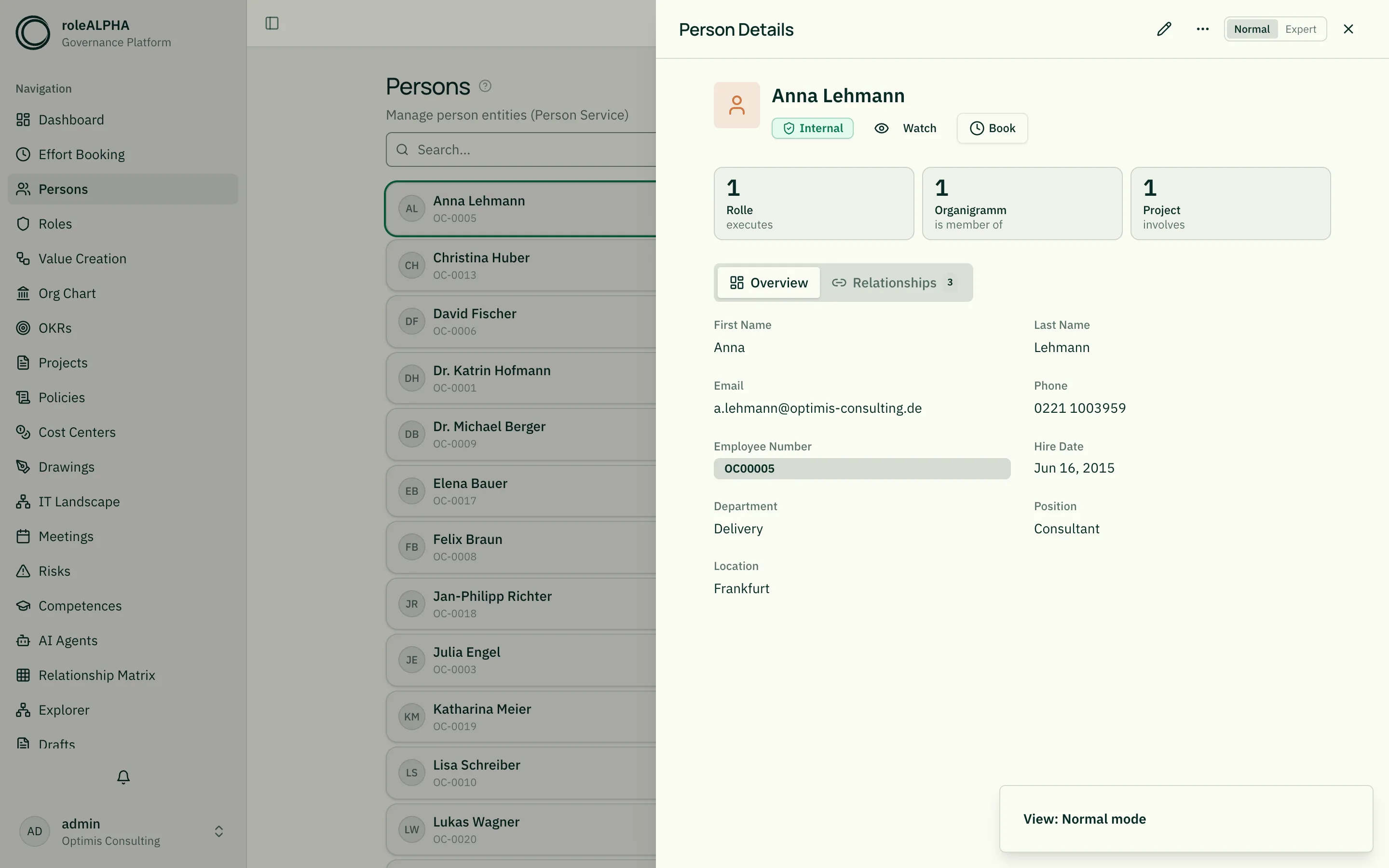
Normal Mode
Section titled “Normal Mode”Simplified view for day-to-day work:
- KPI tiles for the most important relationships
- Lead sentence describing the entity in 1-2 sentences
- Filtered data grid (UUIDs and meta fields hidden)
- Mini-graph overview of direct neighbors (with node names)
Default for regular users. Admins start in expert mode.
Expert Mode
Section titled “Expert Mode”All details — UUIDs, full relationship list, full graph, drafts, audit log, visibility grants.
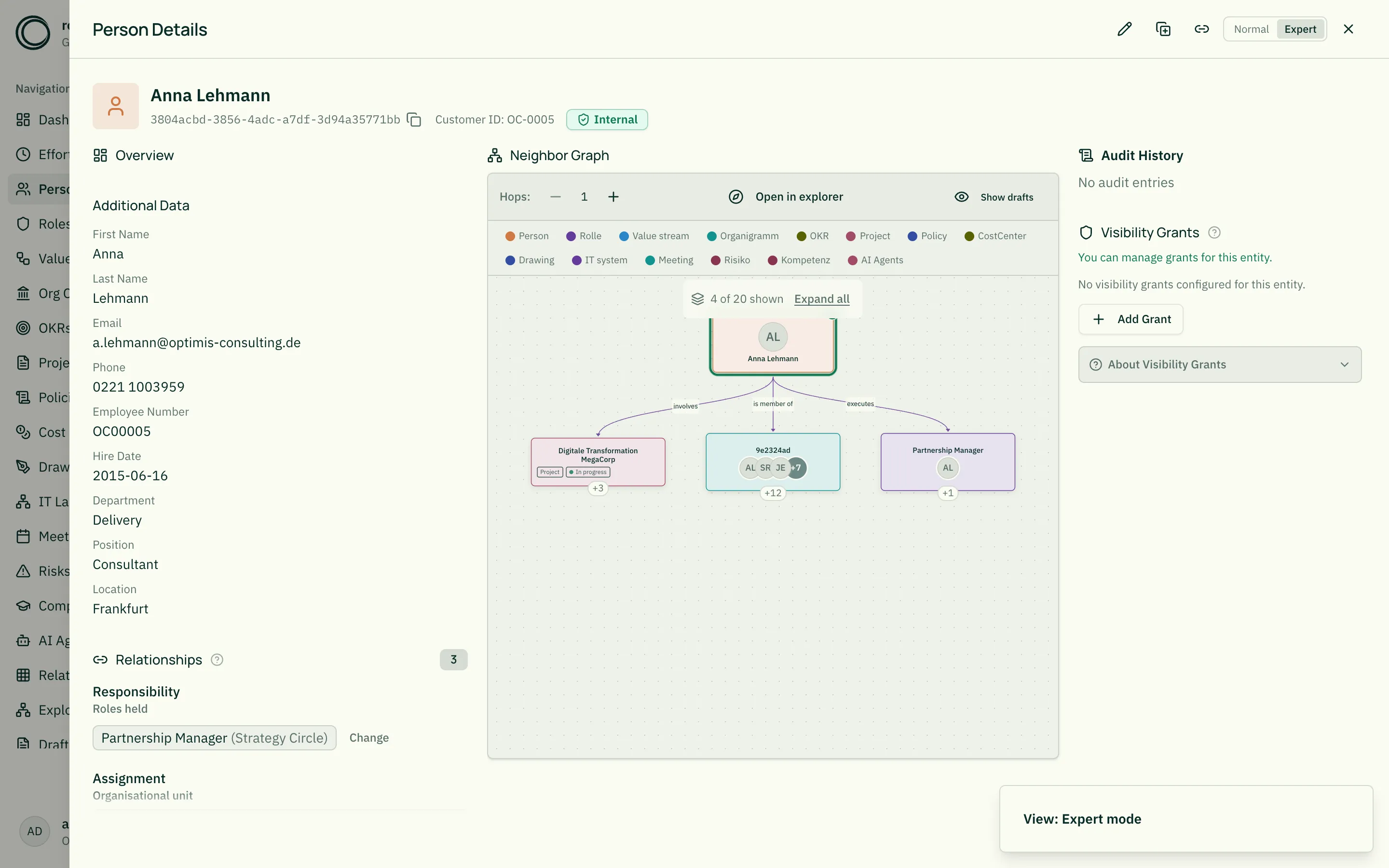
The expert dashboard has three columns, each with its own scroll area: on the left the record and its relationships, in the middle the neighbourhood and below it the reports, on the right drafts, change history and grants. Previously the panel scrolled as a whole — the short right-hand column was gone while you were still reading in the middle. A fade at the bottom of a column shows that more is there; it only appears then.
Over the neighbourhood the mouse wheel belongs to the graph (it zooms). To scroll past it, move the pointer beside the canvas — which is why it sits at the top of its column: you pass it exactly once.
Path in the List View
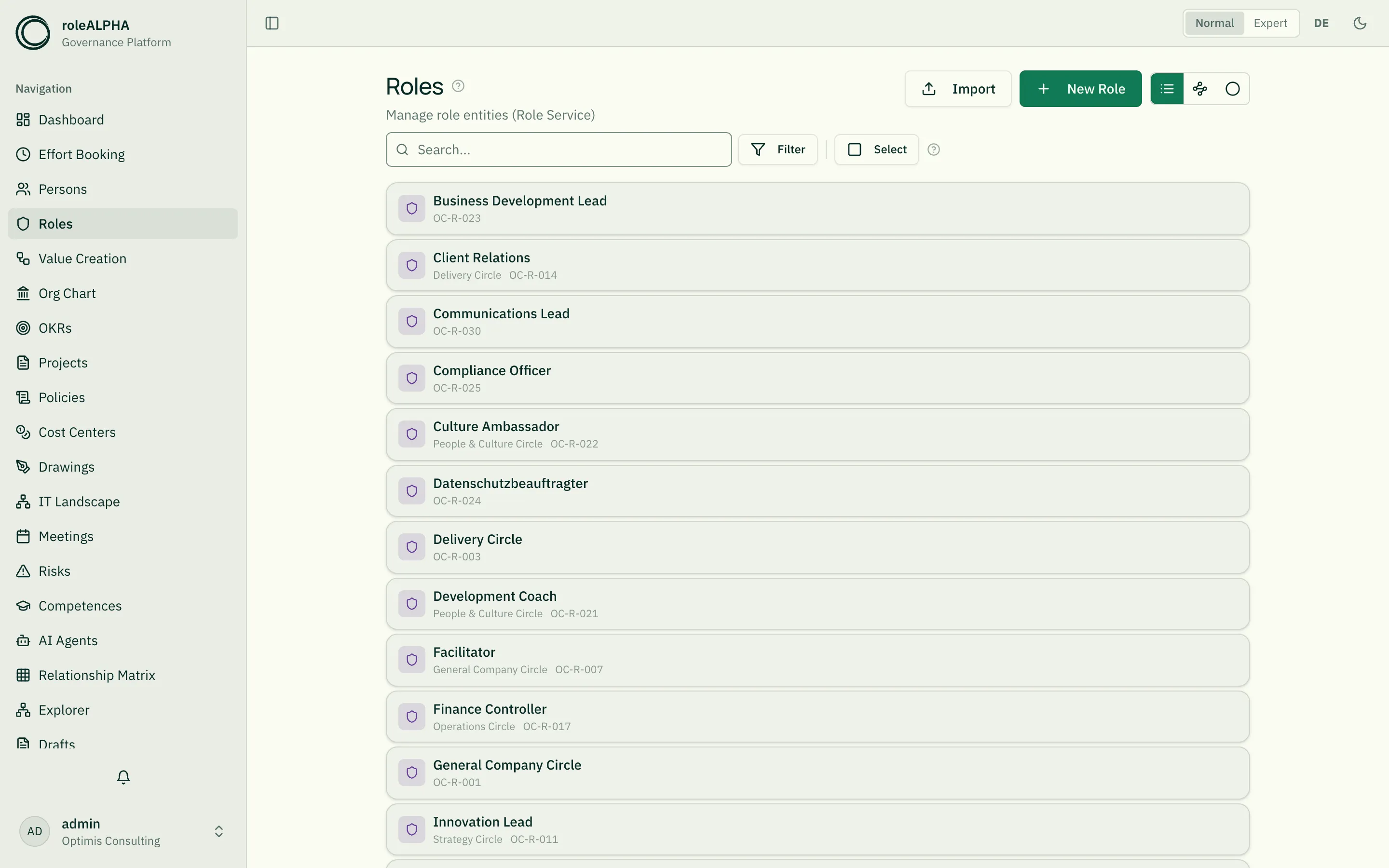
Section titled “Path in the List View”Hierarchically arranged entities — such as roles within their circles, org units, or nested OKRs — show their path beneath their name in the list view (the parent chain from the root down to the direct parent). This makes entities with identical names — e.g. several “Lead” roles in different circles — distinguishable at a glance.
The path is shown muted with › separators and is hidden for flat
entities without a parent. It reuses the same logic as the breadcrumb in
the detail view.
Order of the List
Section titled “Order of the List”Lists are sorted by name, ascending. Entries without a name come last. Entries sharing a name are ordered by their internal identifier — so the order is unambiguous and does not change between two visits.
This matters more than it sounds: a list that loads more on scroll fetches the next page by the position of the previous one. Without a fixed order the same entity could appear twice while another never shows up at all — and a Bulk Delete spanning several pages would miss entries. A newly created record therefore does not appear at the end of the list but in its alphabetical place; the search finds it right away.
Hierarchy in Relationship Lists and Previews
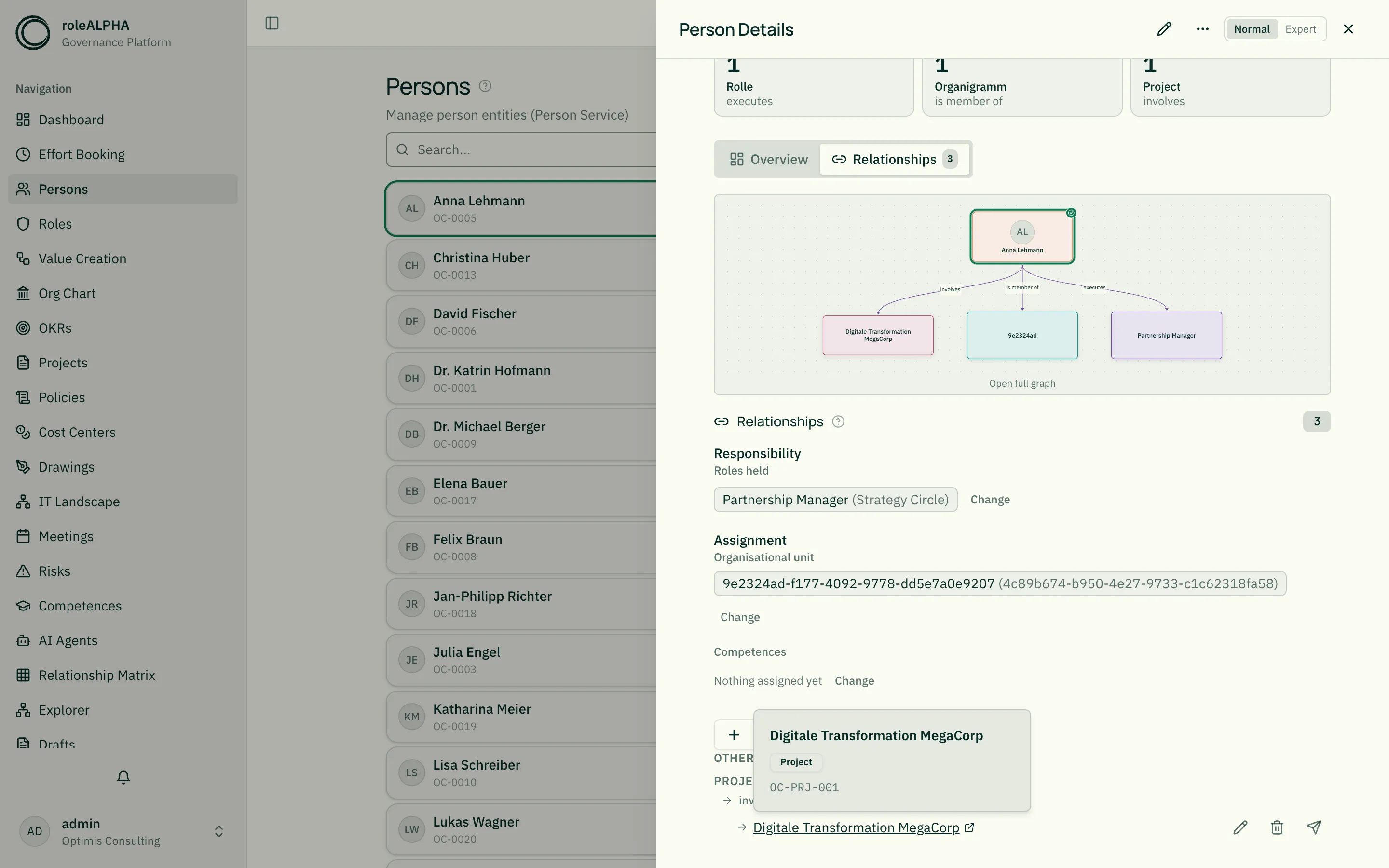
Section titled “Hierarchy in Relationship Lists and Previews”Wherever a hierarchical entity only appears as a link, its position is visible too:
- The relationship list of an entity shows the direct parent circle in
parentheses after the name — e.g.
Lead Link (Sales Operations). If a person holds several identically named roles, they are distinguishable without any extra action. The suffix appears in both view modes. - The hover preview of a relationship or @-mention link shows the full path
above the name. For deep structures the leading levels collapse into
…; the complete chain is in the path’s tooltip. - In the roles circle view the hover tooltip names both the role and its circle — especially useful when zoomed out, where circle labels are hidden.
Display density per tenant
Section titled “Display density per tenant”How much breathing room fields get in normal mode is set by the tenant admin under Branding (Tenants → palette icon → “Display density”). Three presets prefill the values:
| Preset | Effect |
|---|---|
| Compact | Many fields in little space — good for wide screens and power users |
| Standard | Shipping default |
| Spacious | Generous spacing, calm typography — good for presentations and projectors |
Each of the three values can then be fine-tuned individually:
- Gap between fields (px)
- Gap label ↔ value (px)
- Line height (factor)
A preview right below the inputs shows the effect immediately. Once values are customised, no preset is highlighted any more. The setting applies to all members of the tenant and takes effect right after saving.
Editing looks the same everywhere
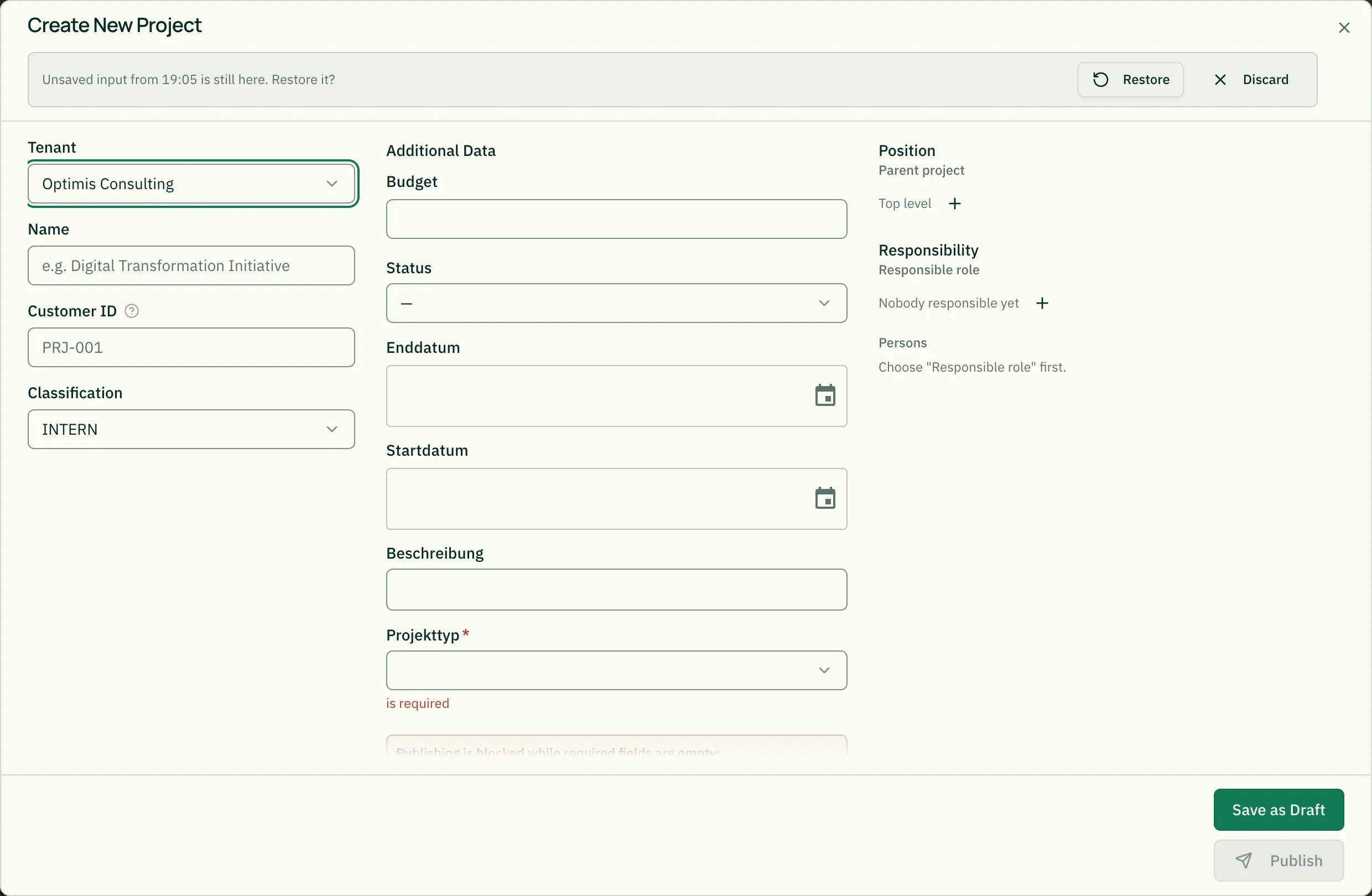
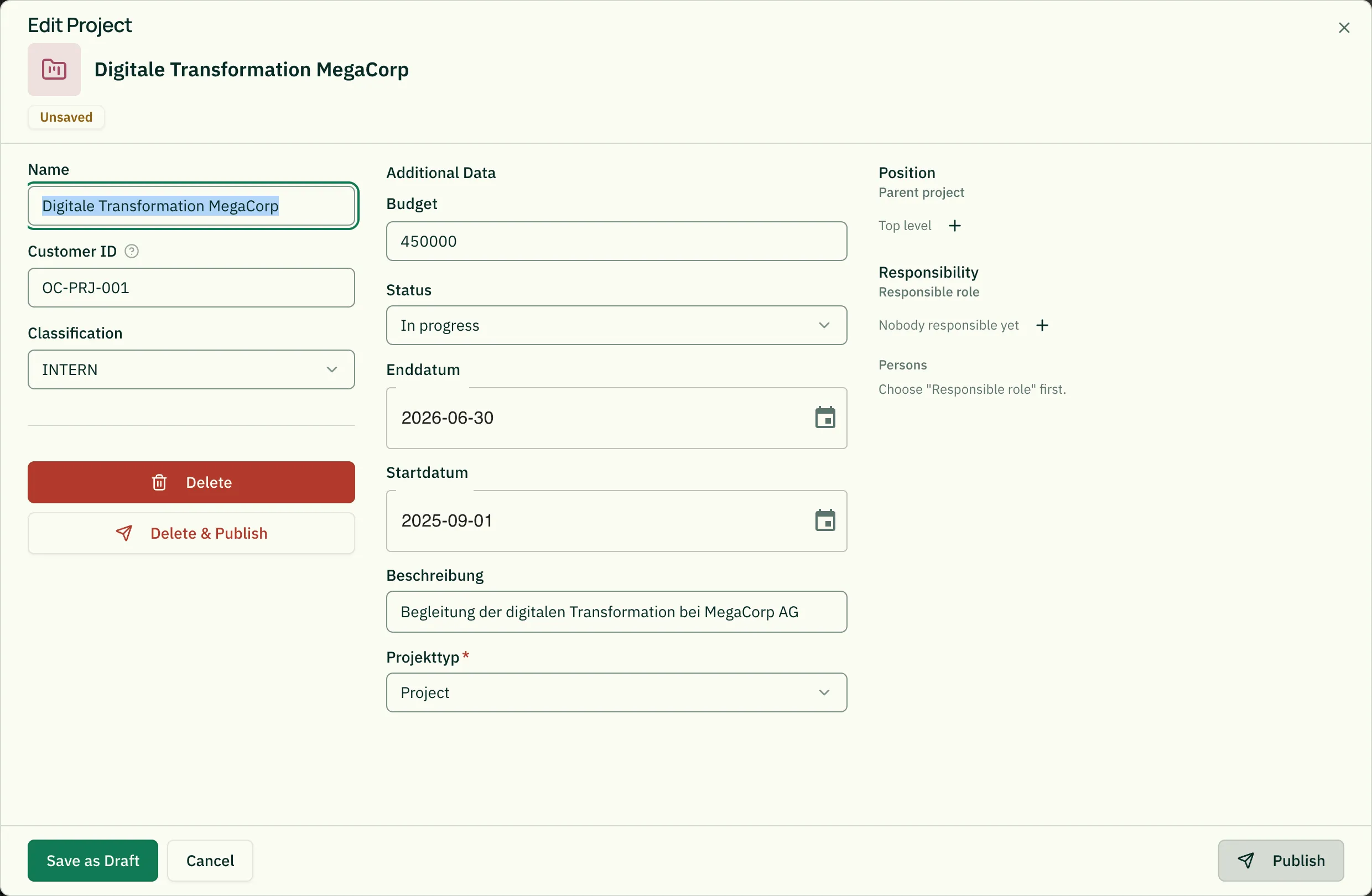
Section titled “Editing looks the same everywhere”The view mode decides how you read a record — not how you edit it. Creating and editing open the same form window, from normal mode as well as from expert mode:
- Left: what you type yourself — name, identifier, classification.
- Middle: the domain data the entity type declares.
- Right: responsibilities and assignments (Assigning the person behind a role).
Each column scrolls on its own; title, status band and footer stay put. That keeps the Publish button always in view — previously, a record with many fields meant scrolling two screens to find it. A fade at the bottom of a column shows that there is more below.
The pencil on an existing record opens the very same window:
On narrow screens everything falls into one column and the window scrolls as a whole — three scroll areas side by side cannot be operated on a phone.
The record stays readable behind the window: Escape or a click outside closes it without saving
(with unsaved input the browser asks first, see Drafts).
Keyboard Shortcut
Section titled “Keyboard Shortcut”M (outside input fields) toggles between modes.
Related
Section titled “Related”- Entity Types — Which fields are visible
- Visibility — Who sees which entity
- Understanding Relationships — How hierarchies form through relationships