

Duplicates & Replicates
Two ways to reuse an existing entity — with one key difference:
- Duplicate — a new, independent copy. Changes to the original do not affect the copy.
- Replicate — the same entity, additionally placed in another context. No new object is created; changes to the original apply everywhere.
Duplicating
Section titled “Duplicating”- Open the entity’s detail view.
- In normal mode open the three-dots menu and choose “Duplicate”; in expert mode click the copy button in the header directly.
- A pre-filled create draft is generated (toast “Duplicate draft created”). The name is prefixed with “Copy of”.
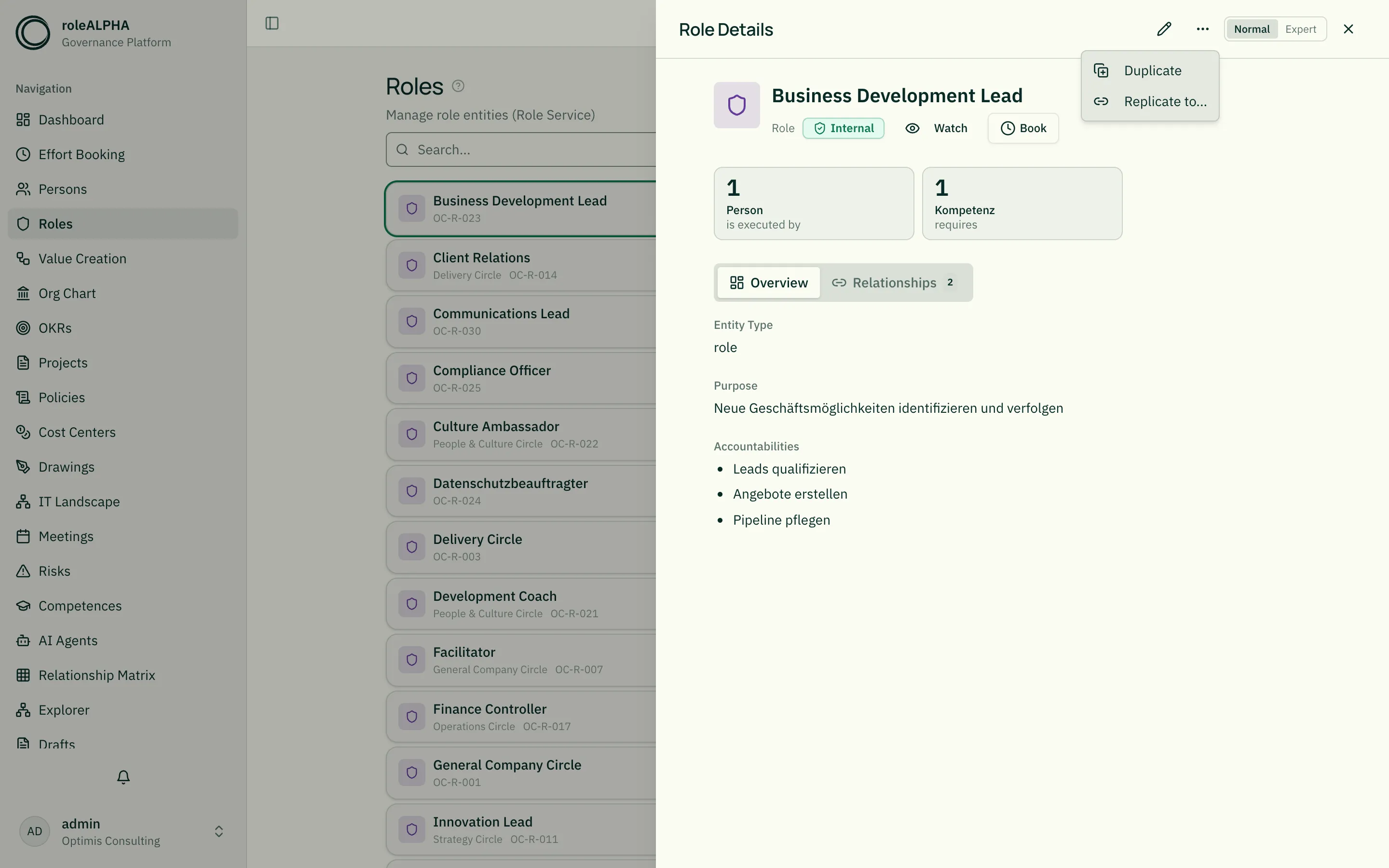
The draft follows the normal flow — see Drafts and Approval Modes. Once approved, the copy is a standalone entity with no link to the original.
Replicating
Section titled “Replicating”- In the detail view choose “Replicate to…”.
- In the dialog, search for and select the target entity where this
item should appear as a replicate. The selection shows as
“Target:
”. - Confirm with “Replicate”.
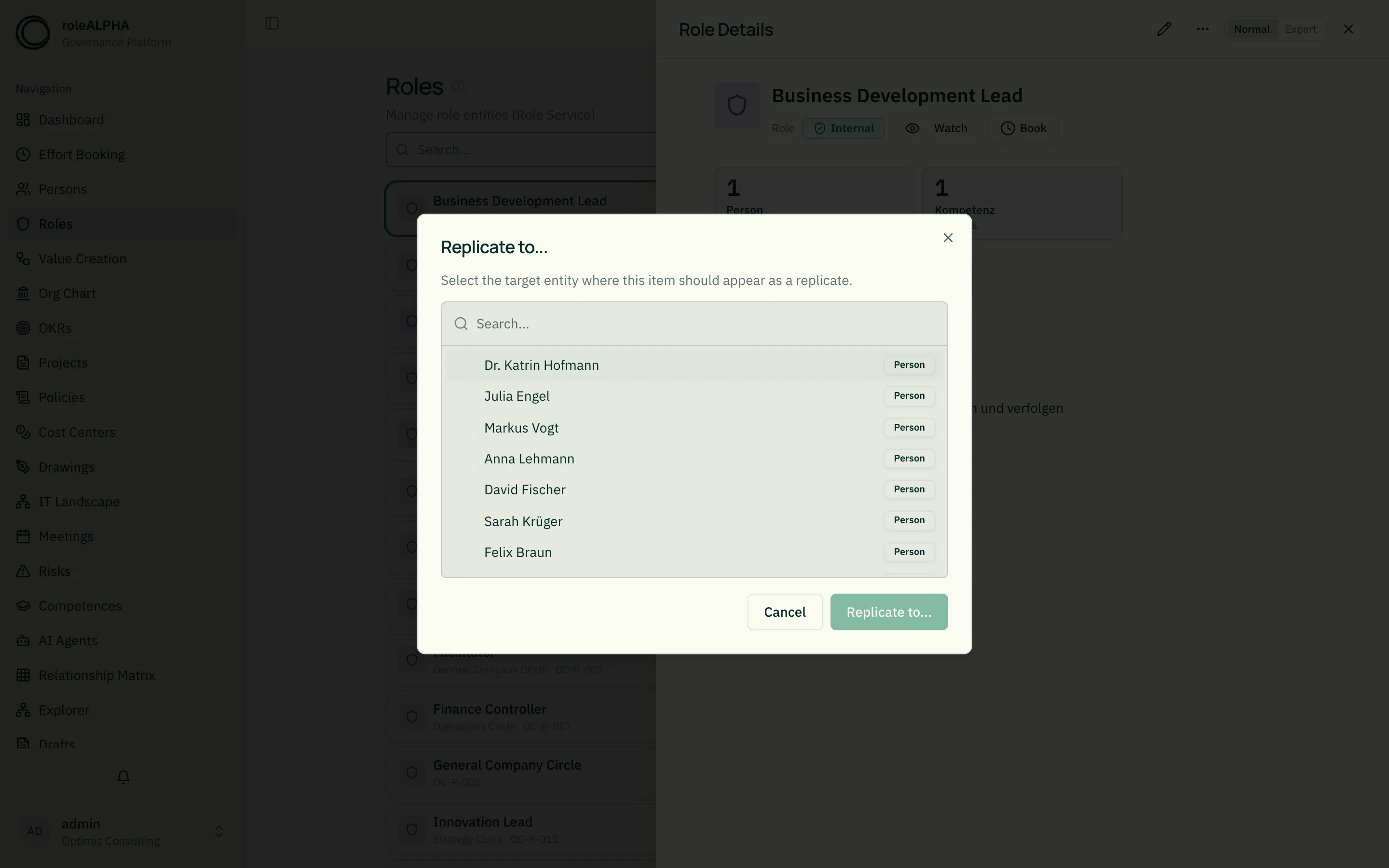
Under the hood this creates a BELONGS_TO
relationship that is published immediately as a
draft (under strict approval modes it waits for approval). The original then
also appears in the target context.
A target that already holds a replicate is marked as such and cannot be picked
a second time. In scenario mode replicating is disabled — it would publish
immediately. If your tenant has no BELONGS_TO type, the dialog says so
instead of leaving the button silently disabled.
From the create dialog, too. If the source is a template, you do not need its detail page at all: after picking a template, the create dialog asks directly whether it should become a duplicate or a replicate. See Templates (unassociated entities).
“Replicated in” & assigning persons
Section titled ““Replicated in” & assigning persons”On the source entity, the “Replicated in” section lists every context it was replicated into. For each entry you can use “Assign persons” to define who fills the role in that specific context.
Only persons who already execute the original (via EXECUTES) are
selectable. If there are none, the selection stays empty.
Spotting replicates in diagrams
Section titled “Spotting replicates in diagrams”In the explorer and in the role circle view, a replicate carries a small mark at its top-left corner — two stacked sheets. A box marked this way is not a separate entity — it is the mirrored original entity. The original lives elsewhere, and changes there apply here too. Hover the mark and it states its meaning in plain words.
Where there is room for them, a subtle diagonal stripe texture and a dashed border come on top. Both are additions, not carriers: if the entity type carries a configured node texture, that texture occupies the same channel as the replicate stripes, and the stripes drop out. On exactly those nodes the statement used to rest on the border alone — and a dashed border means something else elsewhere (see Connections and outlines). The corner mark sits outside the surface and nothing covers it.
When a view contains replicates, the legend explains the marker and makes it filterable: one click dims all replicates (they stay in place and merely recede). With no replicates present the entry does not appear at all.
Removing
Section titled “Removing”A replicate is just a relationship. You remove it like any other relationship (via the relationships or graph editor) — which also goes through the draft flow. The entity itself remains.
Context-specific supplements on a replicate
Section titled “Context-specific supplements on a replicate”A replicate is the same entity — but some things only hold there. A role may carry an extra accountability in a second circle without that applying everywhere.
- Open the detail view of the replicated entity.
- Under “Replicated in” each context has an “Edit additions” button.
- Enter the additional entries and save.
Add yes, overwrite never. Only the list fields of your entity type are offered — for a text or number field there would be no “add”, only “replace”, and that is ruled out. The original’s values sit next to them for orientation and cannot be touched here.
Where the supplement shows up
Section titled “Where the supplement shows up”On the source side the replicate row shows how many supplements exist per context. On the target side — the circle or organisational unit you replicated into — you find the “Replicated into this entity” section. Expanding an entry there shows original and supplement merged: inherited values plain, the ones added here marked as such.
Duplicate or replicate?
Section titled “Duplicate or replicate?”- Duplicate — a new, independent copy. Use it as a starting point for something similar that then evolves on its own.
- Replicate — the same entity, kept in sync across contexts. Use it for transversal roles that should be visible in several areas without maintaining them twice.
Both paths exist in two places: on the detail page of an existing entity (this page) and in the create dialog, once you pick a template there (Templates (unassociated entities)). The meaning is the same in both — a duplicate prefixes “Kopie von …” and carries translations along, a replicate creates nothing new.
Related
Section titled “Related”- Understanding Relationships — How relationships work
- Relationship Types —
BELONGS_TO,EXECUTESin detail - Drafts — How drafts work
- Approval Modes — Approving copies and replicates
- Bulk Delete — Delete multiple entities at once
- Templates (unassociated entities)
- @-Mentions — Soft links in description texts
- Roles — Roles often replicate as transversal roles