

Templates (unassociated entities)
Sometimes you need a role, a value stream or a policy as a model — something that exists in substance, that nobody performs, and that appears nowhere in the org chart. That is what unassociated entities are for.
They are full entities with every field of your entity type. The only difference: they are explicitly not part of the organisation structure — and are therefore kept out of everywhere the platform shows the organisation as it is lived.
Where a template does not appear
Section titled “Where a template does not appear”- not in the module list (Roles, Value streams, …)
- not in the graph and in no visualisation
- not in cluster or gallery views
- not in semantic search
- not in the assistant’s answers or its tools
- not in @-mentions and not in the relationship picker
- not in dashboard counters — and not in billing
Where it does appear
Section titled “Where it does appear”- in management under Entity Types
- in the create dialog as a template
- as the source for a duplicate or a replicate
- in its own detail view, when you open it directly
That is not a contradiction but the point: a template should be usable without claiming an organisation it is not part of.
Managing templates
Section titled “Managing templates”Templates belong to the entity type and are maintained there. You need tenant admin rights.
- Open Settings → Entity Types.
- Click the library icon on the type you want. It only appears if a specialist service is connected for that type — without one there are no entities and therefore no templates.
- The dialog lists every template of that type and lets you create, edit or remove them.
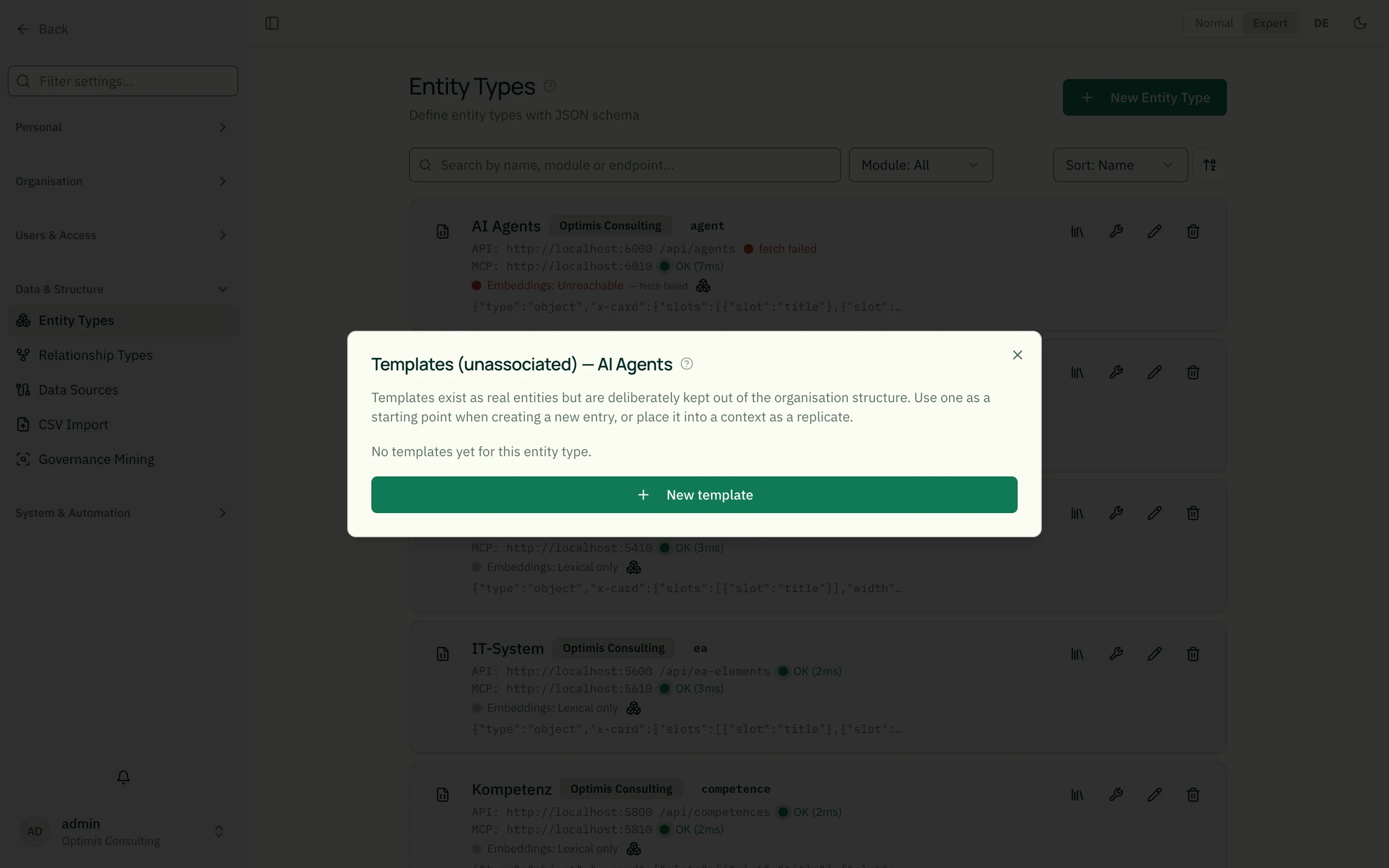
The form is the same one you use to create normally: name, customer ID, classification and the fields from the type’s JSON Schema for Entity Types.
The approval mode applies here too. A template is a real entity and runs through the same flow as any other. If your tenant uses consensus or consent for that type, the new template is submitted for approval and only appears afterwards — the dialog tells you beforehand. See Approval Modes.
Connector-managed types. If an entity type is maintained by a connector and manual creation is locked, that applies to templates as well. The dialog names the connector.
Using a template when creating
Section titled “Using a template when creating”- Open the create dialog in the module you want.
- “Start from a template” appears right below the tenant selector — but only if templates exist for that type.
- Pick one. The dialog now asks: What should happen?
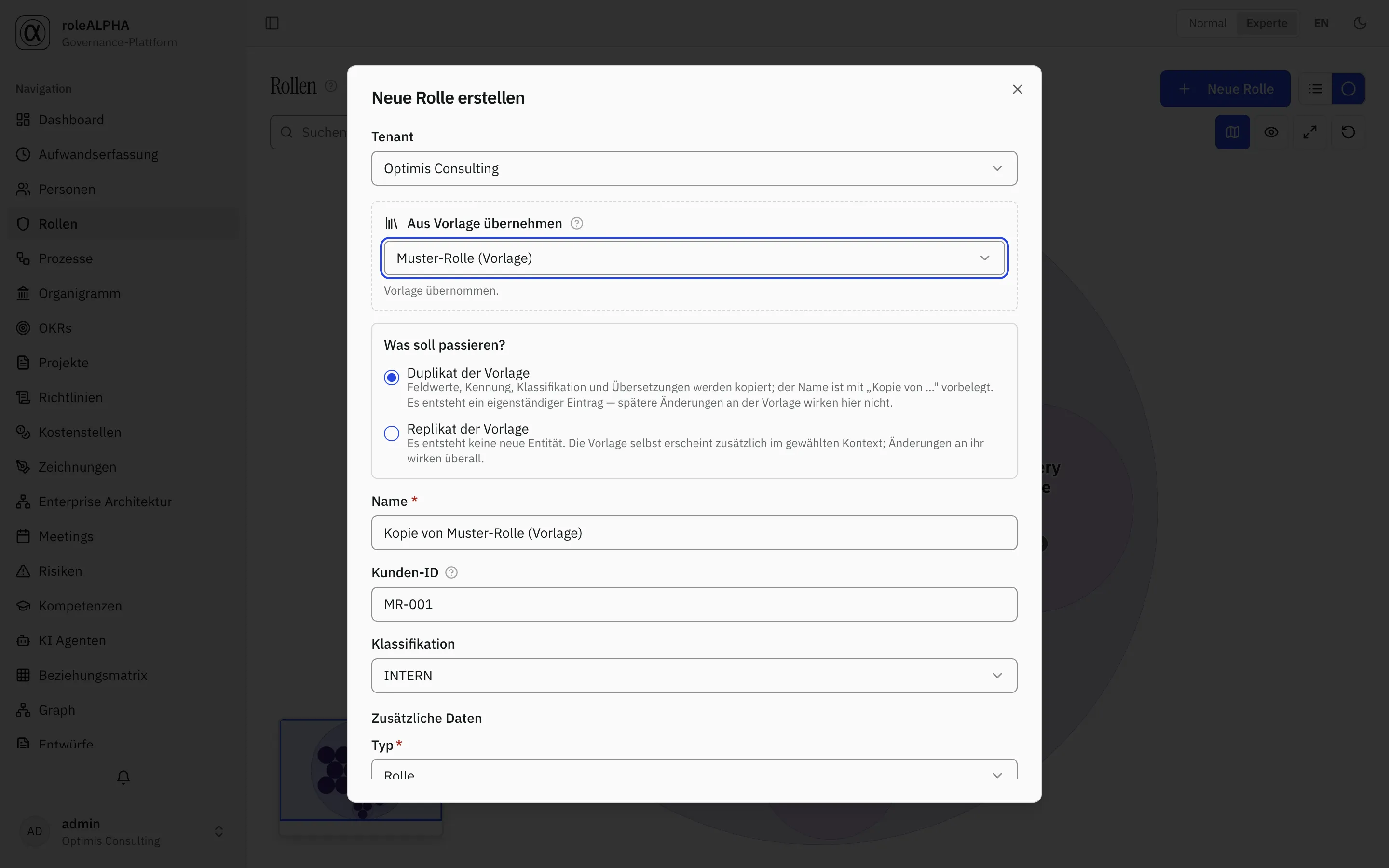
3a — Duplicate of the template
Section titled “3a — Duplicate of the template”A new, independent entity is created. Its field values, customer ID, classification and translations are carried over, and the name is prefilled with “Kopie von …”, ready to be overwritten — exactly like the duplicate on a detail page. “Duplicate” means the same thing in both places.
Whatever you typed yourself stays. If you already filled in a name or customer ID before picking the template, the template does not overwrite it.
The resulting entity is a completely normal one. It does not inherit the template marking and appears immediately wherever it belongs. Later changes to the template do not affect it.
3b — Replicate of the template
Section titled “3b — Replicate of the template”No new entity is created. Instead you pick a target context, and the template itself additionally appears there — with the replicate texture that sets it apart visually. When the template changes, the replicate changes everywhere with it.
Because nothing new is created, name, customer ID, classification and the detail form disappear from the dialog. After clicking “Replicate” it closes, and the message names the target: that is where you find the template under “Replicated into this entity”. Nothing changes in the list you came from — the template stays invisible there.
Three things that apply:
- You cannot switch tenants here. A replicate stays within the current tenant.
- A target that already holds a replicate is marked as such and cannot be picked a second time.
- Approval mode and scenario mode apply here too. In a consensus or
consent tenant the relationship waits for approval (Approval Modes); in
scenario mode replicating is disabled because it would publish immediately.
If your tenant has no
BELONGS_TOrelationship type, the option is disabled and tells you so.
Template, duplicate or replicate?
Section titled “Template, duplicate or replicate?”All three reuse something existing, but with different intent:
| I want … | Use |
|---|---|
| an independent new entity modelled on a template | “Duplicate of the template” in the create dialog |
| the same template additionally shown in a context | “Replicate of the template” in the create dialog |
| an independent copy of an existing (non-template) entity | duplicate on its detail page (Duplicates & Replicates) |
| an existing entity additionally shown in a context | replicate on its detail page (Duplicates & Replicates) |
A replicate of a template is the interesting case — and reachable straight from the create dialog since this change: the library entity itself stays invisible, but appears in the context you replicate it into. That way you maintain a model role exactly once and put it to work in several places instead of copying it. Whatever only holds in one of those places you add there as a supplement.
Turning an existing entity into a template
Section titled “Turning an existing entity into a template”You can — but only while it is not anchored in the structure. An entity with relationships cannot be taken out afterwards: its node would vanish from the views while its edges stayed behind. Remove the relationships first. Replicate relationships are exempt — that is precisely what the library is for.
The assistant
Section titled “The assistant”rAlph can use templates even though they are kept out of its normal answers:
- “Which templates exist for roles?” — it lists the library on purpose.
- “Create a new role based on the model role.” — it produces a duplicate.
- “Put the model role into the Sales circle.” — it produces a replicate.
Both are drafts and need your approval, exactly as through the interface.
It can also create templates — but only when you explicitly ask for one:
- “Create a template for a role called Model Role.” — the suggestion card then carries the Template marking before you even confirm it. If you do not say the word, an ordinary entity is created.
- “Make the Onboarding role a template.” or “Bring the Model Role template back.” — this takes effect immediately, without approval, exactly like the switch in the library management. If the entity is still anchored in relationships, rAlph tells you how many there are instead of quietly leaving it be.
Three things worth knowing:
- It requires tenant administration rights. Without them rAlph refuses the marking and points you at your administration — it then creates an ordinary entity, not a template.
- It attaches no relationships to a template. If you ask for a connection in the same breath, exactly that card stays blocked and names the reason. To make the template appear in a context, that is a replicate.
- A new template is classified INTERNAL. Set a different classification afterwards in the library management.
If you pick a scenario in the chat, the template draft runs through the normal approval path — in a consensus or consent tenant it may therefore wait for approval (Approval Modes).
Related
Section titled “Related”- rAlph – attaching files to the assistant — how rAlph produces proposals and how you confirm them
- Duplicates & Replicates — duplicates, replicates and context-specific supplements
- Entity Types — where templates are managed
- Approval Modes — why a template sometimes stays a draft
- Visibility — classification applies to templates too