

Drafts
Every change in roleALPHA goes through a draft step — so others only see “the truth” after it has been released. This prevents half-baked state in shared lists.
Lifecycle
Section titled “Lifecycle”- Draft created — when saving a form (
save) - Submitted — user submits for approval (
submit) - Approved / Published — an authorized person releases it
- Alternatively: Rejected or Discarded
A new, not-yet-released entity
Section titled “A new, not-yet-released entity”While a newly created entity is still pending as a draft, it does not “really” exist yet. If you edit it in this state, your changes are folded into the same create draft — no second (update) draft is created alongside it. Discarding it removes the pending create draft.
Where to find it again: pending create drafts sit at the top of their type’s page, outlined with a dashed border — in every view. Even when a page opens graphically (meetings in the cadence grid, projects in the hierarchy, roles in the circle), you do not have to switch to the list view first. Clicking the card opens the draft to keep editing or to submit it.
Drafts created by rAlph
Section titled “Drafts created by rAlph”When the AI assistant rAlph creates a draft (e.g. a new relationship), a draft card appears right in the chat, listing the created drafts with a link to the drafts area — so you see immediately what rAlph did. rAlph cannot delete entities: start a deletion via the entity’s own delete action, which likewise creates an approval-gated deletion draft.
The status band: what is happening to my change
Section titled “The status band: what is happening to my change”Above the footer of every form it says which state the edit is in. Previously that was only visible in a message that disappears — and roleALPHA only ever shows one message, so the next one replaces the previous. Anyone who looked away briefly after a click could no longer find out what happened.
| Band | What it means |
|---|---|
| Unsaved | Input that is not stored anywhere yet. Amber, because it should be resolved. |
| Saving … | A write is on its way. |
| Draft | A draft exists; nobody is being asked. |
| Waiting for approval | Submitted — others decide. Neutral, because that is the normal course. |
| Published | In effect. |
| Not saved | The last attempt failed; the cause is shown next to it. |
If two things are true at once, the more urgent one wins: a running write beats everything (the input is on its way), and Unsaved beats Waiting for approval — whoever keeps typing has a loss risk first.
When you leave the form
Section titled “When you leave the form”If input is open, the browser asks before closing or reloading. The question depends on the actual state and not on the form being open: with no input it does not appear. A question that always appears gets clicked away — and then it no longer protects.
Who may approve
Section titled “Who may approve”Depends on the configured approval mode and potentially the affected persons.
In the relationship matrix, administrators can skip the draft step via a checkbox: the draft is created on click and approved right away. It still comes into existence and stays traceable in the audit log — it just doesn’t wait on the drafts page.
Who sees which drafts
Section titled “Who sees which drafts”A draft on an existing entity carries that entity’s field values, so it follows the same visibility as the entity itself. In practice:
- If an entity is hidden from you, its drafts are hidden too — on the drafts page, inside a scenario and in the timeline alike.
- Always visible to you: your own drafts, drafts for new entities (which don’t exist yet) and drafts without an entity reference.
- Drafts of other tenants are never visible — not to tenant administrators or security officers either.
Because hidden drafts drop out entirely, the count shown on the drafts page can be lower than what a colleague with broader visibility sees.
Where to find drafts
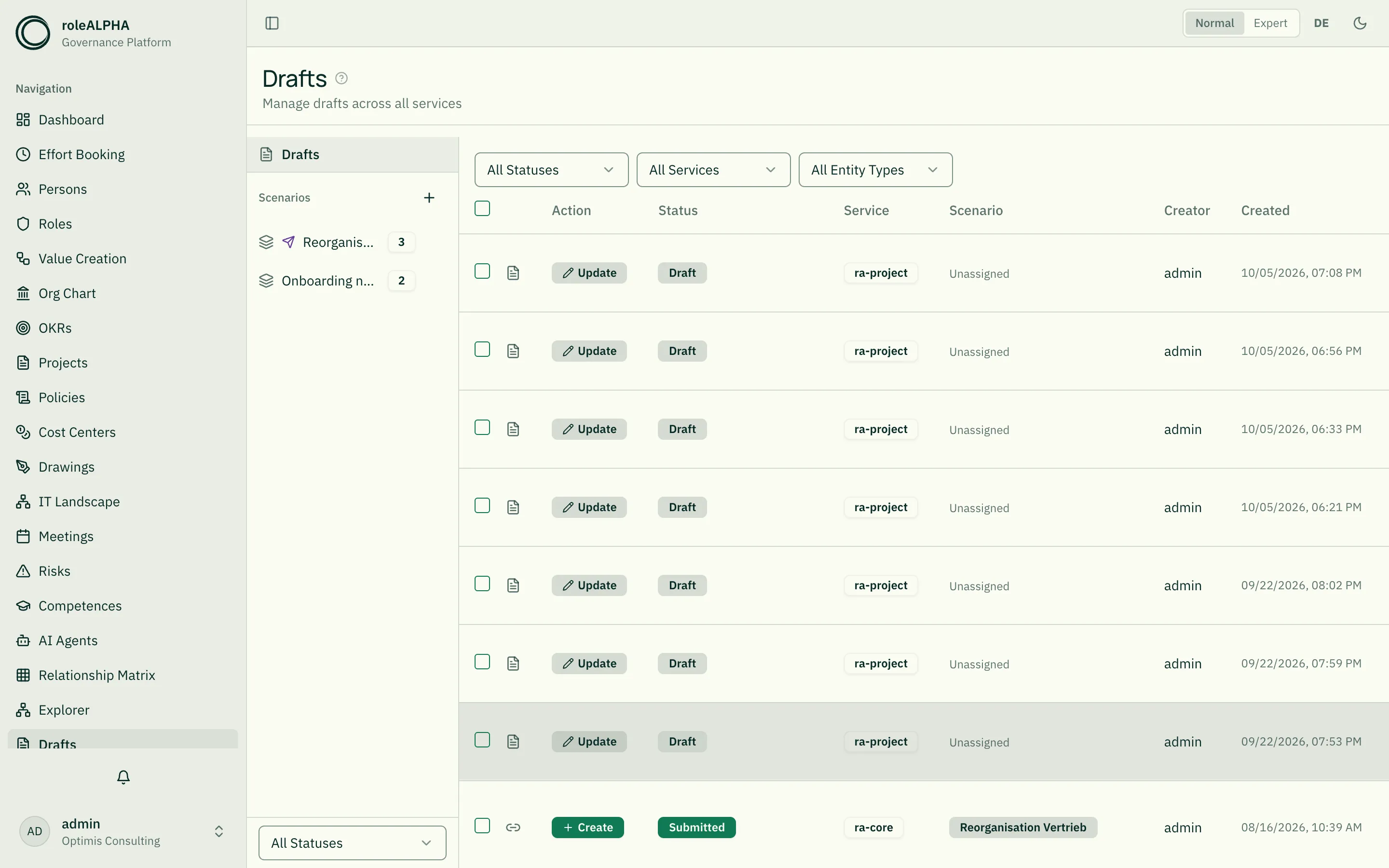
Section titled “Where to find drafts”- Drafts page in the sidebar — all open drafts
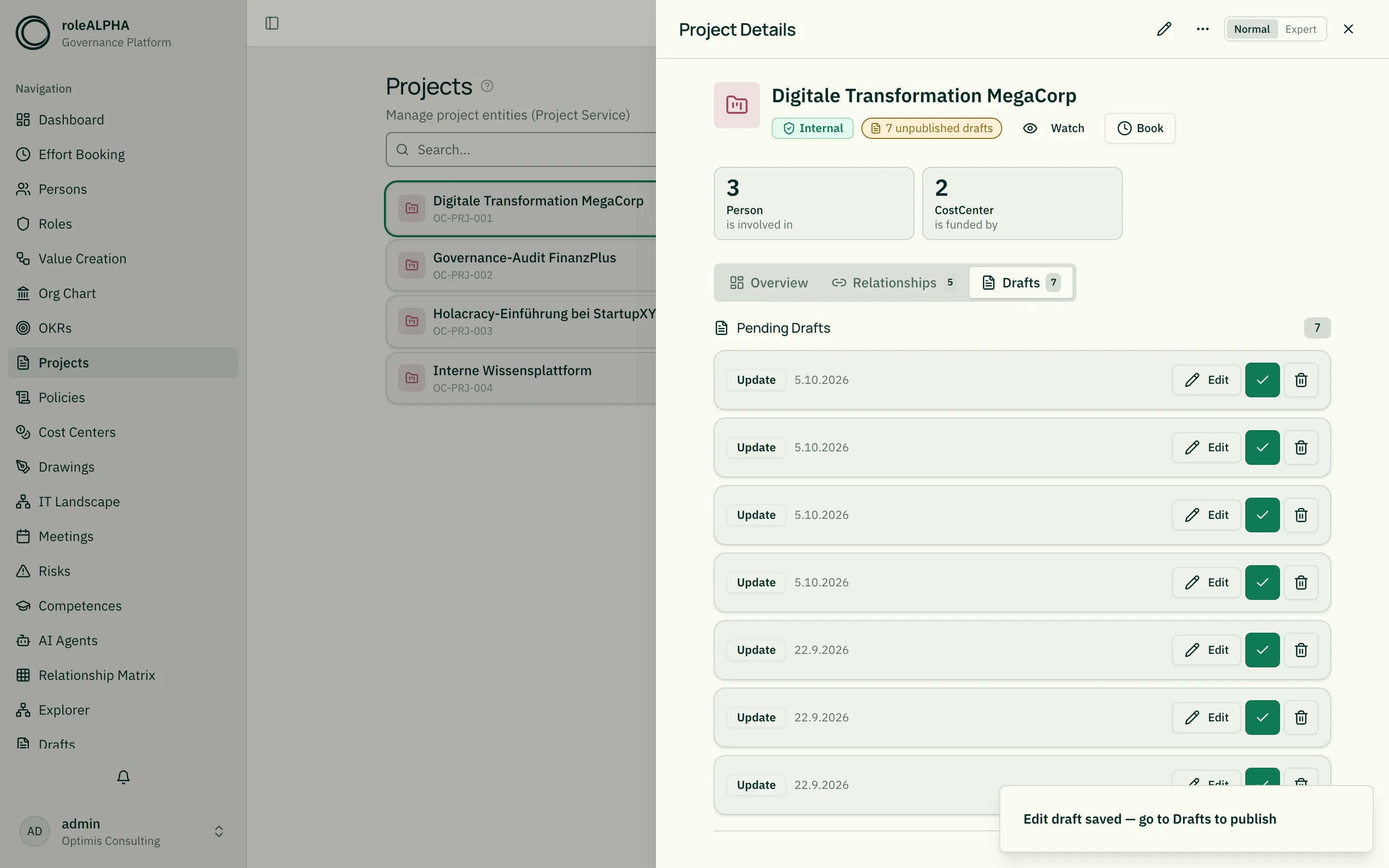
- Detail view — drafts pill shows open changes per entity
Drafts in normal mode
Section titled “Drafts in normal mode”The draft pill above the tabs used to switch to expert mode — instead of your own three drafts you then saw the entire dashboard with UUIDs, graph, change log and visibility grants. But approving and discarding are everyday work, not expert work.
Today it leads to a “Drafts” tab in the same view. The tab only appears when drafts
exist and carries their count. It is also linkable: ?tab=drafts on the entity’s
address goes straight there.
What it shows is the same as in expert mode — the same lists, the same actions, the same confirmations. A second, “simpler” draft list would be a second truth about the same draft.
Linking to a draft
Section titled “Linking to a draft”When you select a draft or a scenario on the drafts page, the selection
appears in the address bar — for example …/drafts?draft=<id> or
…/drafts?scenario=<id>. You can share such a link or bookmark it: it
opens exactly that draft, even if it sits further down the list. The same
links are used by restoring, by notifications about bundled proposals and
by connected AI applications that link you to one
of your own drafts. Whoever opens the link only sees the draft if they
could see it anyway.
Selection and bulk actions
Section titled “Selection and bulk actions”The drafts list loads more entries as you scroll. The checkbox in the header therefore only selects the entries already loaded. So that this never comes as a surprise, the display always names both numbers — for example “25 of 186 selected” — and states below how many entries are not yet loaded and would not be affected by an action.
If you really want to act on all of them, click “Load all 186 and select”: the list then loads completely and the selection covers everything. While it loads, publishing and discarding are disabled. Out of consideration for rendering, this is capped at 1000 entries — when the cap is reached, roleALPHA says so explicitly; narrow the list further using the status, service, or type filters.
If you keep scrolling after selecting, the selection does not grow by itself: newly loaded entries stay unselected, and the header checkbox switches to the partial-selection state.
When publishing many drafts, a progress message shows how far along the operation is, and you can cancel it. Drafts already published stay published — cancelling does not roll anything back.
When only part of it gets through
Section titled “When only part of it gets through”Creating a record together with its responsibilities in one go produces several drafts: one for the record, one per relationship. If not everything gets through — a dropped connection, a rejected relationship — that is not a failure of the whole operation: the record exists.
What is missing then shows as a strip at the top of the detail page: “1 of 3 relationships are still missing.” Try again picks up exactly the remainder. It creates no second draft for anything already drafted — roleALPHA knows where it stopped and resumes there. Later dismisses the strip; you can add the missing relationships by hand at any time.
Reloading the page clears the strip. The drafts already created remain reachable through the Drafts tab of the record.
Publishing or discarding a draft
Section titled “Publishing or discarding a draft”In a record’s Drafts tab every draft states what it intends: create, update or delete.
- Publish makes exactly that proposal effective. If the approval mode blocks it, the draft stays submitted and waits — that is not an error.
- Discard removes the proposal. Discarding an update proposal keeps you on the record; only discarding a create draft closes the view, because afterwards there is nothing left to show.
Whether publishing asks first depends on the approval mode (Approval Modes): in a liberal tenant where you may release your own changes and “direct publish” is on, the change takes effect with a single click. The question remains where it protects something — for a delete draft, where a change comment is mandatory, and in every mode where others have a say.
Unsaved input is not lost
Section titled “Unsaved input is not lost”While a form is open and you have changed something, roleALPHA remembers your input in the session storage of your browser tab. If the tab crashes or you reload by accident, the next time you open the same form a note appears with the time of the find: Restore puts the input back, Discard throws it away.
Three things worth knowing: the find is never restored on its own — otherwise you would see content you did not type and take it for the saved state. It does not appear once you have changed something in the form (your current state takes precedence). And it is gone when the tab closes, at the latest when you save: session storage is not a filing place but a net under the form.
When you leave the page with unsaved input, the browser asks as well. The wording of that question comes from the browser, not from roleALPHA.
Undoing a change
Section titled “Undoing a change”Once a change has actually taken effect (band: Published), the detail page offers Undo change at the top. One click proposes the state from before the edit as a change proposal — so it is released like any other change, and the band then shows Draft or Waiting for approval, never “undone”. The reason: an undo is itself a change. In a tenant with consensus approval someone could otherwise roll back, behind the backs of those affected, what was created with their consent.
Two limits: the offer only holds for the current session — after a reload, the published state is the truth. And it exists only for changes; a deleted entity is recovered through the version history (Change history).
If your change is still waiting for approval, you do not need the undo: simply discard the open draft in the Drafts tab.
Related
Section titled “Related”- Scenarios and Collective Proposals — Submitting several drafts together and deciding them as one
- Approval Modes — Available approval modes
- Relationship matrix — Maintain relationships in a grid (with direct publish for admins)
- Bulk Delete — Bulk operations create drafts too