

@-Mentions
In description, text and list fields you can link other entities directly — similar to Slack or Notion.
Type @ in a text field. An autocomplete list appears right at the
cursor — pick the entity. The text now holds a clickable reference.
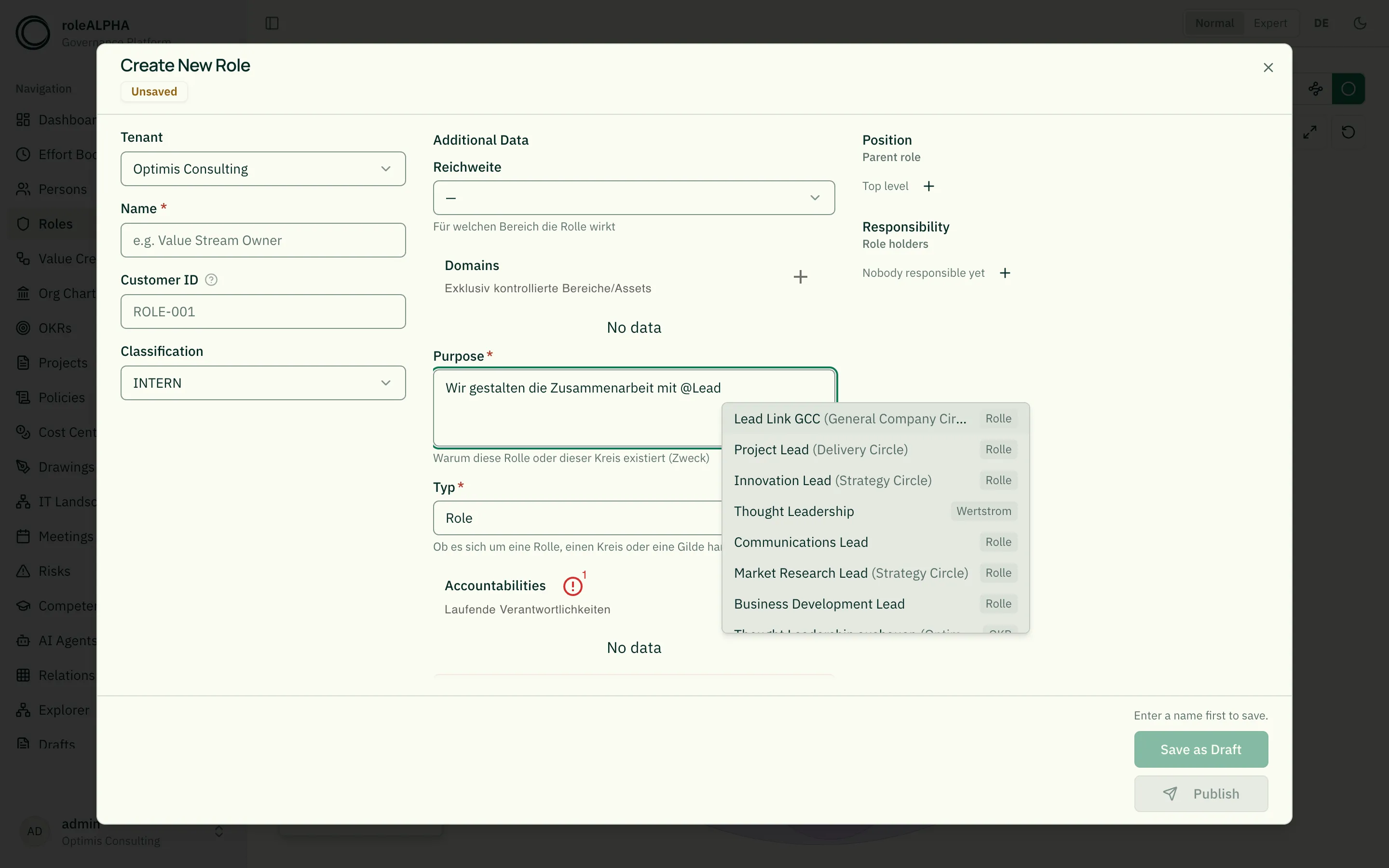
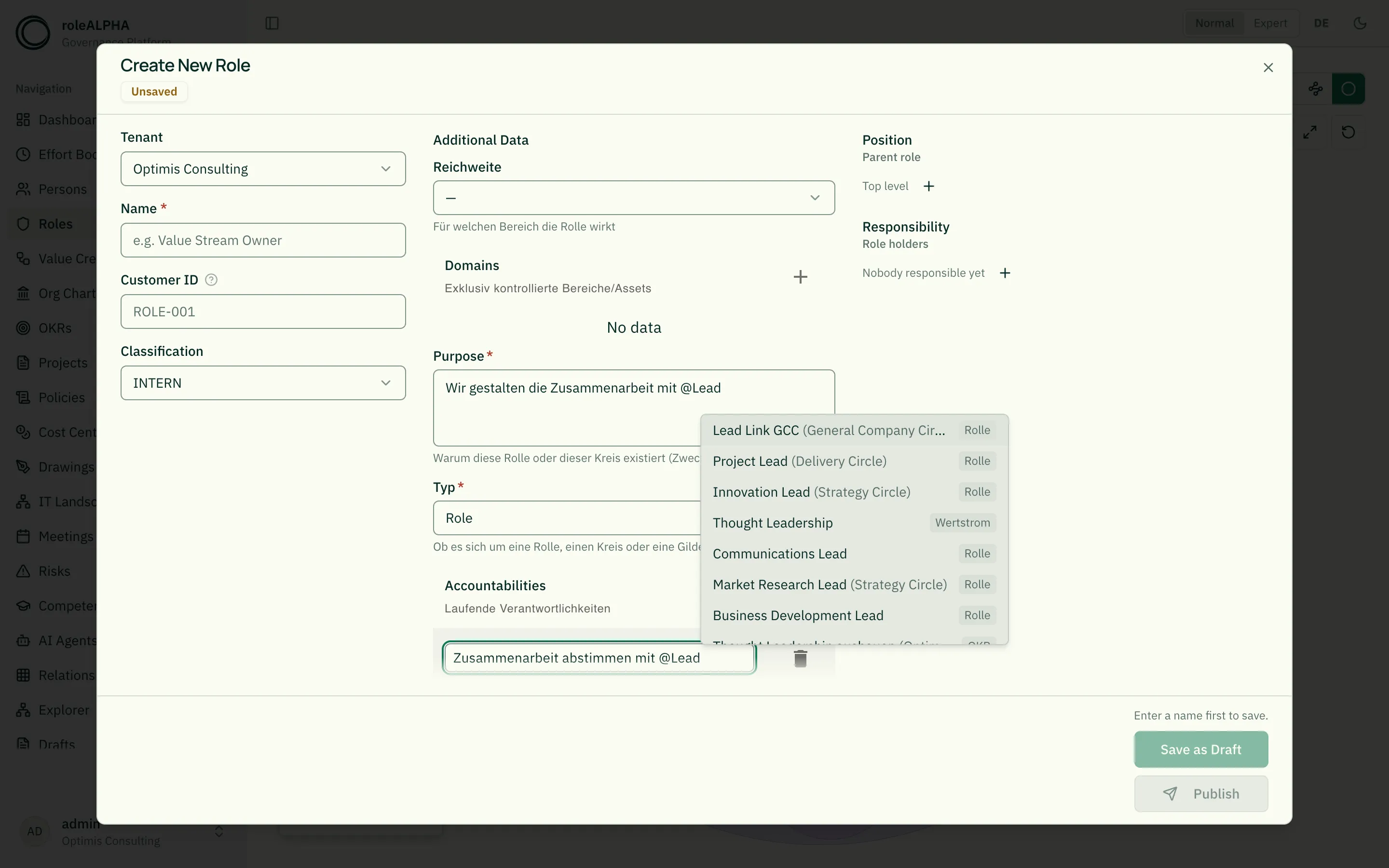
This works in every text field of a form — including the individual
rows of list fields such as Accountabilities or Domains, and the text
columns of table fields. Just type @ in the row you are writing in.
Mentions also work in the attributes of a relationship: when you create a link whose relationship type carries its own attributes, you can reference other entities there as well. The reference then shows up in the “Referenced by” section of the entity you named.
And in the chat with rALPH: type @ to name an entity unambiguously
instead of letting rALPH search for it by name. That helps in particular
with identically named roles, and when you mention several entities in
one question (“Compare @… with @…”).
For hierarchical entities the parent is shown in parentheses after the
name — e.g. Lead Link GCC (General Company Circle). That keeps
identically named roles from different circles apart, exactly as in the
relationship list.
The list follows the caret, including in multi-line fields and while
scrolling. When there is no room below the cursor, it opens upwards. Use
the arrow keys to choose an entry, Enter to insert it and Esc to
close the list. Moving the cursor out of the mention closes it as well.
The list shows the best matches first: exact names before those that start with your input, and those before matches somewhere inside the name. If there are more matches than shown, the list says so at the bottom — then it pays to refine your search term.
Not everywhere: an entity’s name and customer ID are deliberately mention-free. They appear in a great many places where a link could not be rendered at all — chart labels or truncated headings, for instance.
What happens behind the scenes
Section titled “What happens behind the scenes”- The reference is stored as a stable UUID (no broken links when an entity is renamed).
- In read mode, the current name is always shown — in list, table and relationship-attribute fields as well.
- On the target entity you’ll see a “Referenced by” section.
- You only see what you are allowed to see: if a text references an entity you have no access to, only the stored name appears as plain text, without a link.
- Hovering a mention link shows a preview with the entity type and — for
hierarchical entities — their position (e.g.
… › Sales › Sales Operations), so identically named targets stay distinguishable.
The person mentioned finds out
Section titled “The person mentioned finds out”When you mention a person, the user assigned to them gets a notification — see Notifications. Clicking it does not just open the object, it takes you to the spot: the field holding the mention is scrolled into view and briefly highlighted.
Four things you can rely on:
- No duplicates. Saving the same text again without changing the mention does nothing further. Only a new mention speaks up again.
- No self-notification. Mentioning yourself gets you nothing.
- Visibility comes first. Anyone who is not allowed to see the object the mention sits in is not notified — otherwise the notice alone would reveal that the object exists.
- People only. Mentioning a role or a value stream still creates the link, but no notification: there is no single recipient behind it. To keep track of such an object, put it on Watch.
Whether mentions also reach you by email is up to your notification settings; by default they only land in your inbox.
Soft links vs. structural links
Section titled “Soft links vs. structural links”Mentions are soft links — not hard relationships. For structured links (e.g. “person executes role”) use real relationship types.
Related
Section titled “Related”- Customer ID — Readable identifier as an alternative reference
- Duplicates & Replicates — Copy or mirror entities