

Architect mode in the explorer
On the graph page you design in architect mode. The View | Architect switch sits as Mode next to the command line (on a phone in the page header) and replaces the former pencil there. It only appears if you may write or draft somewhere in this tenant.
View is the normal case: you explore, nothing changes. Architect means: everything you do in the picture now becomes a draft in a scenario – a step of a plan (see Planning with rALPH).
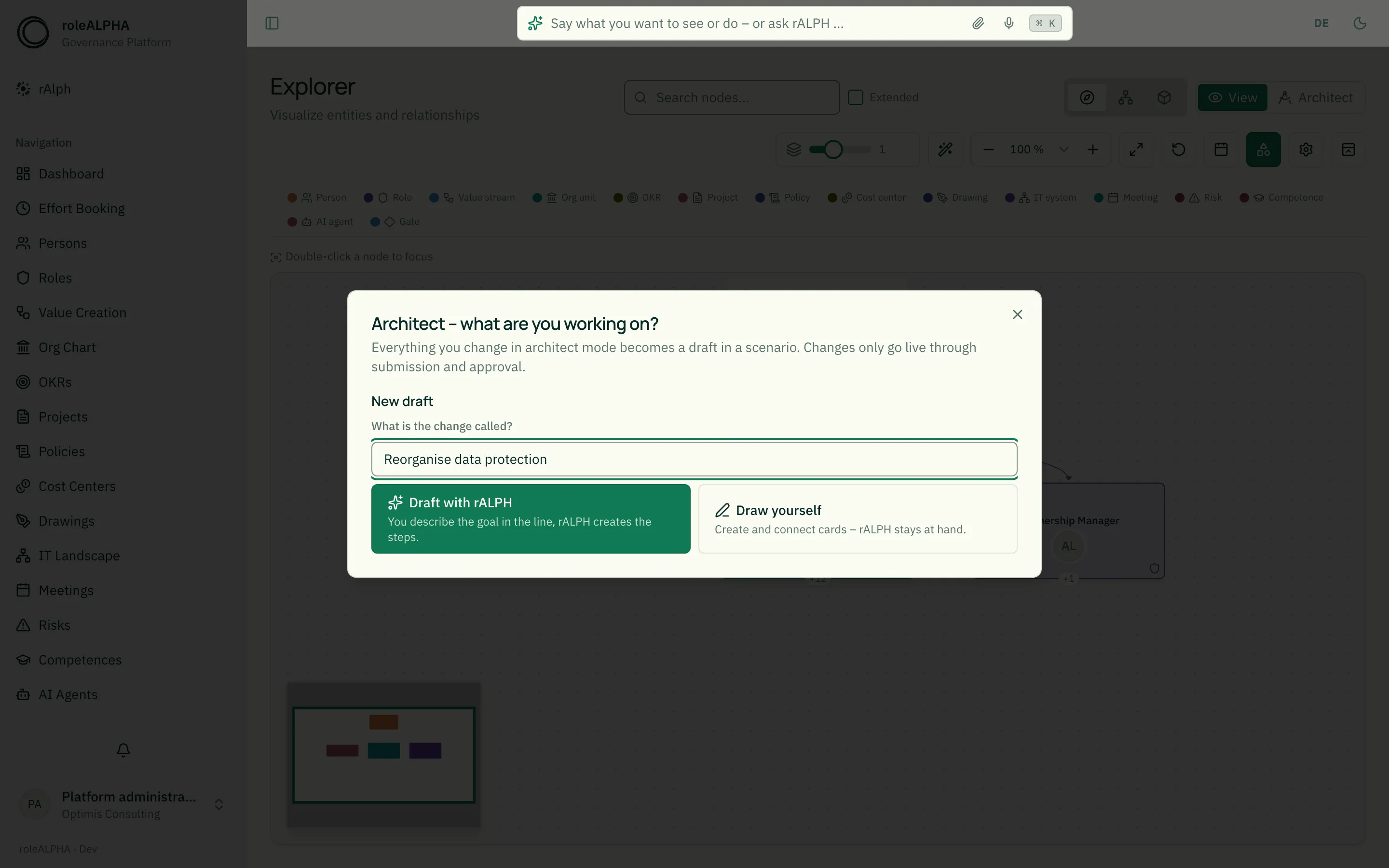
Switching on: what are you working on?
Section titled “Switching on: what are you working on?”If a scenario is already selected, you start right away. Otherwise a short start sheet asks:
- New draft – you name the change, and that becomes the scenario. Then you
choose:
- Draft with rALPH – the line at the top gets the focus and the marker Plan “‹name›” · to rALPH: your next sentence goes to rALPH for sure, into this plan – even if it sounds like a command. You describe the goal (“Split data protection into two roles”), rALPH creates the steps, and they appear in the picture. The × on the marker removes it.
- Draw yourself – you create and connect cards yourself. rALPH stays at hand in the line.
- Continue a scenario – your open scenarios and the ones you were invited to.
What applies in architect mode
Section titled “What applies in architect mode”- No immediate publishing. Connecting, reconnecting, changing, creating and deleting become drafts in the selected scenario. “Save & publish” is disabled. The plan only reaches the live data through Submit for approval in the plan column.
- Clicking a card does not move on – as in the former edit mode. You draw using the connection points on the cards.
- Timeline and reference date step aside. Designing in an earlier state is not the point.
- No architect without a scenario. If you deselect the scenario, the mode ends by itself.
- Switching plans: the title of the plan column, “Plan “…” ▾”, opens the list of your open plans.
Drafting with rALPH
Section titled “Drafting with rALPH”- rALPH sees what you see. When you open the line, the Goes along strip below it shows the chips Selection (n) – your selected cards – and Section (n cards) – what else is in the picture right now. Both go to rALPH with your next sentence, but only as id and type; whatever rALPH needs to know about them it reads itself, with your rights and only from the areas released for AI. A click on a chip leaves it out (it is then struck through), a second click brings it back. “Split this into two teams” then means the selected card.
- What rALPH creates appears right away. Every draft shows up as soon as rALPH has written it – in the plan column and in the explorer – not only when the answer is complete.
Finding steps in the picture
Section titled “Finding steps in the picture”Next to every step in the plan column there is Show in the picture (the crosshair icon). A click fits the picture to the cards of that step – for a relationship, to both of its ends. If the step lies outside the current section, the explorer brings the existing cards in.
You recognise new steps in the picture by their dashed border and the step number at the bottom left of the card; there is deliberately no extra sign for “rALPH is working here”.
Adding notes: collect wishes on the picture
Section titled “Adding notes: collect wishes on the picture”Instead of rebuilding something yourself, you can note what should be different – like a comment in the margin of a text, only on a card or line:
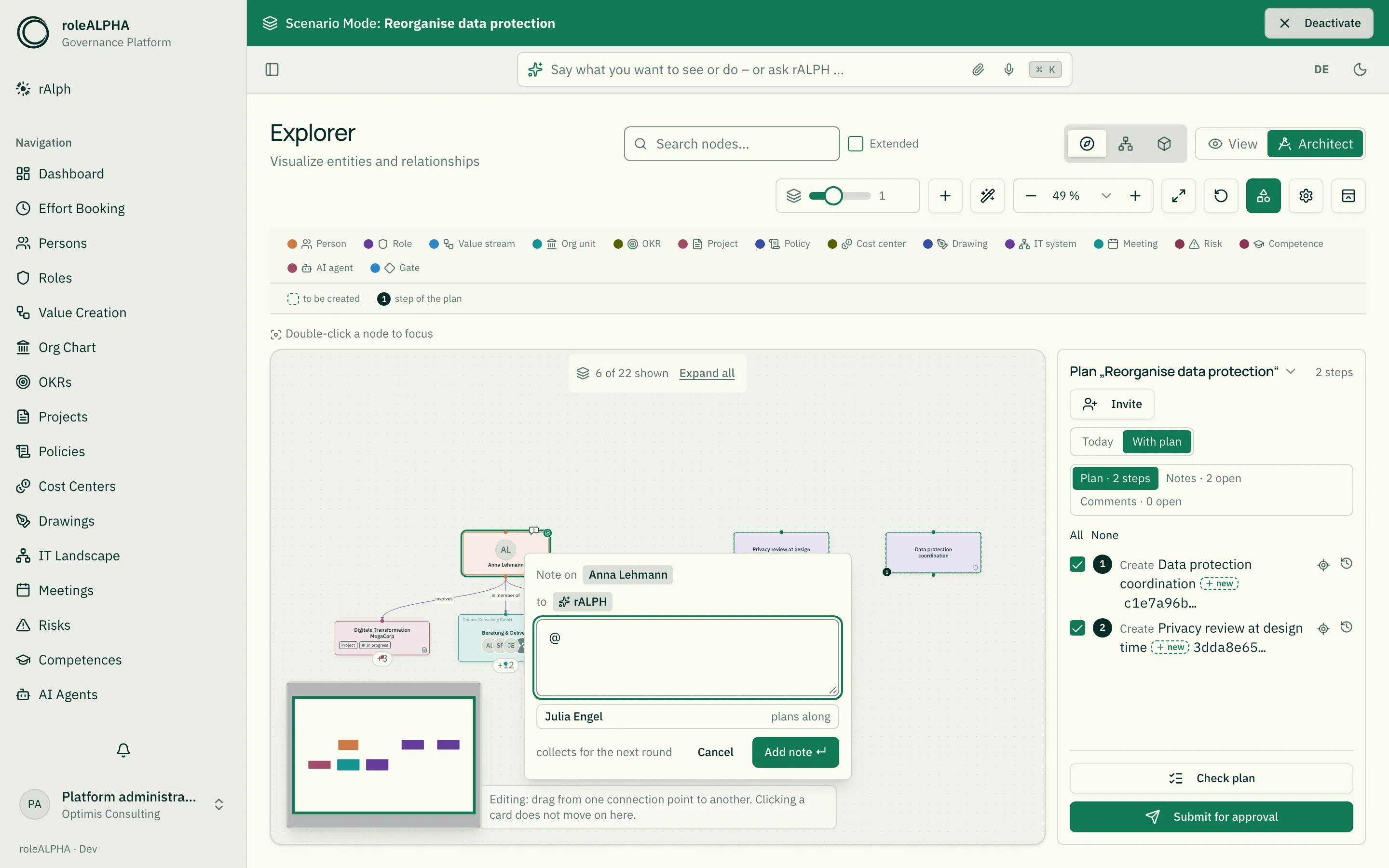
- Right-click a card or a line → “Add note …”. A small field “Note on ‹name› · to rALPH” opens. Enter stores the note, Shift+Enter starts a new line, Esc closes. Cards and lines that only exist in the plan can be noted too.
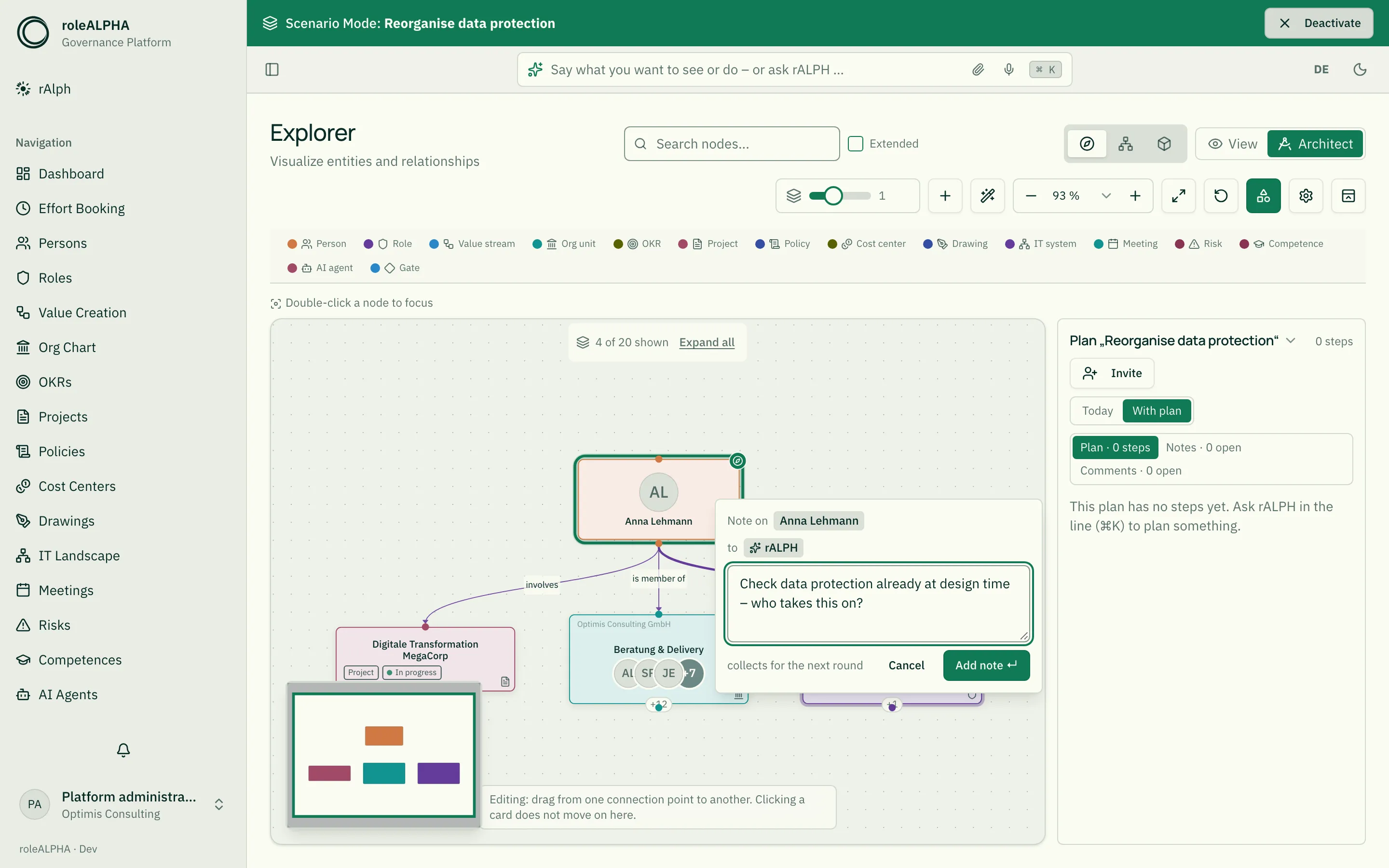
- Several cards: select them (drag a frame or ⇧-click) and choose Add note in the selection bar – one note for all of them. This also works on devices without right-click.
- An empty spot (“something is missing here”): right-click empty space → Add a note here …. The note is attached to the nearest card and is listed as “Empty spot next to ‹name›”.
Noted elements carry a small speech bubble with a number – that many open notes are attached. It is deliberately neutral (no traffic-light colour): it only says “there is a wish for rALPH about this”.
In the plan column, the Notes · n open tab lists all notes of the plan: what they refer to (for example “Step 4 · Data protection”), who wrote them and when, the text, Show in the picture and – for your own notes or as the plan’s creator – Delete. Everyone working on the plan sees the same notes; notes on elements you are not allowed to see stay hidden from you.
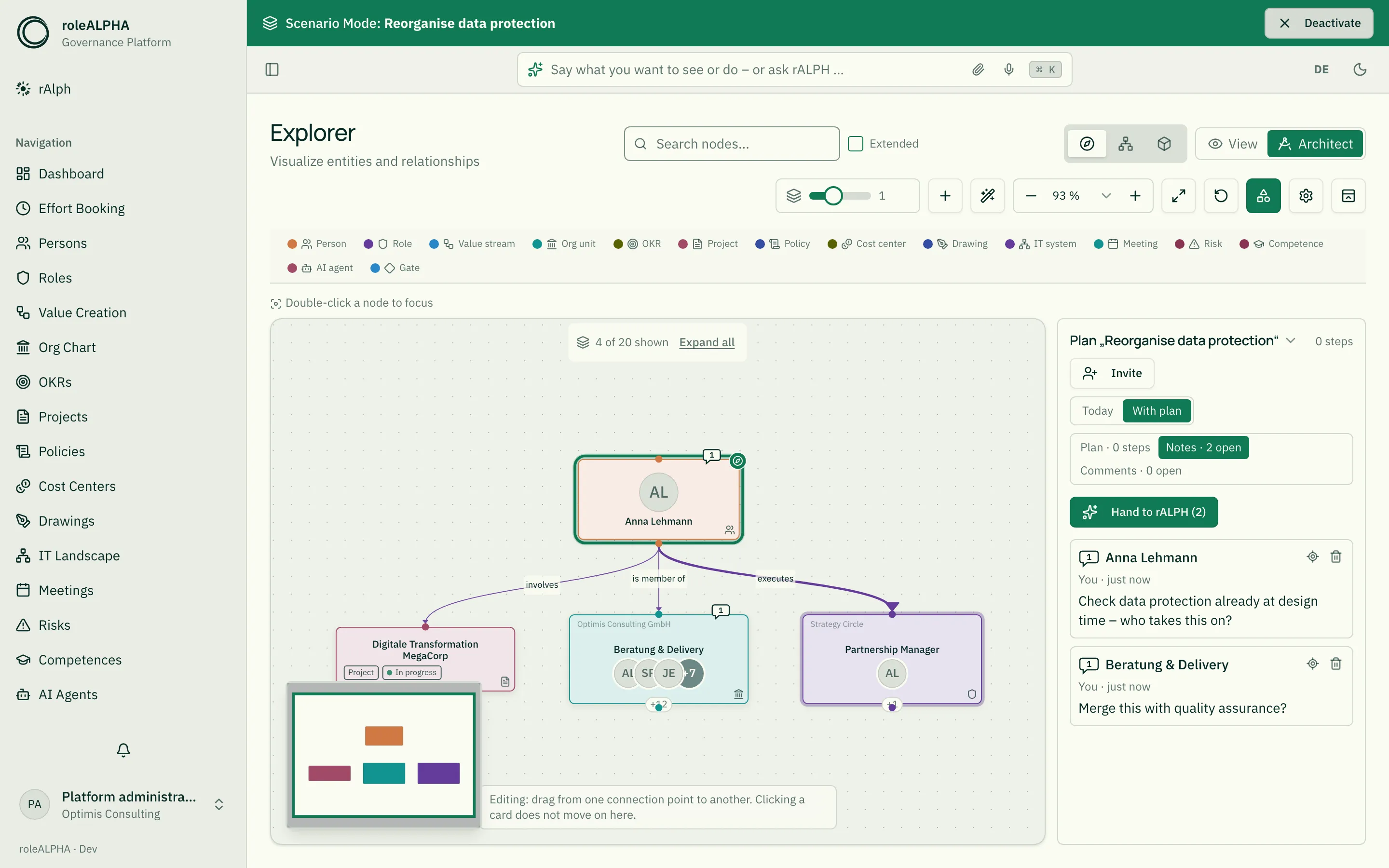
Notes collect until you hand them to rALPH. If the plan is discarded, its notes go with it. The text of a note is stored in the data area of the noted element (for a line: that of its starting point), not on the central platform.
Hand to rALPH: working in a round
Section titled “Hand to rALPH: working in a round”At the top of the Notes tab you find Hand to rALPH (n) – n are the open notes plus unanswered questions. One click starts a round: the conversation with rALPH opens in plan mode, and rALPH receives every note together with its element. He works them into this plan as steps – revising existing steps instead of adding new ones – and every step appears in the picture right away.
-
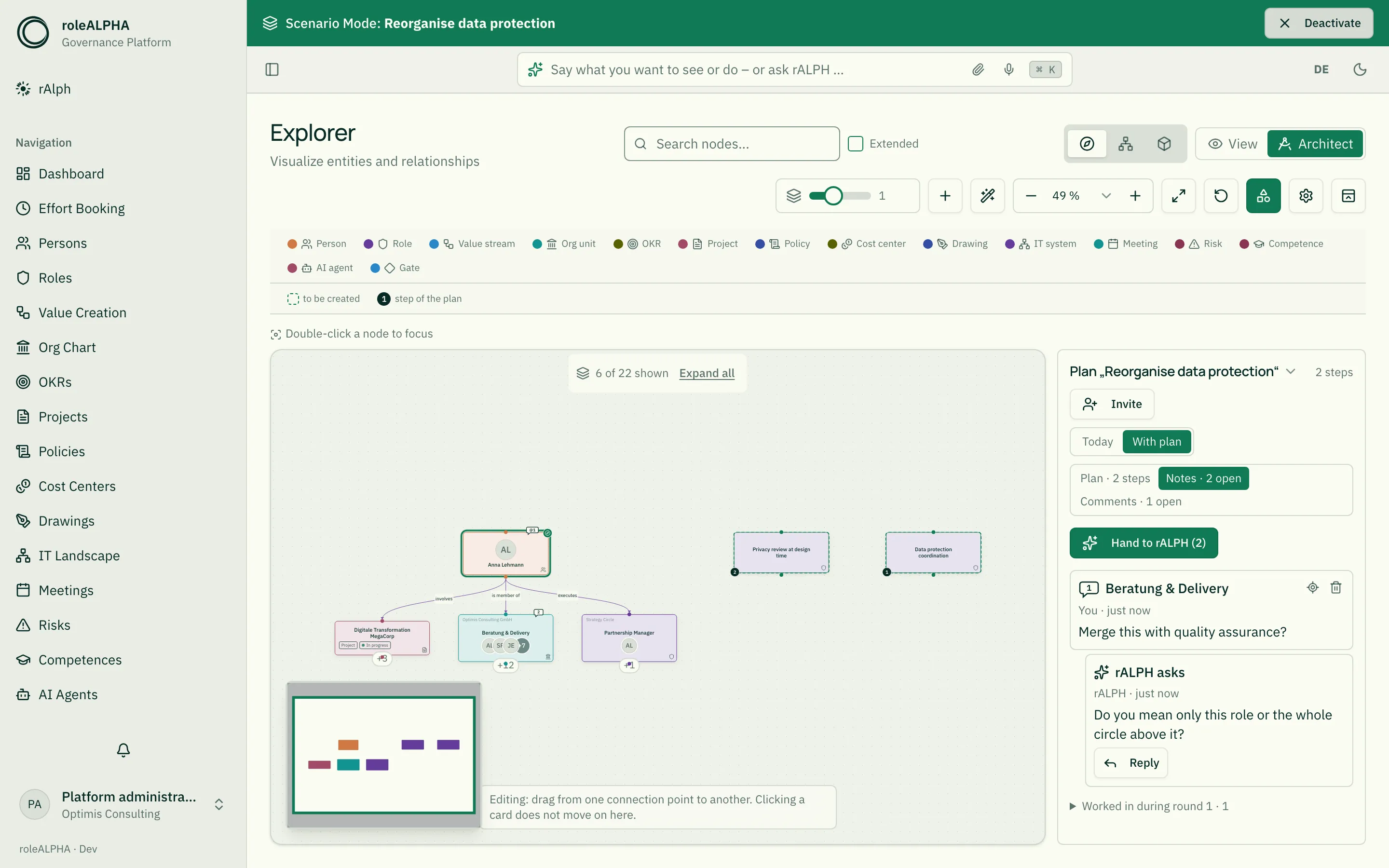
Question at the element: if a note is unclear, rALPH does not guess but asks back. The question appears in the list under the note (“rALPH asks”), and the mark on the element counts it. Reply opens the note field at the same element; the next round receives note, question and answer together.
-
After the round the notes that were worked in are done: the mark disappears, and the list shows them collapsed under Worked in during round n. A note with a question stays open. If the round is interrupted (stop, error), all notes stay open.
-
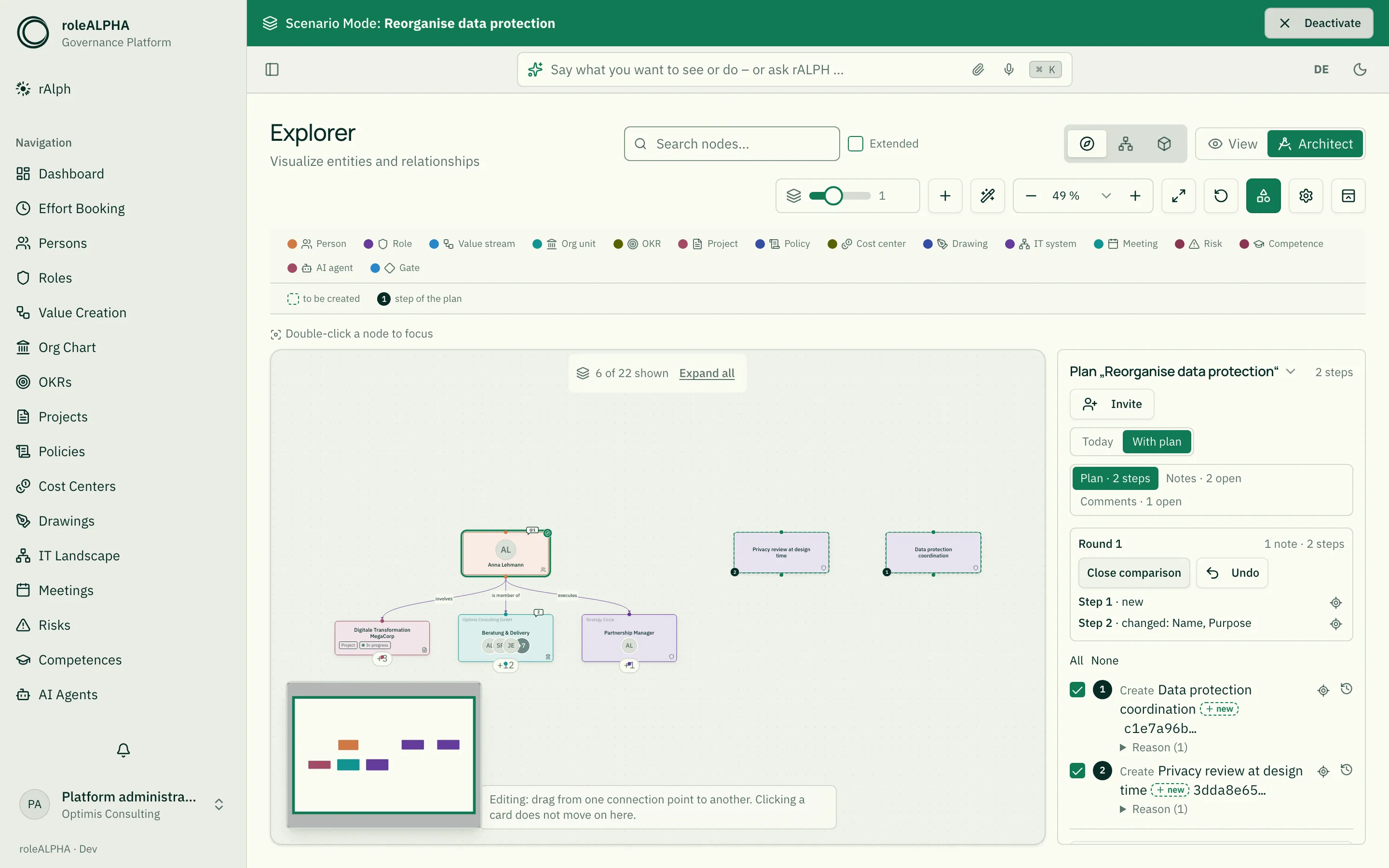
Round mark: at the top of the Plan tab you see “Round n · k notes · m steps”. Compare state n−1 | n lists every step the round created, changed (with the fields) or discarded, with Show in the picture.
-
Undo takes back the whole round: new steps are discarded, changed ones get their state from before the round, the notes are open again. This works only for the latest round and only while the plan is open. A step rALPH discarded during the round stays discarded – the comparison says so first.
One round at a time: while rALPH works through someone else’s round, wait until it is done. Anyone who may only view the plan sees the round mark and the comparison, but neither Hand to rALPH nor Undo. The text of the notes goes to rALPH for this one message only; it stays stored in the data area of the element.
Comments to people
Section titled “Comments to people”Not every question is for rALPH. Type @ in the note field and the people of the plan appear: whoever created it, whoever plans along and – while the plan is up for approval – whoever decides on it. Pick someone and “to ✦ rALPH” becomes “to ‹name›”; Comment stores a comment. The × in front of the name turns it back into a note to rALPH.
-
A comment goes to exactly one person. They get a notification (without the text) with a link to the plan. Anyone who can see the plan can read along. Someone who is not in the plan yet has to be invited first.
-
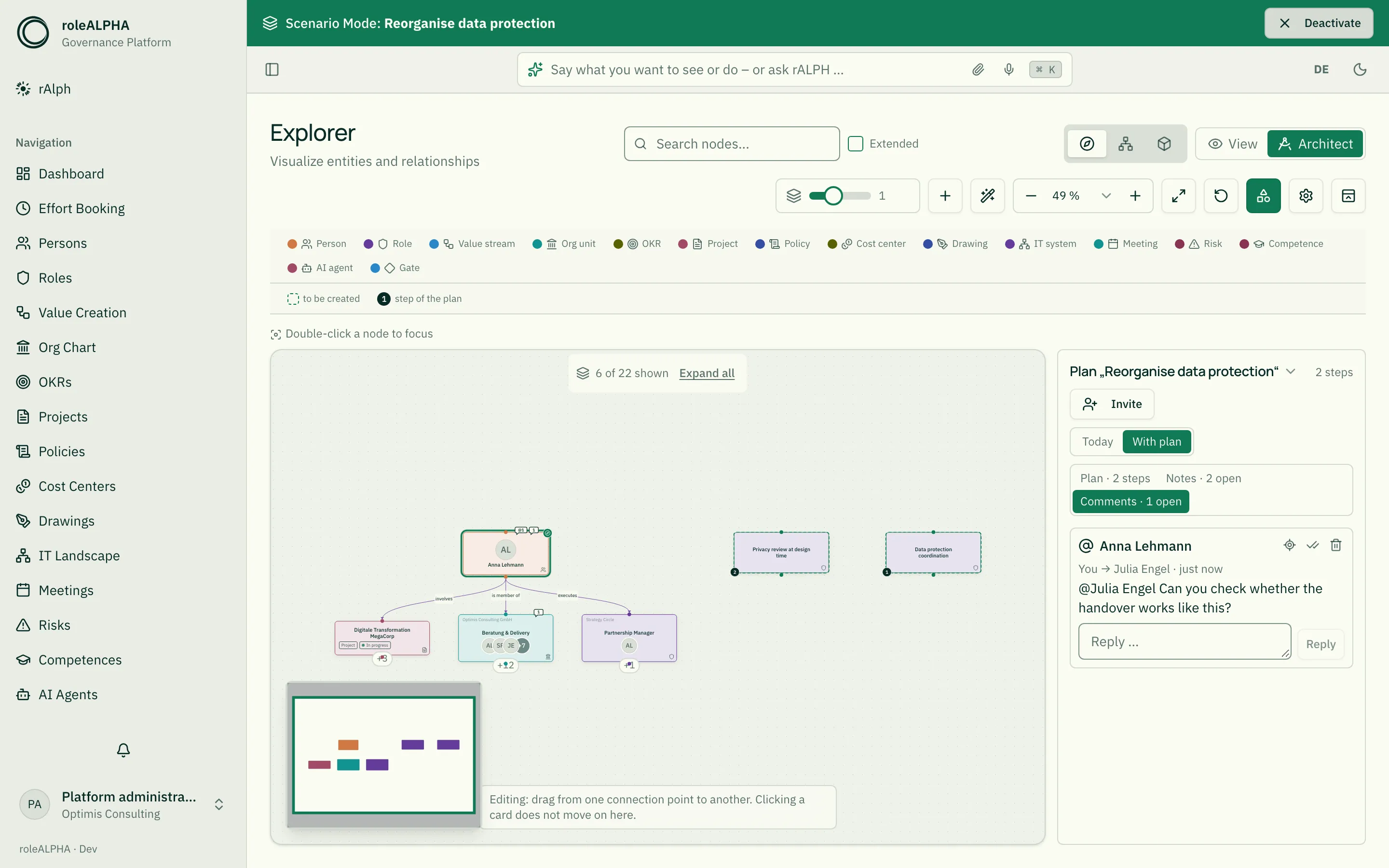
The mark is the same speech bubble as for notes, with @ before the number: “2” means two wishes to rALPH, “@1” one open comment to a person.
-
Comments tab in the plan column: one thread per comment with “who → to whom”, the text, the replies and a Reply field. A reply notifies the others in the thread. Mark as resolved (author, addressee, whoever manages the plan) collapses the thread; Reopen brings it back, and so does a new reply.
-
During approval: while the plan is up for approval, notes to rALPH are locked, comments are not. Deciders see the threads in the explorer and in the approval box of the drafts page, reply there and can write a comment of their own in the explorer with a right-click.
-
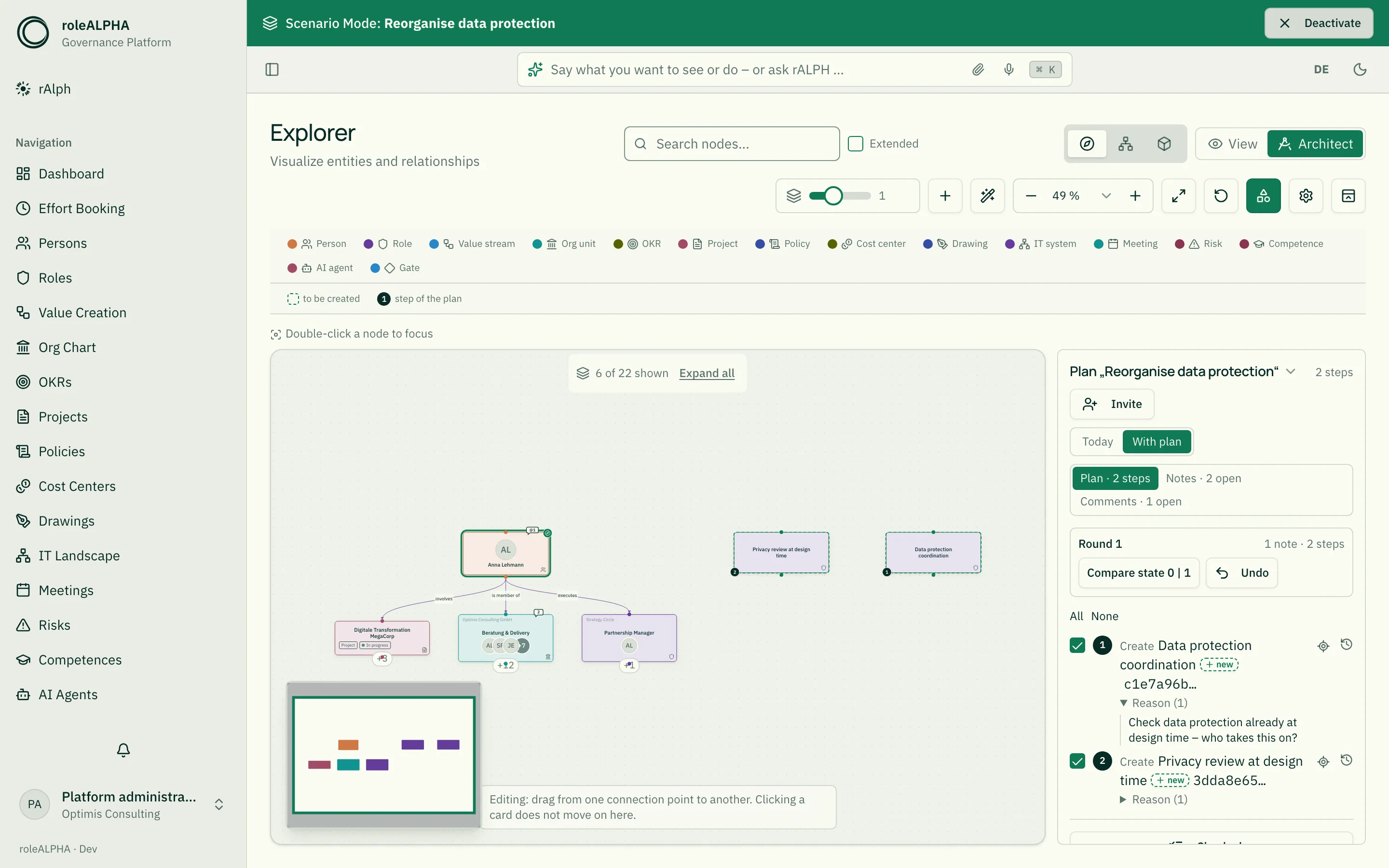
Reason on the step: every step rALPH wrote in a round carries an expandable Reason in the Plan tab – the worked-in notes word for word. Deciders see why the step is in the plan.
rALPH does not read comments – they never go into a round. Like notes, their text is stored with the data area of the element; deleting a comment removes its replies too.
Leaving
Section titled “Leaving”View in the switch ends architect mode. Nothing is lost: the drafts stay in the scenario, the scenario stays selected, and Architect lets you continue at any time.
On the pages of the individual areas (roles, risks, …) the pencil remains for quick single changes – there you can still publish right away as long as no scenario is active. More under Graph view.