

Planning with rALPH
A plan is a set of drafts – a scenario. When you start a plan in the line (“Plan a sales role for Vienna”), rALPH creates a scenario named after your sentence, and every further draft of that conversation goes into it. If a scenario is already selected, rALPH plans into that one.
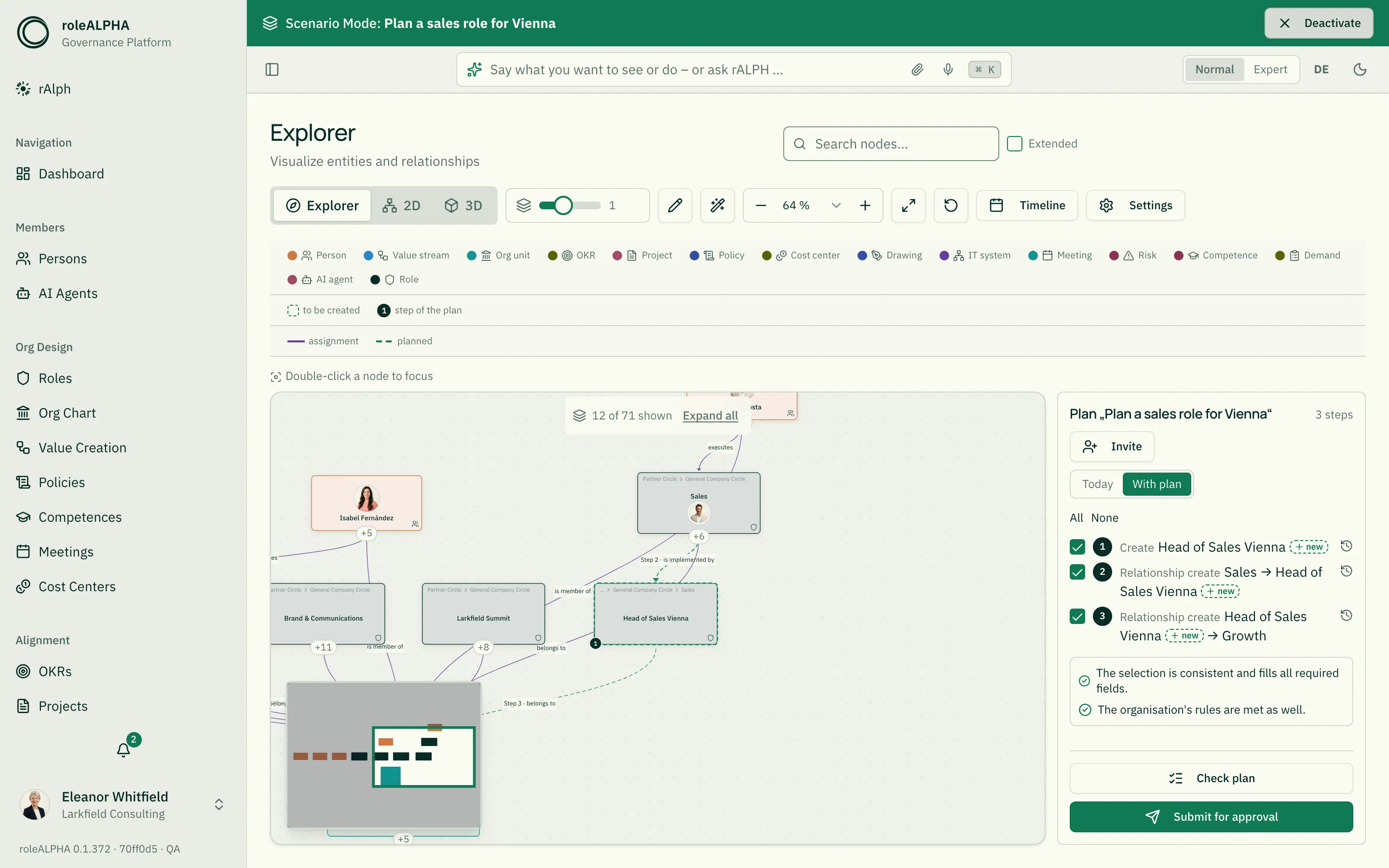
On the graph page the plan then sits to the right of the picture:
-
Numbered steps: every draft is a step, counted in the order it was created. The same number appears in the picture at the bottom left of the card and in front of the line’s label. Planned cards have a dashed border – dashed means “not decided yet”.
-
Today / With plan switches between today’s state and the picture with the plan, without deselecting the plan.
-
Show in the picture (the crosshair at every step) fits the picture to the cards of that step – even if it currently lies outside the section. You can draw along yourself in architect mode.
-
Checkboxes choose what goes up for approval – or say it: “Select steps 1, 2 and 4”, “Select all”.
-
Check plan shows what belongs together (a planned relationship needs the step that creates its end) and whether every record fills its required fields. It also applies your organisation’s rules to the current state plus the plan – say “at most 100 % allocation” or “every role needs a purpose”. A violation is shown at the step concerned and blocks submitting; a note from a rule that is only observed does not. It only checks – nothing is changed. “Add the missing steps” extends the selection.
-
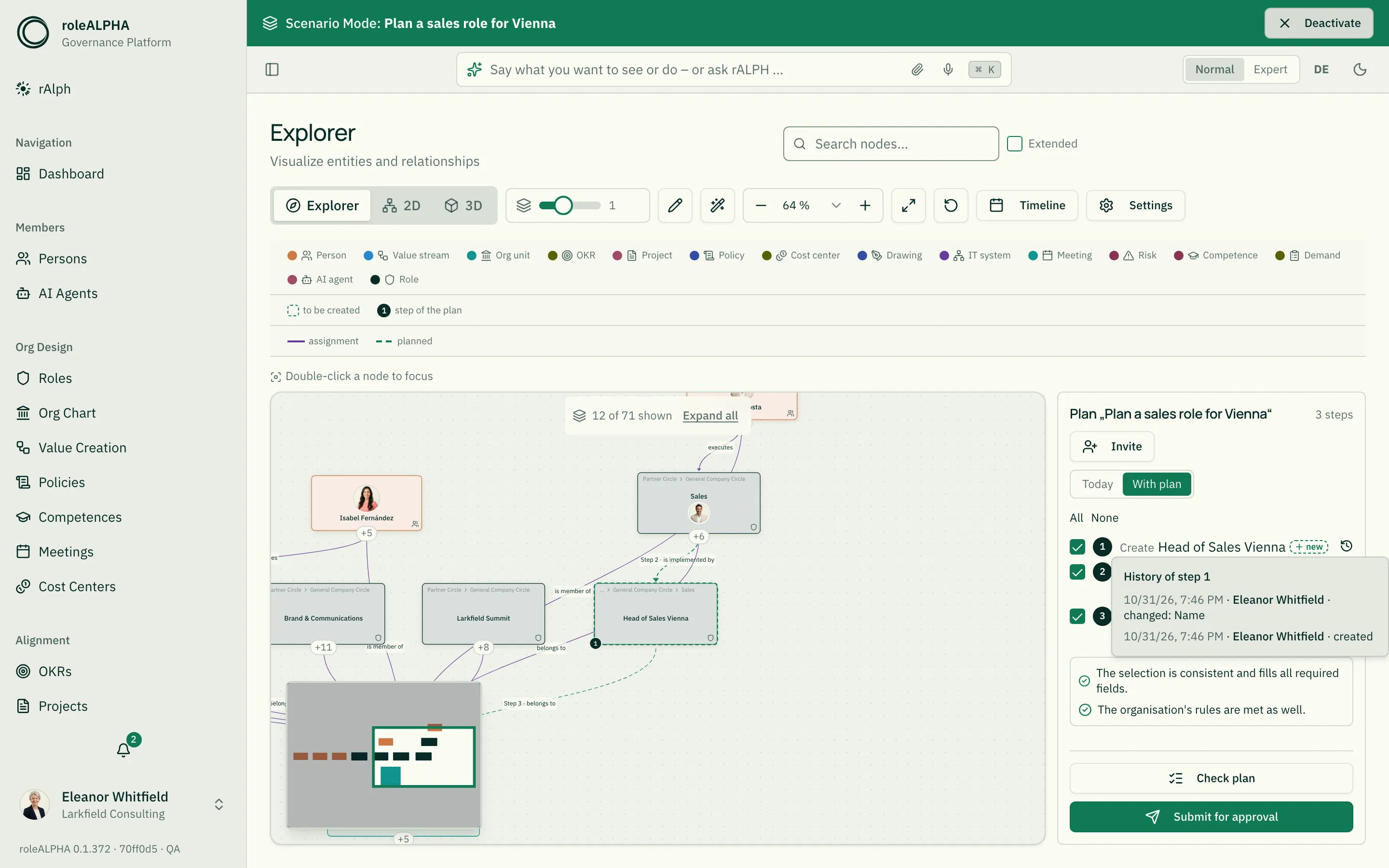
History: the clock icon on a step shows who created it when, and which fields who changed afterwards. Every saved version is recorded, including changes made through rALPH or the interface.
-
Submit for approval puts the whole plan up for decision as one request. If you selected only part of it, that part becomes its own scenario ”… (part)”, and the rest stays in the plan.
-
Refer to a step: clicking the number (or saying “step 2” in the line) puts the marker “Step 2” below the line (the Goes along strip). Your next sentence – say “rename the role to Head of Sales” – then goes to rALPH, and rALPH knows which draft you mean.
-
Changing means revising, not replacing: rALPH changes a step in the same draft. The step keeps its number, and the planned lines to it stay in place. rALPH revises your own drafts – and, in a plan, every step if you created the plan or were invited to it – as long as the plan has not been submitted.
The plan selection on the graph page lists your own plans, plans you were invited to, and plans you are currently deciding on. All scenarios of the organisation are on the Drafts page.
Invite others
Section titled “Invite others”You do not have to make a plan alone. If you created it, the plan column shows Invite:
- Invite opens a dialog. At the top are everyone already invited, each with Remove.
- Below, you search for a person. You are offered people of your organisation that you can see. Anyone without an account in this organisation is shown with “no account in this organisation” and cannot be invited.
- Invite next to the name – done. The person gets a notification ”… invited you to the plan ”…"" (in the bell and, depending on their settings, by email). Clicking it opens the graph page with exactly this plan.
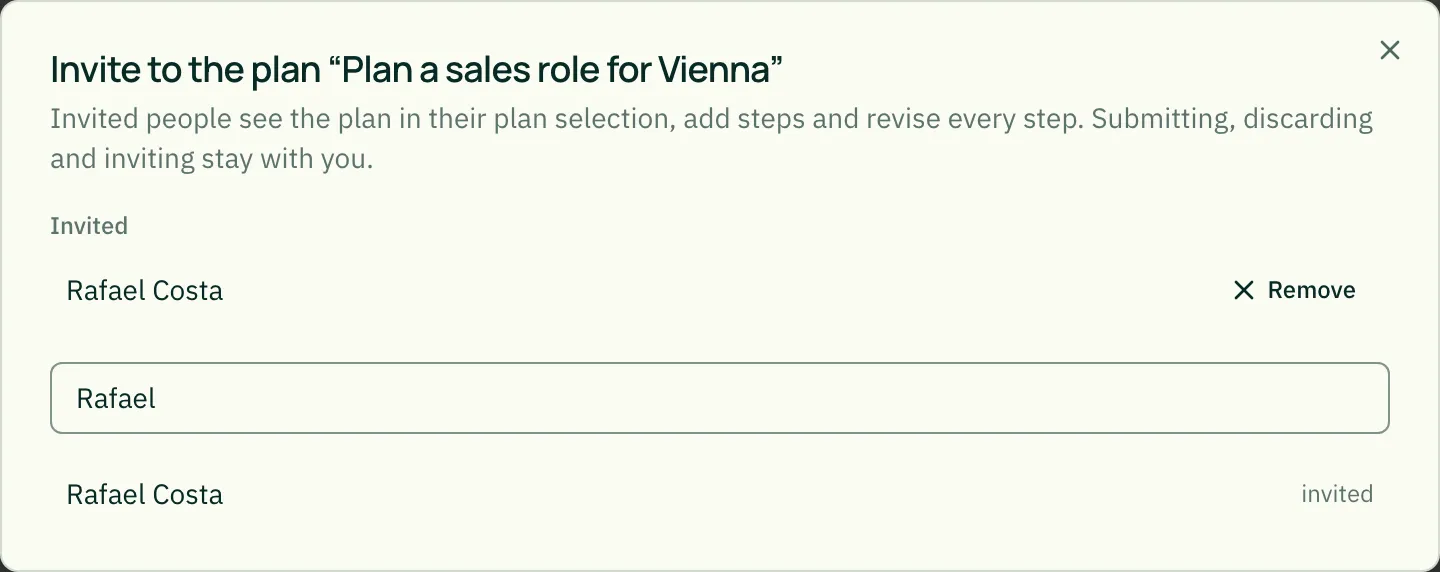
Invited people find the plan in their plan selection marked invited by … and can:
- see all steps (as always, only what their own visibility allows),
- add new steps by typing a sentence in the line,
- revise every step – including one someone else created, themselves or through rALPH. The history of a step shows who changed what.
Submitting, publishing and discarding the plan, discarding other people’s steps and inviting more people stay with you (and with tenant admins). Instead of “Submit for approval”, invited people see who may submit. Once the plan is up for approval, nobody changes it any more – invited people included. If you remove someone, what they already added stays in the plan.