

Command line
On every page, the top bar has a line: “Say what you want to see or do – or ask rALPH …”. You don’t need to know where to click – you write what you want in plain language.
⌘ K (Mac) or Ctrl + K puts the cursor into the line from anywhere.
Show first, then act
Section titled “Show first, then act”Before anything happens, the list below the line shows under “This is how I understand it” how your sentence was understood.
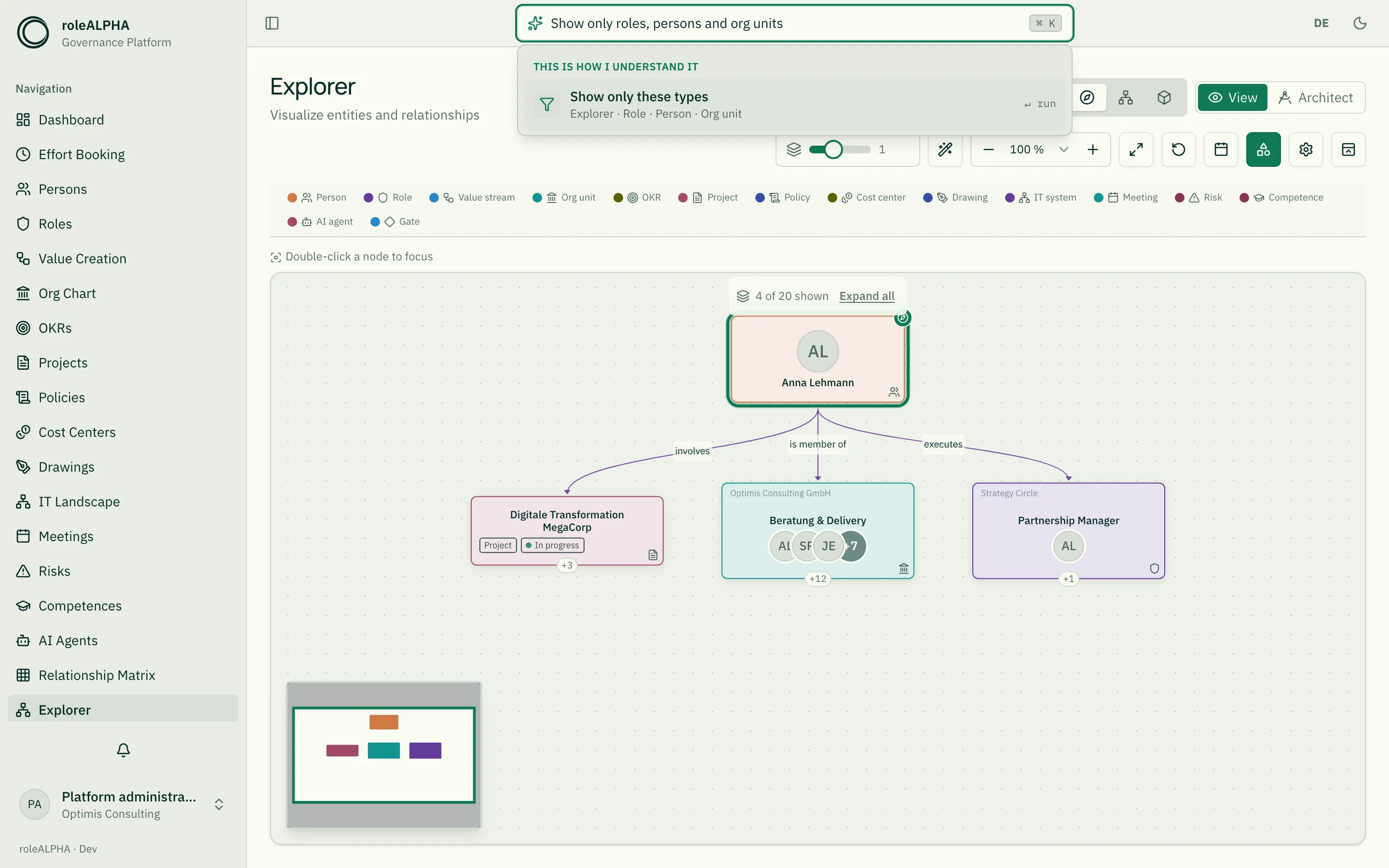
- ↵ runs it.
- Tab hands the sentence to rALPH instead.
- Esc closes the list.
- ↑ / ↓ picks another row.
After running, a short message says what happened. If the command only changed the view, Undo reverts it (like “Back” in the browser).
What you can say
Section titled “What you can say”| You say … | What happens … |
|---|---|
| “Show only roles, persons and org units” | The Explorer shows only these types. |
| “Also show the risk Customer data leak” | The risk is added to the Explorer picture; everything else stays. |
| “Also show Anna Berger on the canvas” | The same: “also” adds to the picture; you may add “on the canvas” or “in the Explorer”. |
| “Add Joseph as an additional anchor” | The Explorer calls its starting nodes anchors: “additional anchor” adds, “as anchor” starts afresh. |
| “Add me as an additional anchor” | “I” and “me” mean the person linked to your account – also in “How am I connected to Anna Berger?”. If none is linked, the line tells you. |
| “Show Anna Berger” | The Explorer puts Anna Berger in the centre. |
| “Expand only roles” | All loaded roles in the Explorer expand. |
| “Expand Sales Lead”, “Collapse Sales Lead” | Exactly this card expands or collapses. Only the cards in the picture are searched – if the name exists several times but only once in the picture, the line does not ask back. |
| “How are Anna Berger and Data protection coordination connected?” | The shortest path appears in the Explorer, with “The path in words” above it (see below). |
| “Show me the details of Anna Berger” | The detail page opens. |
| “Go to drafts” | You jump to the page. |
| “Filter the list by org unit Sales” | On a list page the list is filtered; the filter appears as a chip and can be removed there. |
| “Search Huber” | The page’s list is searched. |
| “Expert mode” | You switch to the expert view. |
You don’t need to spell names exactly: upper and lower case, accents and hyphens don’t matter (“dataprotection coordination” finds “Data protection coordination”). If the line finds nothing for a name, it first asks our own model what the sentence means – “Nothing found” only appears after that.
Basic commands: back, close, scroll
Section titled “Basic commands: back, close, scroll”The sentences you type most often take effect immediately – no waiting, even without AI in the tenant and even in the middle of a conversation with rALPH.
| You say … | What happens … |
|---|---|
| “back”, “go back”, „zurück” | Like the browser’s back button: the previous view. |
| “forward”, „vor” | Forward again. |
| “close”, “close the details”, „schließe die Detailansicht” | The open detail view closes. If nothing is open, the line says so – it doesn’t jump anywhere else. |
| “back to the list” | The detail view closes, the list stays. |
| “close the conversation” | The conversation sheet under the line closes; the conversation stays. |
| “scroll down”, “scroll up”, “scroll to the top”, “go to the bottom” | The page – or the open detail view – scrolls. If there’s nothing to scroll (circle view, Explorer), the line says so. |
| “show the sidebar”, “hide the sidebar” | The sidebar with the navigation opens or closes. |
| “Home”, “to the dashboard” | You go to the dashboard. |
| “Drafts”, “Help”, “to the Explorer” | The name of a page is enough – or “to …”. |
| “open the AI settings”, “show the invoices”, “go to users” | Settings pages also answer to the word you use for them – not only to their name in the navigation (there “AI › General”, “Billing”, “User Admin”). |
| “new role”, „neue Rolle” | The form for a new role opens – from another page too (the line switches to the roles page for it). If the page offers several kinds (role, circle), the choice opens. With a name (“create a new role Purchasing”) it becomes a draft with preview. |
| “show it in the explorer” (on a detail page) | The open entry appears in the Explorer. |
Several steps in one sentence
Section titled “Several steps in one sentence”Join steps with “then” or “afterwards” (German „dann”, „danach”), or separate them with a semicolon – for example “Go to the Explorer, then show only roles, then expand Sales Lead”. The preview lists all steps numbered (at most ten); ↵ runs them one after another. An “and” on its own doesn’t split steps – “Show Anna and Bernd” is one step with two names.
- Each step runs only once the previous one is done – even across a page change.
- If a step is ambiguous, the sequence pauses: “Step 2 of 3 · Which one do you mean?”. Your choice continues it.
- Before every change (create, rename, connect, delete) the sequence pauses and shows the preview; only ↵ (delete: ⌘↵) runs it.
- Esc cancels a paused sequence; what already ran stays. At the end, “Back to where you started” takes you back to where you began.
How are two things connected?
Section titled “How are two things connected?”The line looks for the shortest path between them – over every relationship you are allowed to see, at first over at most three steps. When found, the Explorer shows the path, with “The path in words” above it, e.g. “Anna Berger – holds → Platform architecture – belongs to → …”. Below that it says what each relationship means. If there are several equally short paths, “Next path” switches between them.
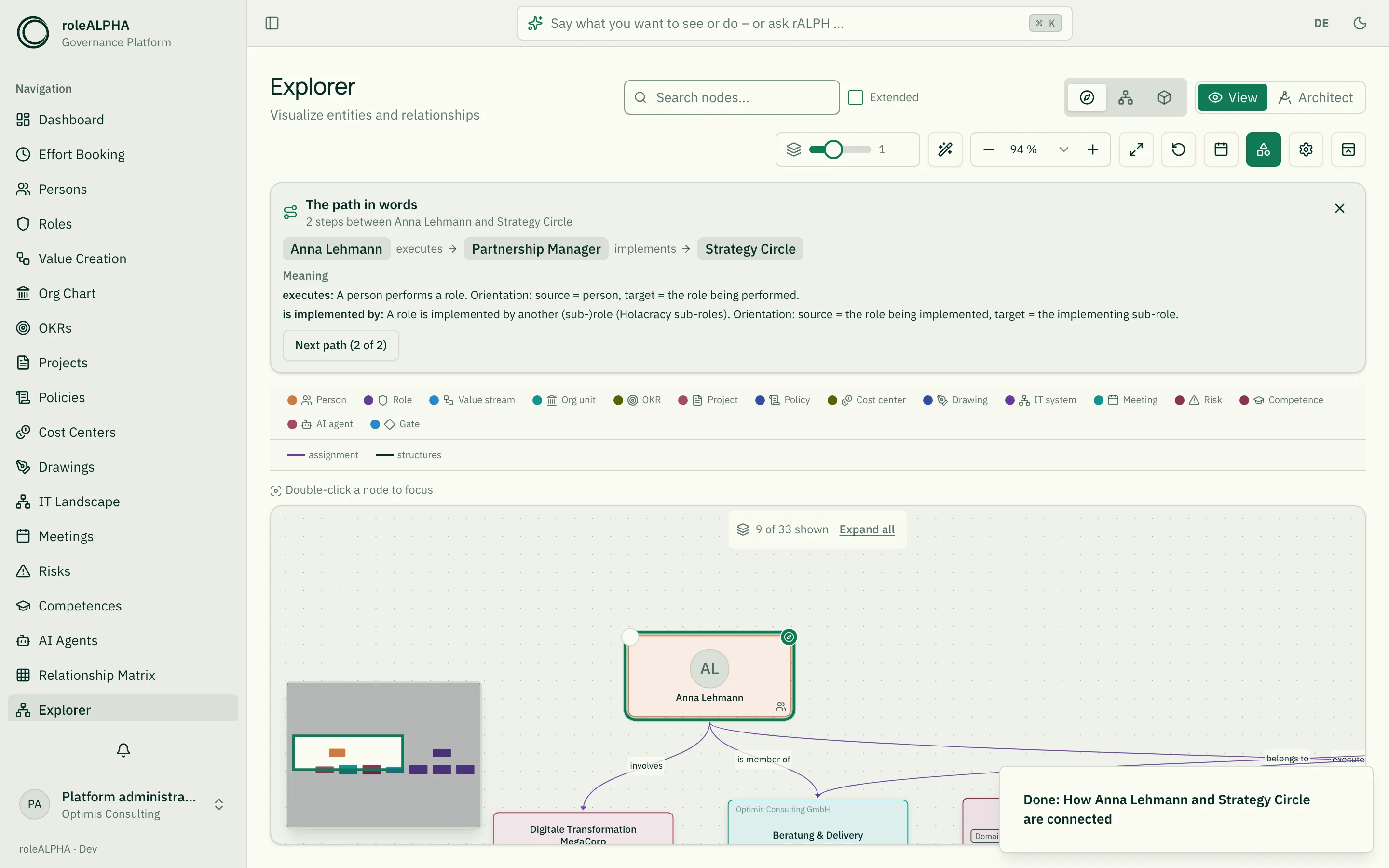
If there is no path within three steps, the message says so and offers “Search up to 6 steps”. A path never leads through anything you aren’t allowed to see.
When no fixed sentence fits
Section titled “When no fixed sentence fits”The table above only shows examples. If your sentence doesn’t match a fixed phrase – or says more than a fixed phrase can hold, such as “Filter for everyone who lives in London” –, the line asks the roleALPHA language model what you mean. When in doubt it would rather ask the model than take a sentence too literally – while you wait briefly, it shows “Understanding …”. If you press ↵ earlier, it runs as soon as the answer arrives.
The model only receives your sentence, the names of your tenant’s types and pages, the labels of the buttons and fields on the current page and – if you have selected something – how many entries of which types are selected; no content, no names. Names of people, roles etc. are then resolved by the line itself, just as with the fixed sentences.
If the model isn’t sure, the line shows “Not sure – two ways”: handing over to rALPH at the top, the model’s guess below. ↵ takes the safer way (rALPH); use ↓ to pick the guess. If the model’s only guess is “hand over to rALPH”, there is just that one way, and it is listed once.
Tenant administrators choose the model under Settings › AI › Models & keys › Command line. Without a choice it is the roleALPHA language model.
On the roleALPHA language model the line is included: no token costs, nothing taken from the AI budget, and it stays usable even when the AI budget has been reached. Another model costs tokens as in the chat; once the budget is reached, the line goes back to the roleALPHA language model.
What the open page can do
Section titled “What the open page can do”Besides the sentences above, the line understands what the page you have open offers – filters, tabs, time ranges, zoom. Say it the way you mean it; the preview shows what will happen first. These sentences are understood by the roleALPHA language model (the page tells it what it can do – it never receives content). They change nothing: they only choose what you see.
| Page | You say, for example … | What happens … |
|---|---|---|
| Explorer | “Zoom to 50 percent”, “Fit everything” | The view changes just like with the buttons at the bottom left. |
| Explorer | “Depth 2”, “Zoom to 50 %”, “Zoom to fit”, “Expand everything”, “Collapse all”, “Clear selection”, “Tidy up” | Like the slider and the buttons of the toolbar – without waiting, because no language model is asked. “Collapse all” is “Reset view”. |
| Explorer | “Time travel to March 1, 2026”, “three months ago”, “back to today” | The timeline opens on that day (see The relationship graph). |
| Explorer | “Show the scenario Sales restructuring”, “Show the 3D view”, “Hide the drafts” | Scenario overlay, view, open drafts. |
| Lists (roles, people …) | “Show the list as explorer”, “Remove all filters” | Switch the view, clear filters and search. |
| Detail view | “Open the relationships tab”, “Only show the relationships to roles” | Tab or section; with a type like a click on its tile. |
| Detail view | “Jump to the cost center”, “Edit” | The field is highlighted; the form opens (saving stays a click). |
| Drafts | “Only submitted drafts”, “Only relationships”, “Show the scenario Sales restructuring”, “Open the draft for Anna Berger” | Filters, scenario, open a draft; “Remove all filters” resets. |
| Audit log | “Only the last seven days”, “Only deletions”, “Only roles” | Time range (a chip with ✕ above the list), action, module. |
| Time tracking | “Show my efforts from last week”, “week 42”, “All efforts” | The list shows one week (chip with ✕). |
| Resource planning | “Show the utilization in December”, “Select the demand Cloud migration”, “At risk” | Tab, period, demand with its candidates. |
| Dashboard | “Customize the dashboard”, “Jump to the tile My assignments” | Customize mode; the tile is highlighted. |
| Settings | “Open the SSO settings”, on a settings page “Jump to the service accounts” | Open an area or jump to a section. |
| Governance, signals, automation, validation, reports | “Show the accepted findings”, “Open the gaps”, “Show the executions”, “Only my reports” | Tabs and filters of the page. |
| Data nodes, users, types, tickets, usage | “Only the active ones”, “Search Huber”, “All my tickets”, “The last 30 days” | Filter, search, time range. |
If a page does not know a value, the preview says “Not understood” or “Nothing found” – ↵ then does nothing. The sentences only apply while the page is open: resource planning understands “Show the utilization”, the dashboard does not.
Frequent actions in one click: handles and “All”
Section titled “Frequent actions in one click: handles and “All””Not everything needs a sentence. Next to the line there are up to three handles – the most frequent actions of the page, in the Explorer for example Types ▾, Depth 2 ▾ and Fit. In front is the page’s main action in green – on a module page such as Roles, + New role. A handle shows the current value; ▾ lets you pick another.
From a window width of 768 pixels, all actions of a page are here and in the bar – drafts, filter, select, import, the view and the controls of the circle view and the board. The page itself keeps the search, active filters and its content. On a phone the buttons stay on the page as usual.
All next to them opens a slim bar with all actions of the page below the top bar, sorted by what they act on: Selection (only when you have selected something), View, New (new entry, ⌥ N, and – for admins – Import, ⌥ I), Image. Every entry shows an icon and a word. When space is tight, the words go first: the entries show only their icon – point at one to see its name and shortcut, just like in the collapsed sidebar. If there is room left, the first entries keep their word. Only what does not fit even as an icon is under ⋯ more. The bar stays open until you close it – even after a reload. From the keyboard, ⌥ M (Windows: Alt + M) opens and closes it.
- Pin: right-click an entry of the bar and choose Pin next to the command line – it becomes a handle (replacing the last one). Unpin in the same menu removes it again. This applies per page.
- Shortcuts: every entry shows its shortcut, e.g. ⌥ S for depth (Alt + S on Windows). If the action has values, the shortcut opens its menu. Shortcuts do not work inside an input field.
- Echo: after each click a short note says how to do it faster – “Key ⌥ S · or say “depth 2"".
The sidebar on the left starts collapsed: you see the icons of the areas, the name appears when you point at one. If not all icons fit on a small screen, scroll the sidebar as usual. ⌘ B (or Ctrl + B) or the button at the top left expands it with names; it stays that way until you collapse it again.
When a name is ambiguous
Section titled “When a name is ambiguous”If there is, say, an org unit and a role “Sales”, the line doesn’t guess. It asks “Which one do you mean?” and lists all matches with their type. Pick with ↑ / ↓ and ↵. A type word before the name makes it unique: “Show the role Sales”.
If a match sits in a hierarchy, its path appears above its name, just like on the card in the explorer: for example “General Company Circle › Partner Circle” above “Lead Link”. That tells apart roles of the same name in different circles, units in different areas, or subprojects. A long path shows its last three levels; hover over it to see the whole path. The same goes for the suggestions after ”@”.
When you make a typo
Section titled “When you make a typo”If the line can’t find a name exactly, it looks for similar ones: “open Ana Bereger” shows “Did you mean?” with Anna Berger. It never picks on its own – even with just one similar name, you choose it with ↵. Short input (under five characters) and names that are too far off still give “Nothing found”.
Exactly this entity: @ mention
Section titled “Exactly this entity: @ mention”Type @ and the first letters of a name, and the line lists matching entities with their type. Pick one with ↑ / ↓ and ↵ (or Tab, or a click) – the sentence then reads “@Sales”. From then on the sentence means exactly this entity, even if the name exists more than once: “Expand @Sales Lead”, “How is @Oskar Dohrau connected to @Sales value chain?”. Escape closes the suggestions without inserting anything. If you delete “@Name” from the sentence, the link is gone again.
Simple questions are answered by the line itself
Section titled “Simple questions are answered by the line itself”Questions such as “Who is responsible for data protection?”, “Which roles does Sales have?” or “How many people work in Vienna?” are answered by the roleALPHA language model right below the line. It looks things up – only in the areas released for AI, and only what you are allowed to see. The card lists the entries it found (click to open), and offers “Show in Explorer” and “Continue with rALPH”.
Tenant administrators set how many look-up steps a simple question may take (default: 3). If that isn’t enough, the card says so and offers rALPH.
Everything else goes to rALPH
Section titled “Everything else goes to rALPH”Anything that wants to assess, compare, propose or plan is passed on to rALPH. rALPH answers right below the line, in a conversation panel; sentences like “Plan …” start in plan mode and create drafts for approval. If AI is switched off for your tenant, the line only understands the fixed sentences from the table above and answers no questions.
While a conversation is running, the line shows the badge ”✦ in conversation” in front:
- Follow-ups: just type them into the same line – they go into this conversation.
- A clear command (“Show only roles”) still acts on the page right away; the conversation stays open. To hand the sentence to rALPH instead, press ⌘↵ (Ctrl+↵).
- Esc closes the panel, the conversation stays – a click on the badge brings it back. On the empty line, Esc (or the × on the badge) ends the conversation; the next question starts a new one.
- Full screen opens the same conversation on the rALPH page.
- rALPH shows you things directly: when you want to see something (“show me the unfilled roles in the Explorer”, “how is Anna connected to Sales?”), rALPH puts a card with the steps under its answer and runs them right away – views only, never changes. “Back to where you started” undoes it, “Run again” repeats it; for a card from an older conversation use “Run”. A card only runs by itself if it stays on your page – if it would take you to the Explorer, for example, it waits for your click (“Changes the page – runs only on click”). The card tells you what really happened: “Done” only once all steps have run – otherwise “Stopped at step 1: …” with the reason. rALPH can also close the detail view, go back or scroll; what it can’t do (pressing a button, for example), you type into the line.
- When rALPH asks back, the question and its answers appear right below the line, and the badge reads “rALPH asks back”. A digit or ↑ / ↓ and ↵ picks an answer; if you keep typing, that is your own answer. In plan mode the conversation docks itself as a column on the right: the question and its answers are there to click, without clicking the badge first. This applies to this conversation only; if you undock, it stays undocked. On narrow screens the panel below the line opens instead.
- Creating or changing something also works from a question: if your sentence wants to change something, rALPH switches to plan mode by itself – without asking. There it only creates drafts that apply once approved; the badge shows “Plan”, and the note sits below your message. “Ask only” below it stops rALPH and keeps you asking.
- Files: drag a file onto the line (or use the paper clip). It appears below the line in the Goes along strip and goes to rALPH with your sentence – as a follow-up in the running conversation, otherwise as a new one. Fixed sentences and the own model don’t read files; with an attachment the sentence therefore always goes to rALPH.
- Goes along: everything that goes to rALPH with your sentence – files, the reference to a plan step, the marker “Plan … · to rALPH” and, in the explorer, selection and section – appears below the line in the Goes along strip, each with ×. The line itself only shows a counter (⊕ 3) so your sentence always stays readable; a click on it opens the line.
With Dock in the panel’s header, the conversation sits as a column to the right of the page – the page makes room, and you keep typing in the line. Your browser remembers this; Undock brings it back below the line. While docked, Esc doesn’t end the conversation – that’s what the × on the badge is for. On a phone the line is a ✦ symbol in the top bar; tapping opens it across the full width.
When you click into the empty line, you also see your latest conversations with rALPH below “Recent”; a click reopens one below the line, “All conversations” leads to full screen. At the bottom, Tab chooses whether the next conversation is a question (Ask only) or a plan (Plan (drafts)). You don’t have to choose: if a question wants to change something, rALPH switches to the plan by itself anyway.
Planning with rALPH
Section titled “Planning with rALPH”In the line’s plan mode, a plan made of drafts takes shape that you see step by step in the explorer, check and submit for approval – see Planning with rALPH.
Changing things by sentence
Section titled “Changing things by sentence”The line carries out clear changes itself – with a preview of what changes. ↵ is then the click.
| You say … | Preview |
|---|---|
| “Create a relationship between Anna Berger and Data protection coordination” | which relationship is created, in which direction |
| “Rename Inside Sales to Inside Team” | name before → after |
| “Set the cost center of Network operations to 4711” | field and new value |
| “Create a new role Data protection” | type and name |
| “Delete the role Network operations” | what is deleted |
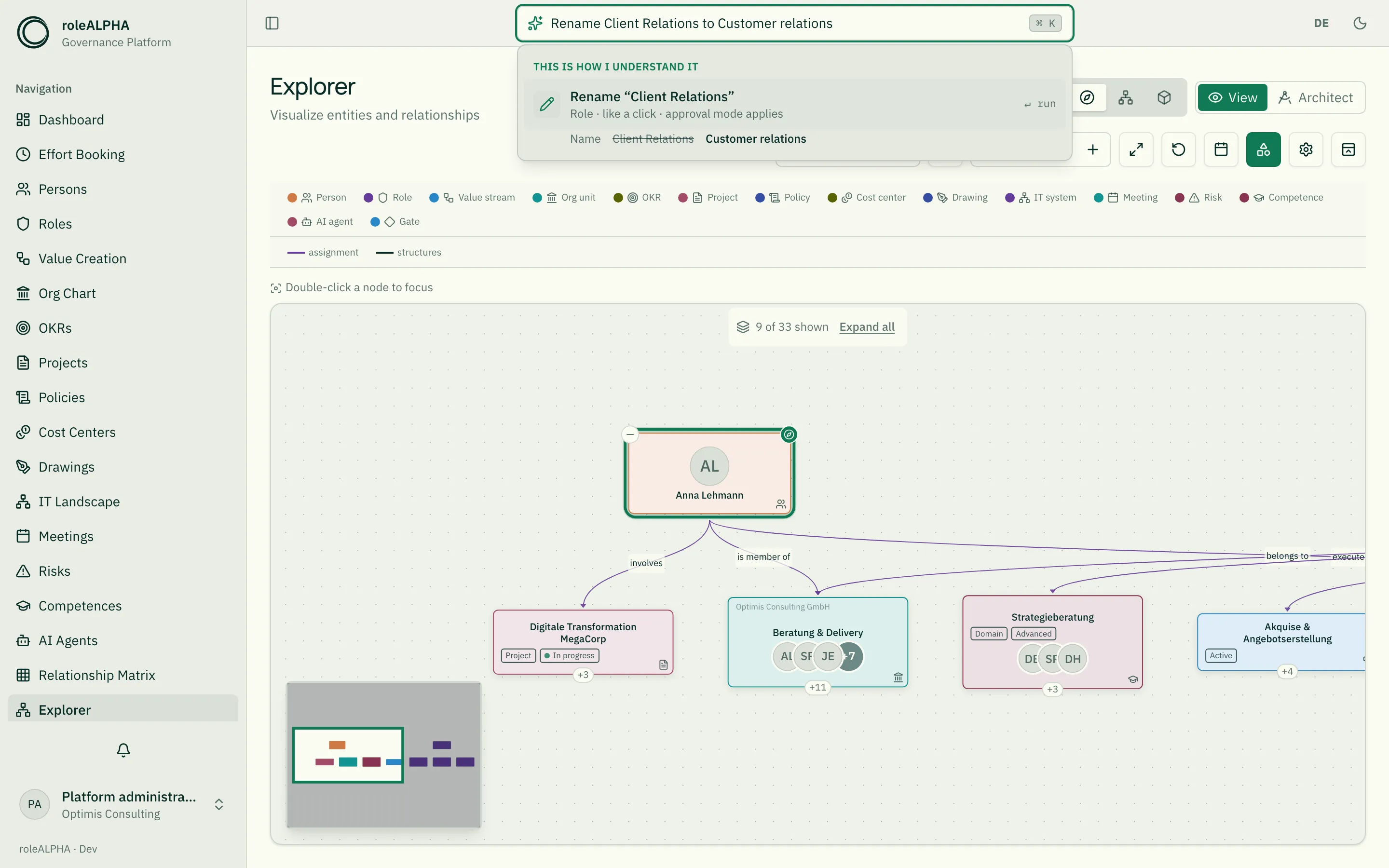
Clear means: every name matches exactly one entry, and exactly one relationship, field and value fit. If two relationship types fit, the line asks “Which relationship do you mean?”. If a value doesn’t fit the field (say, a status that doesn’t exist), it shows the allowed values to choose from. A field that doesn’t exist is named together with the fields that do.
Saving works exactly like a click: your rights and the approval mode apply – depending on that, the change applies immediately or is submitted for approval; the message says which. In scenario mode it goes into the scenario.
Creating pre-fills fields like the form does, such as the subtype. If the type has required fields your sentence doesn’t name (for a role, say, purpose and accountabilities), the preview shows “Still missing: …”, and ↵ creates the entry as a draft only – it is not submitted. You find it under Drafts, fill in the fields there and then publish it.
Deleting needs a second confirmation: ↵ alone never deletes, only ⌘ ↵ or Ctrl + ↵. For several entries a dialog asks as well. Deleted entries can be restored via time travel as a draft.
Anything beyond a clear command – such as “Delete all roles without a person” – is handled by rALPH in plan mode.
“This one” – what you have selected
Section titled ““This one” – what you have selected”Instead of naming something, you can point at what is currently selected: “delete this”, “rename this to Inside Team”, “show me its details”.
| Where | What “this” means |
|---|---|
| Explorer | the selected cards (drag a frame, see The relationship graph) |
| List (in selection mode) | the ticked entries |
| Detail view | the entry you are looking at |
If you have selected cards in the Explorer of the detail view, those count.
| You say … | What happens … |
|---|---|
| “Delete this”, “Delete the selected ones”, “Lösche die markierten” | Preview with everything selected; deleted only with ⌘ ↵, with several after a confirmation. |
| “Rename this to Network”, “Set the cost centre of this to 4711” | Changes the one selected entry. |
| “Show me its details”, “Zeig mir die Details davon” | The detail page opens. |
| “Expand these”, “Klappe die auf” | The selected cards expand – like “Expand” in the bar below them. |
| “Collapse these”, “Klappe die zu” | The selected cards collapse again. |
| “Add the people of these” | The selected cards expand, and people are shown if they were hidden. |
| “How is this connected to Anna Berger?” | The path between the selected entry and Anna Berger. |
| “How are these two related?”, “Connect these two” | With exactly two selected: the path or a relationship between them. |
| “Nimm die markierten als Anker dazu” | The selected entries become starting nodes of the Explorer (at most six). |
If a sentence needs exactly one entry (details, rename) and you have selected several, the line asks “Which one do you mean?”. If nothing is selected, it says “Nothing selected” – select something or say the name.
Buttons, tabs and fields by sentence
Section titled “Buttons, tabs and fields by sentence”Anything on the page that has a name – buttons, tabs, switches, selects, input fields – can be operated by sentence too. The line looks at the page only at the moment you type.
| You say … | What happens … |
|---|---|
| “Click Timeline” | The “Timeline” button is pressed. |
| “Open the Relations tab” / “Switch to 2D tab” | The tab is selected. |
| “Turn connection labels on” | The switch goes on – if it already is, the line says so. |
| “Select 3D” | The entry is selected. |
| “Set zoom level to 50%” | The “Zoom level” select gets the value. |
| “Type Sales into search” | “Sales” is in the search field. |
| „Klicke auf Einpassen”, „Schalte die Beschriftung aus”, „Trage in Suche Vertrieb ein” | The same in German. |
| “Edit”, “Legend on”, “Minimap off”, “show relationships” | Short works too: just the name, with “show”/“open” in front or “on”/“off” behind. You don’t need to say the number on a tab (“Relationships 9”). |
| “show as circle” | A value of a menu in the bar (here: View) is chosen. |
| “zoom in”, “full screen”, “open filter” | Common words for entries of the bar: “full screen” is “Maximise”. |
What counts is the name you see on the page (or that a screen reader reads out). If the same name appears twice, the line asks “Which control do you mean?”. A greyed-out button that can’t be used right now is not pressed.
Buttons that change something are never pressed by ↵ alone. For “Save”, “Delete”, “Submit”, “Approve” and the like, the line shows “Would press ‘Delete’” – only ⌘ ↵ or Ctrl + ↵ really presses it, just like deleting by sentence. The same applies to switches that save a setting immediately.
Entries in list rows, tables and cards are not operated this way – use “Show …”, “Details of …” and changes by sentence for those.
Speaking instead of typing
Section titled “Speaking instead of typing”On the right of the line there is a microphone. Hold it to speak; release it and the sentence is recognised and appears in the line – with the same preview as when typing. It only runs with ↵, never while you speak. A short click starts recording, a second one stops it; after 30 seconds it stops by itself. Esc discards the recording.
Without the mouse, use ⌥⌘K (Mac) or Ctrl+Alt+K (Windows, Linux) – from any page, just like the microphone: hold and speak, or tap to start and tap again to stop.
Recognition uses the roleALPHA language model in the EU. The recording is transmitted only for that and stored nowhere. The microphone appears when AI is active for your tenant and the platform has set up speech recognition; the first time, the browser asks for permission.
Recent
Section titled “Recent”When the line is empty you see your last sentences under “Recent” and can run one again. They are stored only in your browser, per account, at most eight. Switching tenants deletes them – sentences from one tenant never show up in another.